BOOK 15/25Customers & promotions
Members & loyalty
Manage member profiles, loyalty points, membership tiers, coupons, and LINE notifications from the “Member Center (CRM)” menu on the staff/admin side. Customers view their own points/coupons and scan to claim points through the member app after logging in with LINE.
Staff / admin side (managing members)
Open “Member Center (CRM)” + check access
Go to the “Manage” menu and choose “Member Center (CRM)” — the page has 5 tabs: Members, Overview, Best Sellers, Coupons/Birthday, LINE Broadcast.
You can open this page with at least one of: settings.manage, member.manage, coupon.manage, points.adjust — but individual buttons/features are still gated to their own specific key even once you're in. E.g. the points-adjust button still needs points.adjust (or settings.manage) specifically to be clickable.
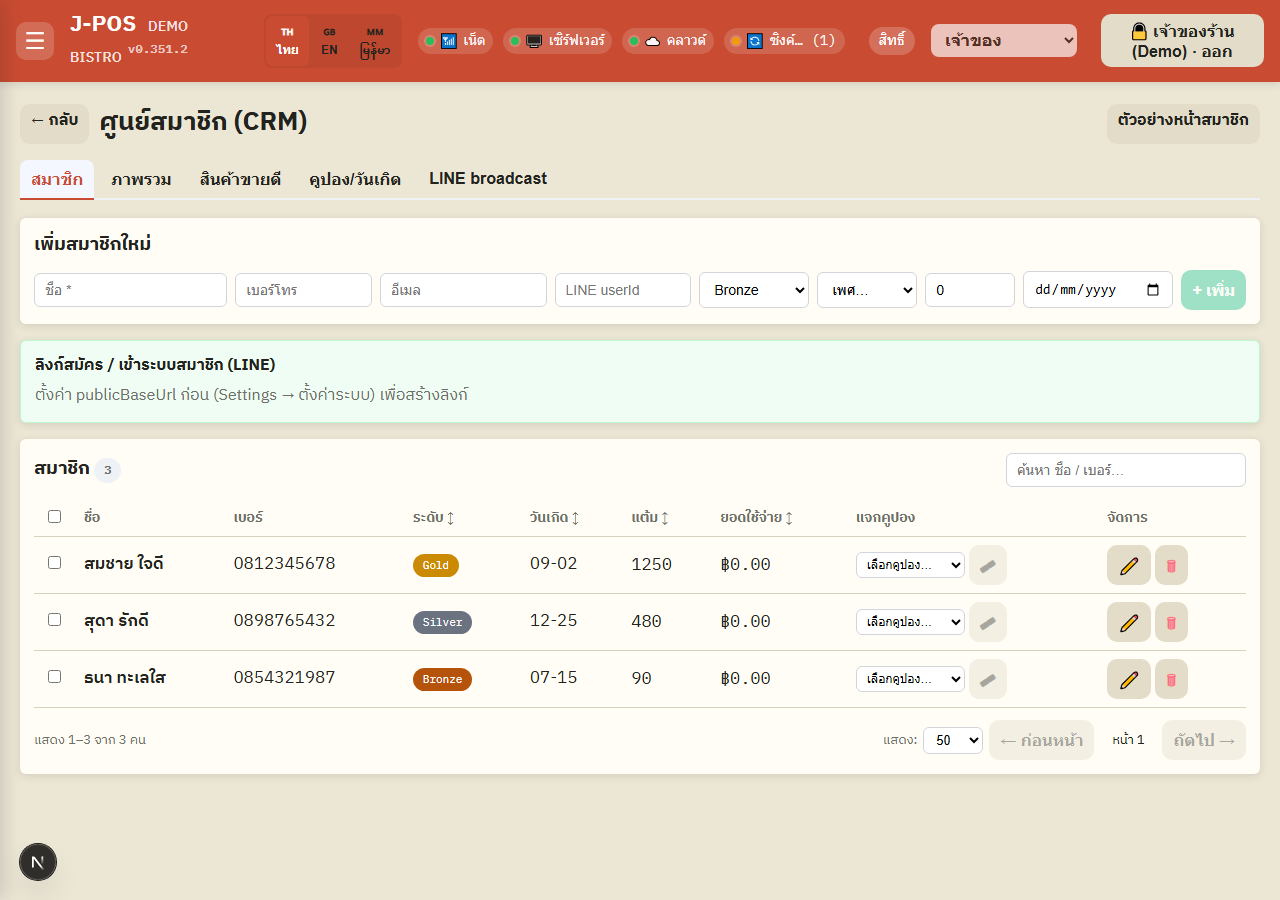
Open full size Add a new member
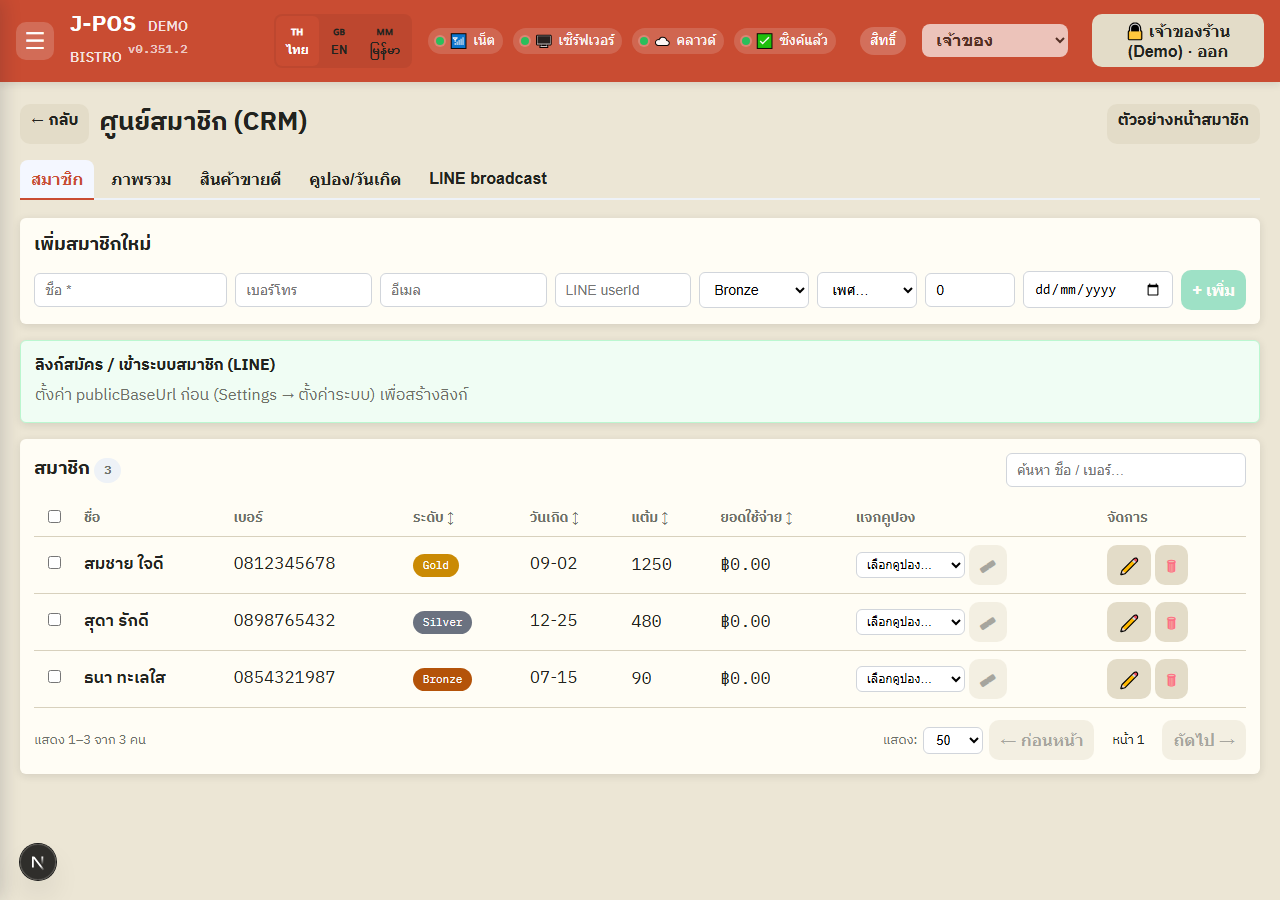
Fill in the form above the table: name (required), phone, email, LINE userId, starting tier, gender, starting points, birthday, then press “+ Add”.
Every field except name is optional — you can add a member with no LINE userId yet (the customer links it themselves the first time they log into the member app).
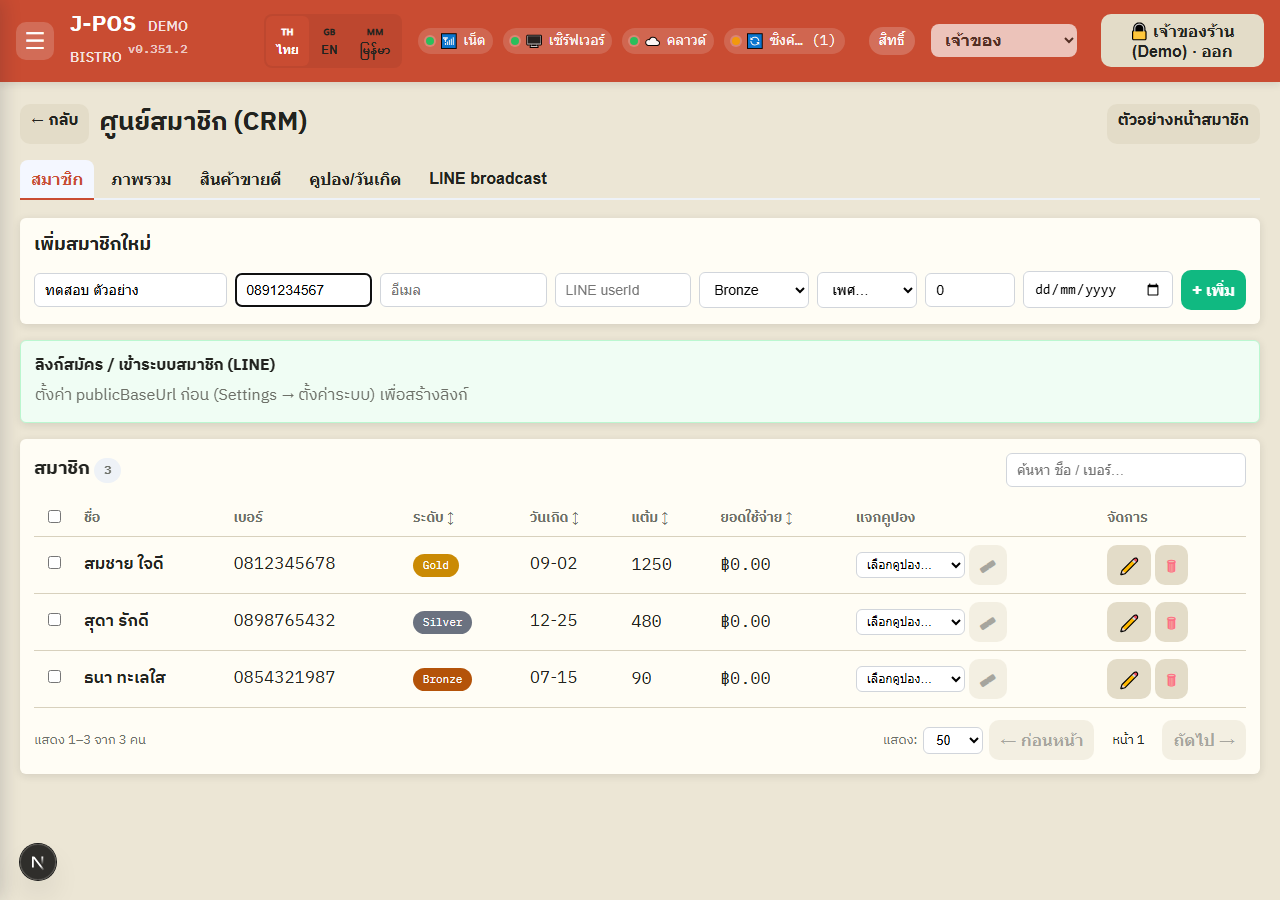
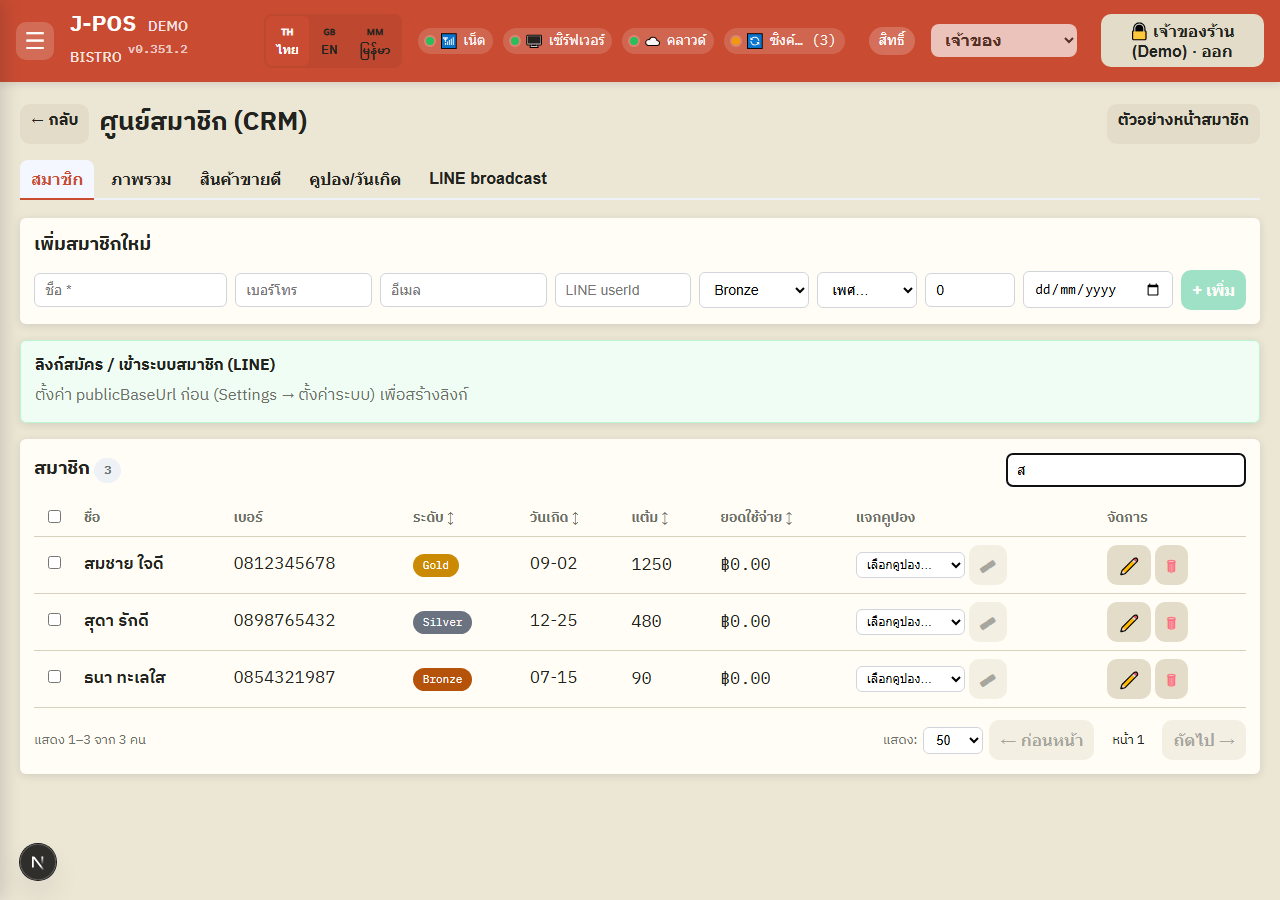
Open full size Search / sort / paginate the member list
Type a name or phone number in the search box — it filters automatically about 0.3s after you stop typing (searched server-side, not filtered from data already loaded in the browser).
Click a column header (birthday / points / tier / total spend) to sort; click the same column again to flip ascending↔descending — page size and page number controls are below the table.
Open full size Open / edit a member's profile
Click the pencil icon on a row to open the detail popup — edit name/phone/email/tier/gender/birthday/birth year all in one window, then press “Save”.
Editing the “Points” field on this form is an absolute overwrite — no reason or log is recorded. This is different from the “Adjust points” button in the next step, which always requires confirmation and is always logged. Use this form only for initial setup/data import, not for day-to-day point adjustments.
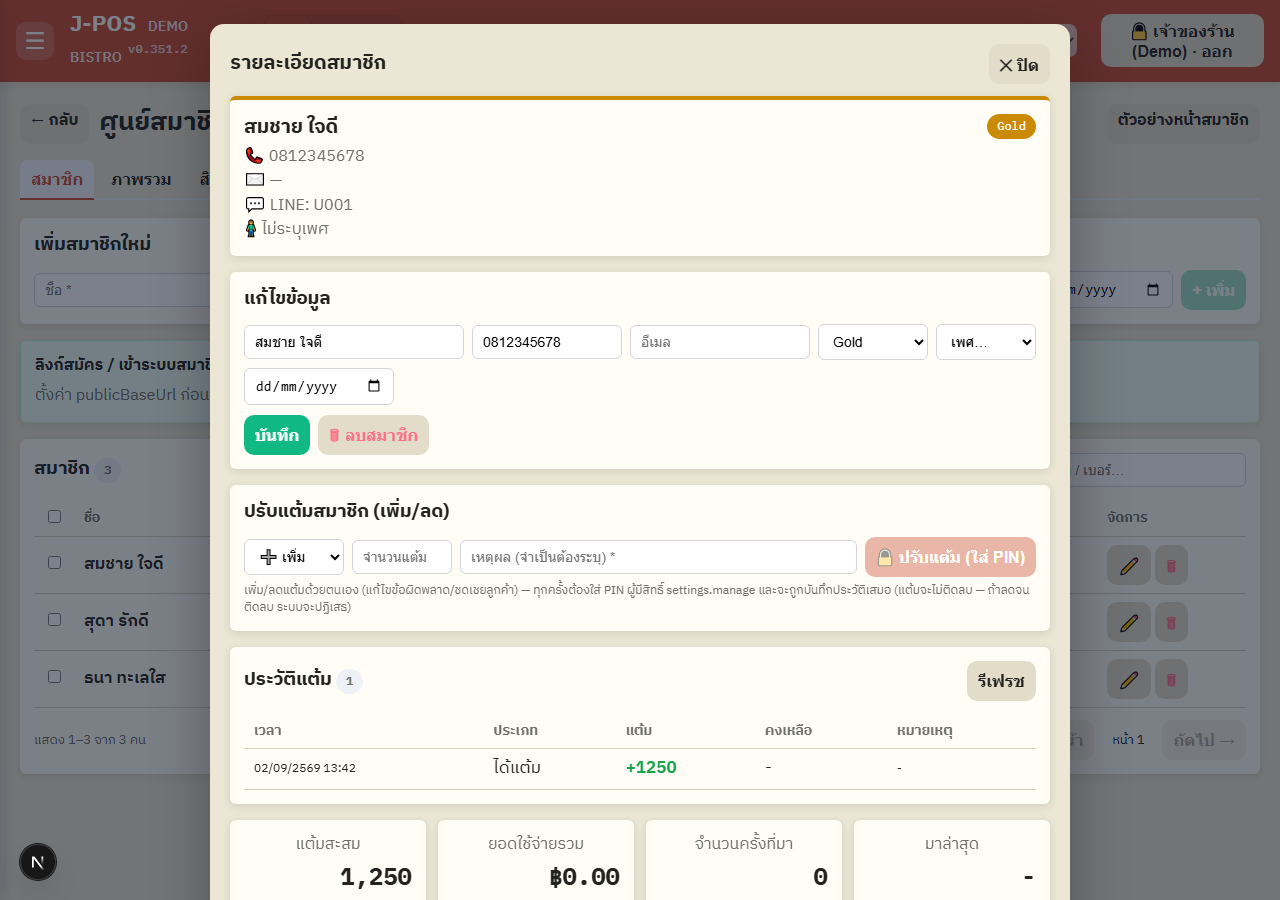
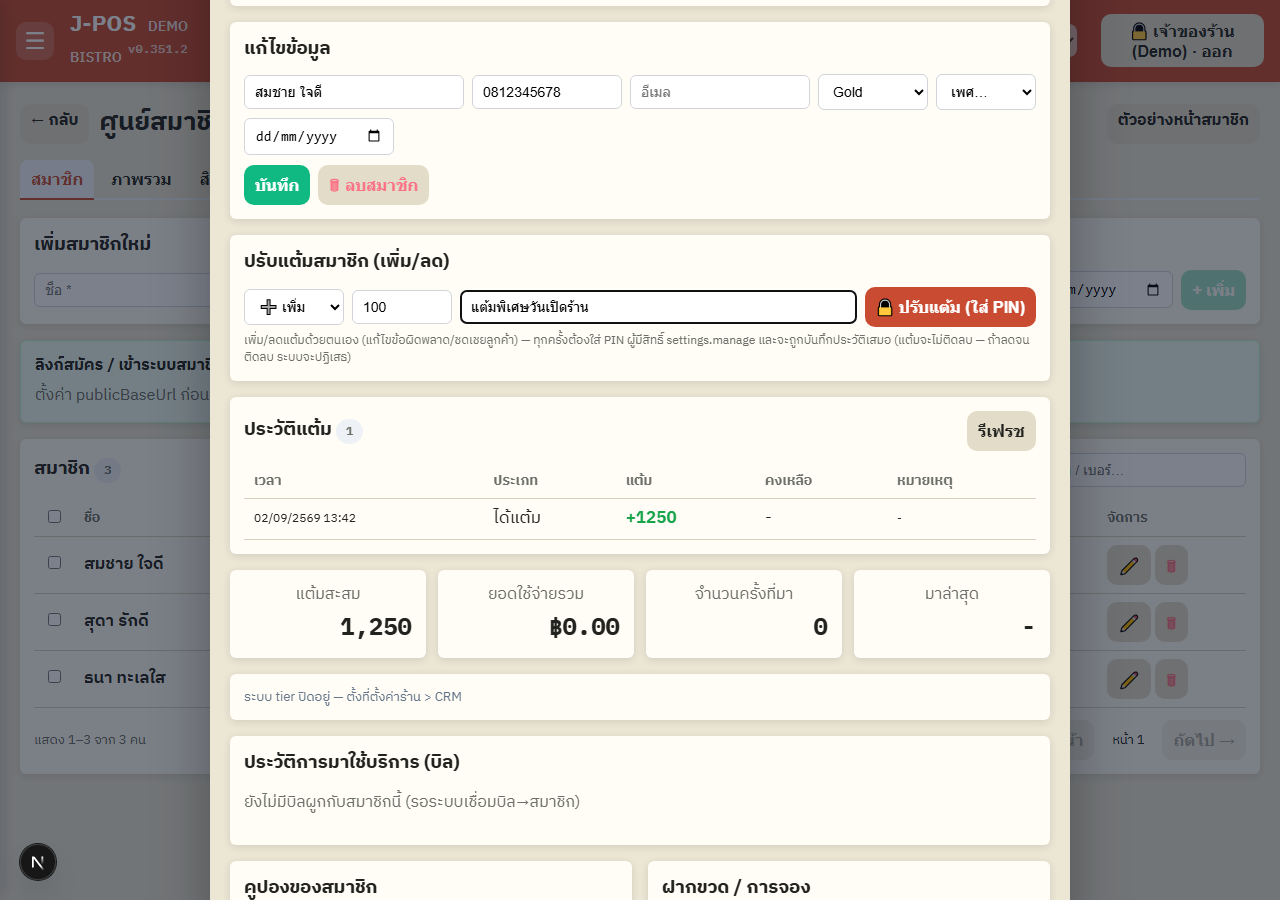
Open full size Manually adjust points (+/-) with PIN
In the same popup, pick a direction (“Add” or “Subtract”), enter the point quantity (always entered as a positive number) and a reason (required), then press the adjust button.
The system always asks for the PIN of someone holding settings.manage before actually saving (a step-up re-confirmation). If subtracting would push the balance negative, the whole action is rejected rather than partially applied — e.g. a member with 30 points and a requested −50 gets an error, not a clamp down to 0. You must enter a smaller amount before it will go through.
Open full size Review the points ledger and bill history
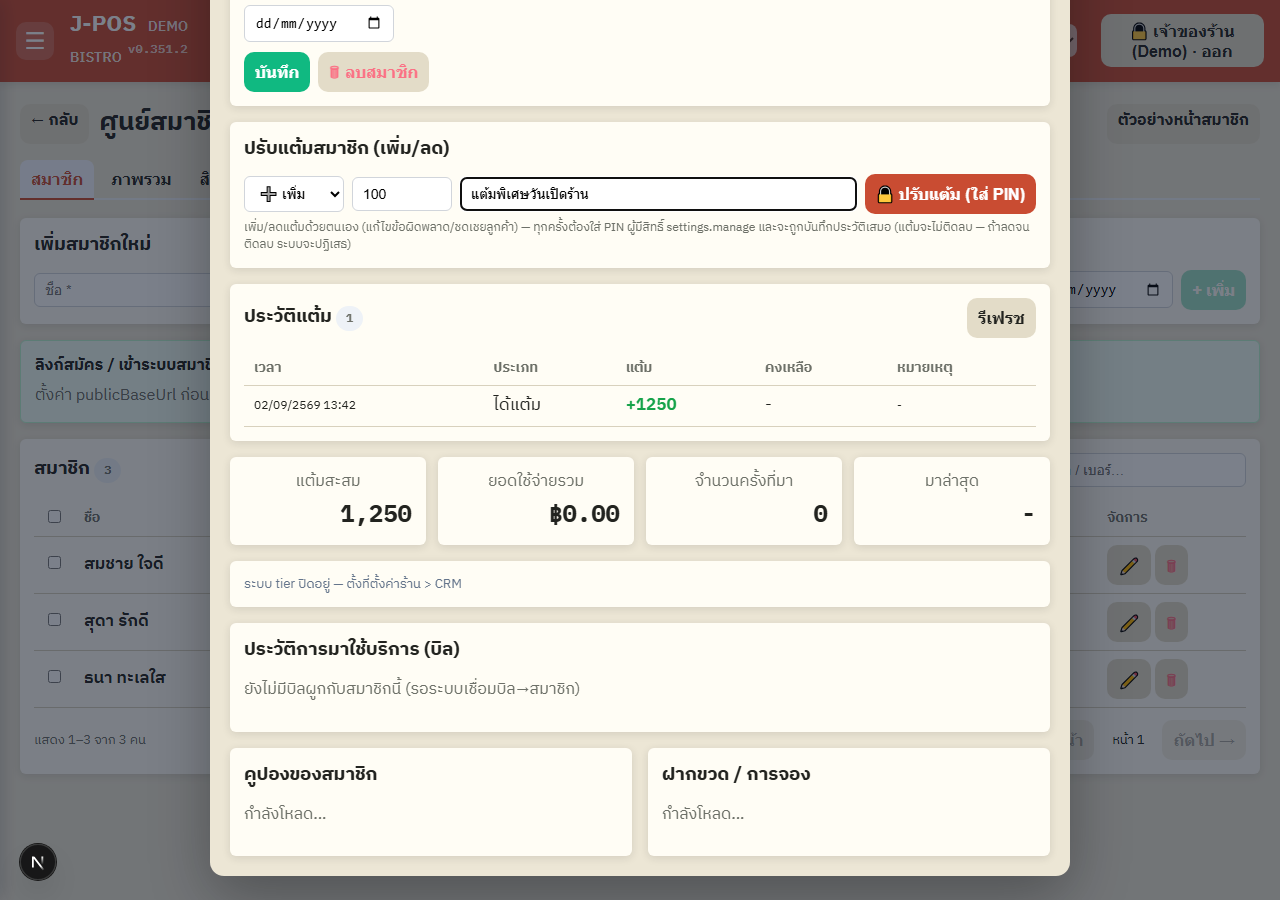
Scroll down in the same popup to see the “Points ledger” (earn / manual adjust / spend, each row showing the before/after balance) and the “Bill history” for this member.
Both lists are fetched fresh from the server every time this member's popup is opened — never a stale cached view.
Open full size Delete a member / bulk-select multiple members
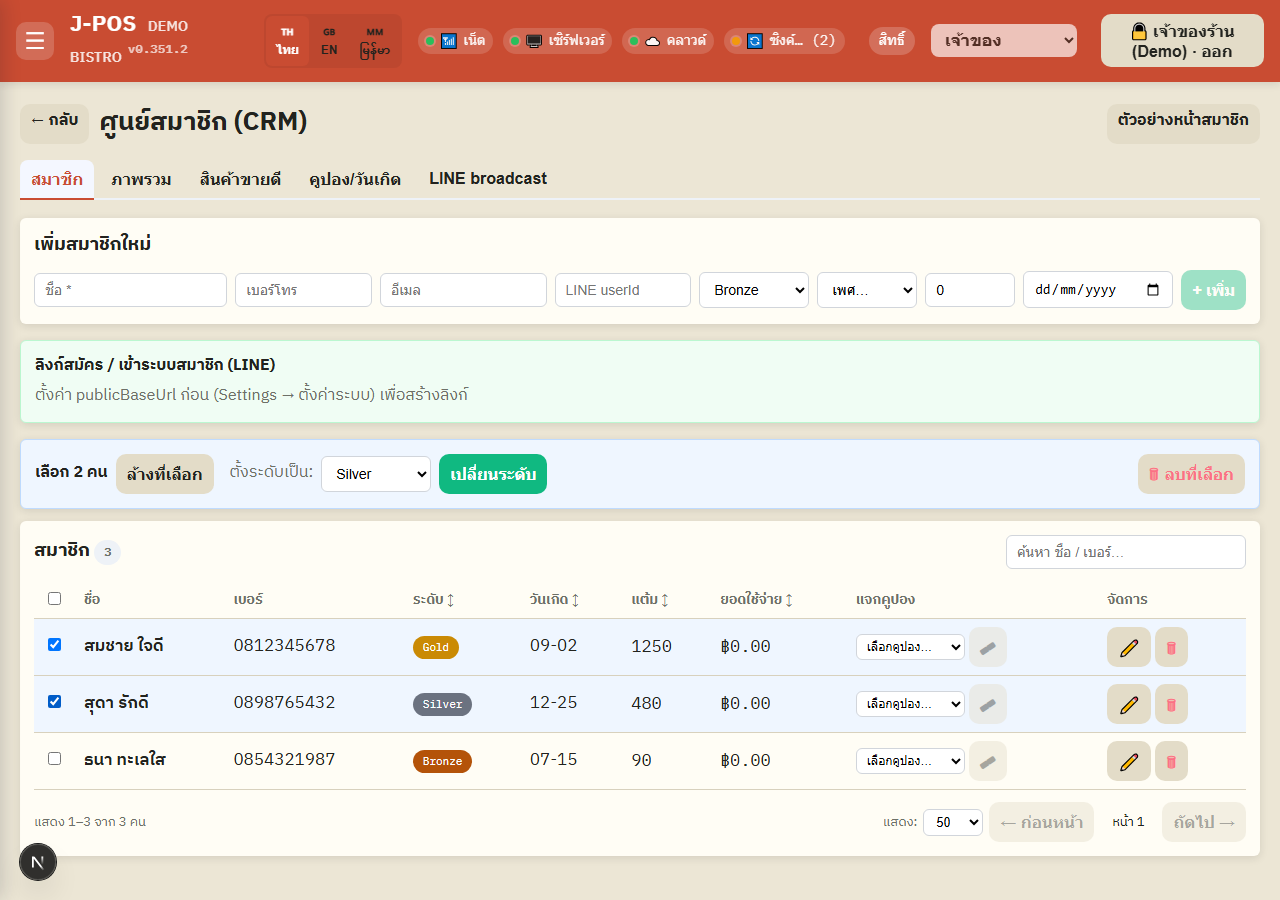
Press the trash icon on a row to delete one member at a time (their granted coupons are deleted along with them) — the system always asks for confirmation first.
Check the box on the left of multiple rows (or the header checkbox to select the whole page) to open the bulk action bar below the table — delete several members at once, or set the tier (Bronze/Silver/Gold) for everyone selected in a single click.
Open full size The “Overview” and “Best Sellers” tabs
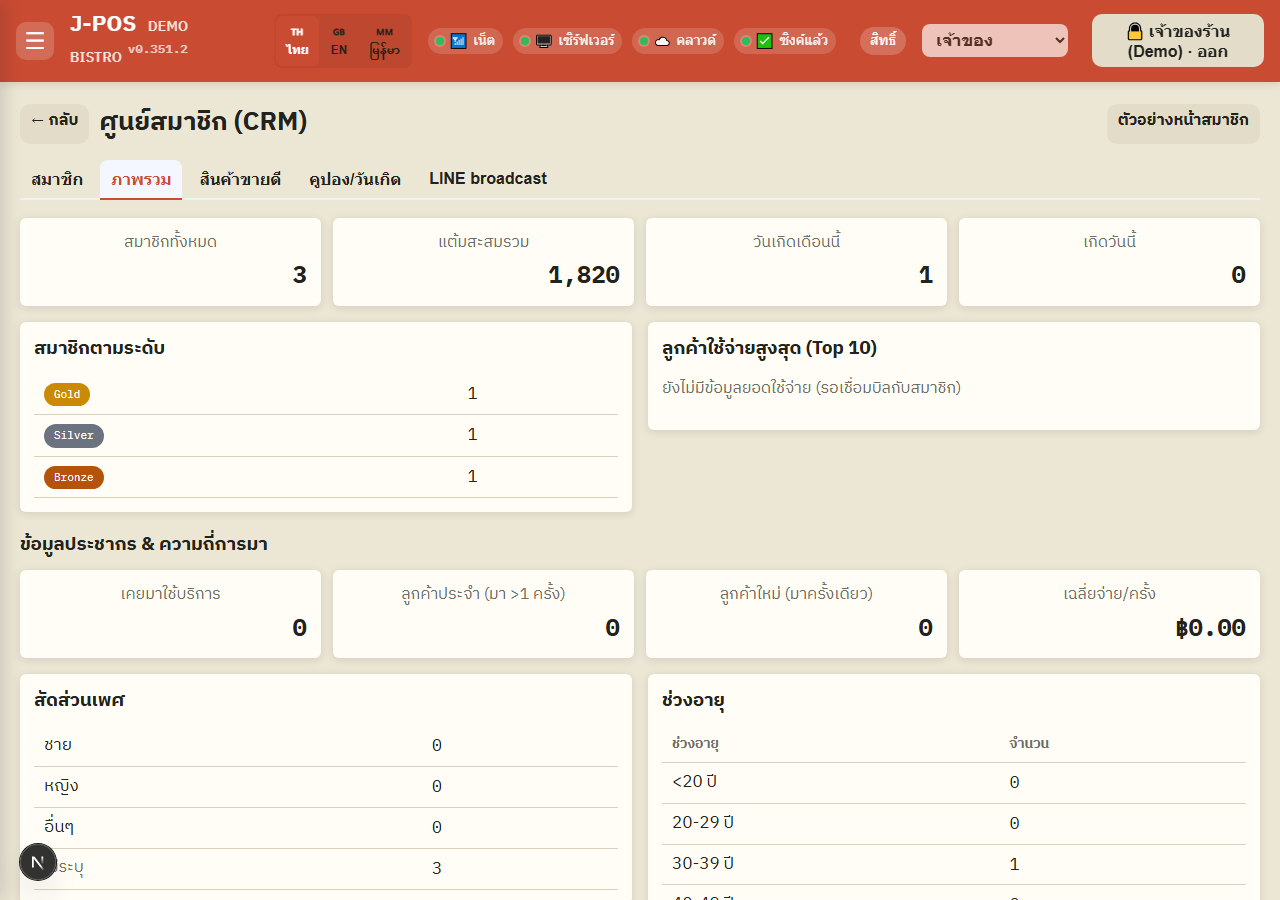
The “Overview” tab summarizes member counts per tier, total points across the system, members with a birthday today and how many this month, the top 10 spenders, and visit-frequency stats (one-time vs. returning visitors, average spend per visit) — also broken down by gender/age bracket.
The “Best Sellers” tab shows the top-selling menu items from real bill data system-wide, loaded page by page — press “Load more” for the next 20 items.
Open full size Create/edit a coupon and grant it to a member
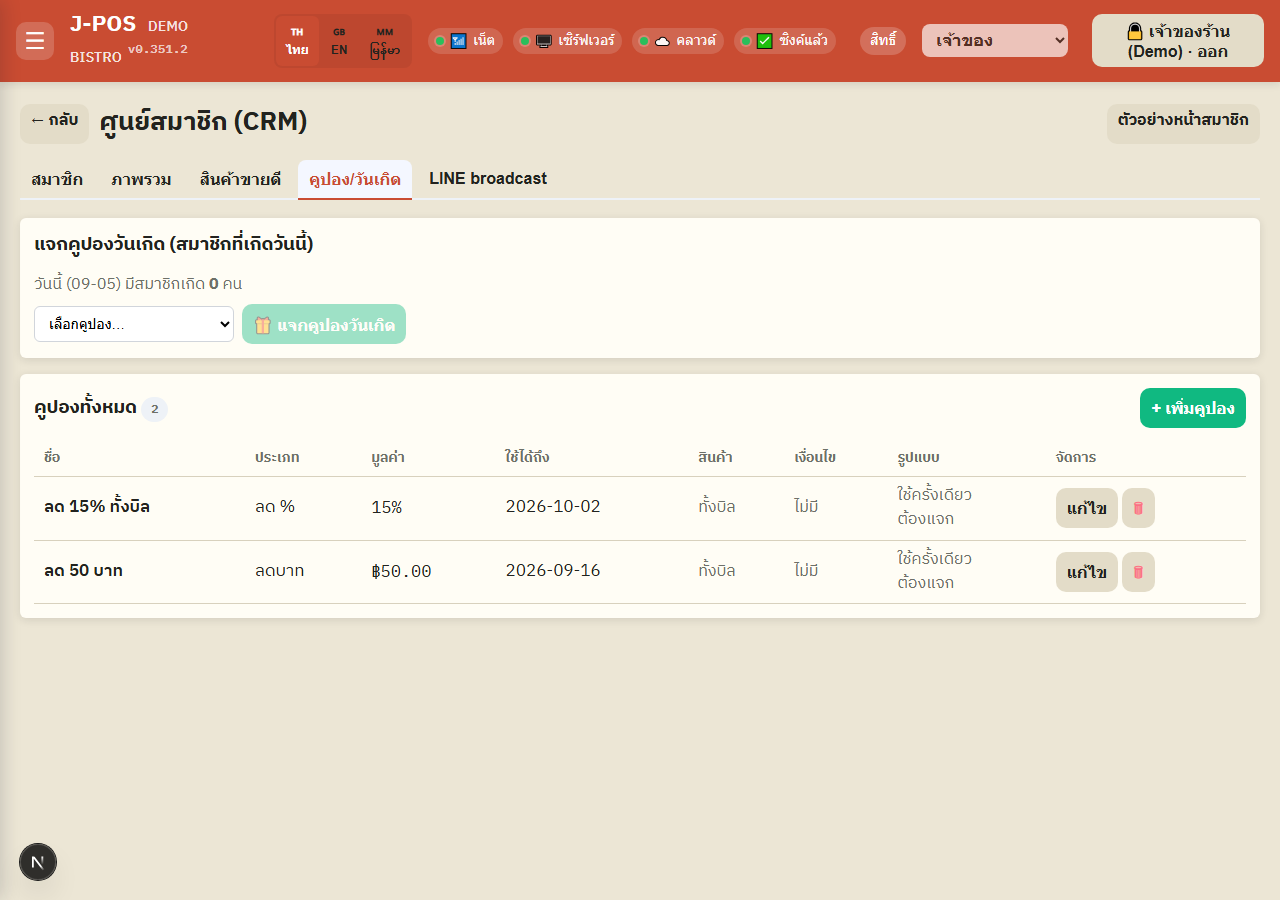
On the “Coupons/Birthday” tab, press “+ New coupon” to open one unified form covering: discount type (% off, fixed amount off, free item), scope (whole bill, or a specific selected menu item/category/group), expiry date, single-use vs. reusable, granted-only vs. visible to every member, the points cost to redeem it, which membership tier(s) may use it, and a birthday-only window restriction.
Back on the “Members” tab, pick a coupon from the dropdown on that member's row and press the grant icon — the coupon appears in that customer's member app immediately.
Open full size LINE broadcast and automatic notifications
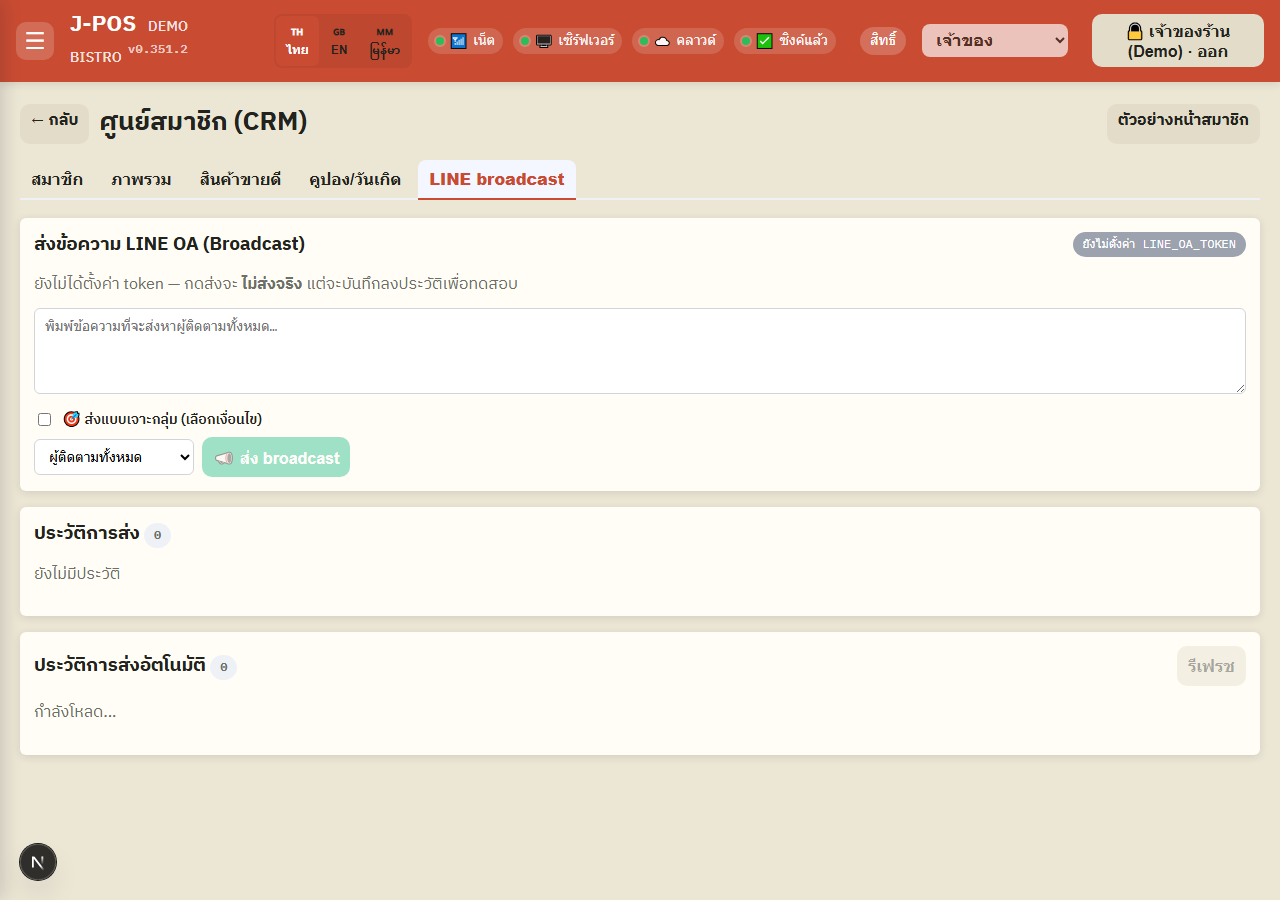
The “LINE Broadcast” tab sends a message to every member with LINE linked, or to a filtered segment by age range / gender / birth month / spend range / days since last visit — turning on the targeted mode shows an estimated recipient count before you actually send.
Below it are a send-history view and a log of automatic notifications (birthday, birth month, points expiring soon, bottle-keep expiring soon) the system fires on its own per your settings — nothing to press here.
Open full size Customer sign-up link / QR code
Above the members tab is a link + QR code box for customers to scan into the member app — you must set publicBaseUrl under the “Settings” menu first, or you'll see a prompt to configure it instead of a working link/QR.
Press “Copy link” to copy it elsewhere (a flyer, a table-top sticker, etc.) — on a browser that doesn't support automatic clipboard copy, a prompt box opens instead so you can copy it manually.
Open full size Configure tiers and loyalty points (lives under the “Settings” menu)
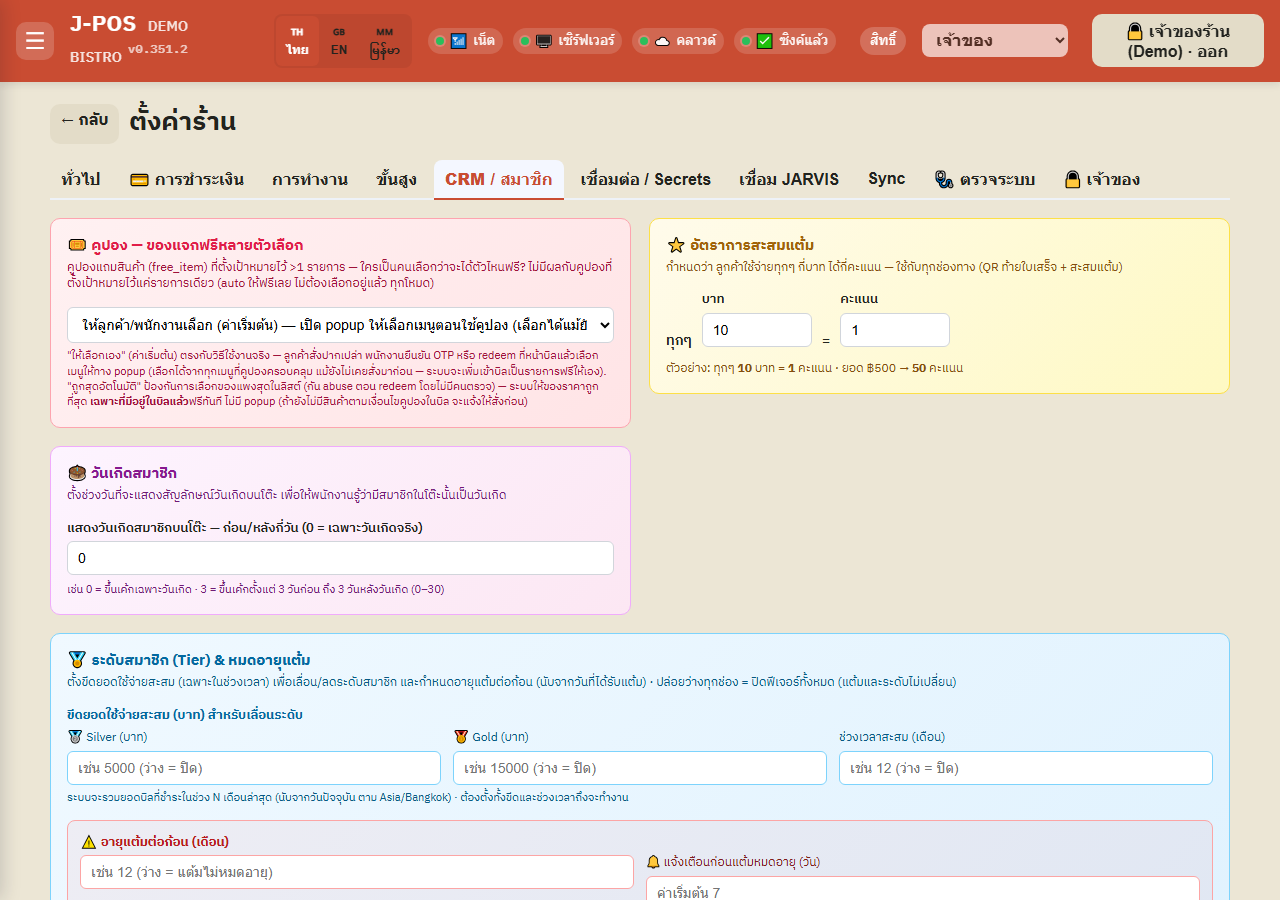
The Silver/Gold spend thresholds, the window of time that spend is measured over, the earn rate (how many baht spent = how many points), how many months before points expire, and how many days of advance warning before expiry — none of these are set from the Member Center page; they all live under “Settings” → the “CRM / Members” tab → the “Tier & points expiry” section.
If the tier thresholds aren't fully configured (both the spend amount and the time window), tier is never auto-computed at all — it only ever changes when staff edits it manually.
Open full size
Customer side (the member app via LINE)
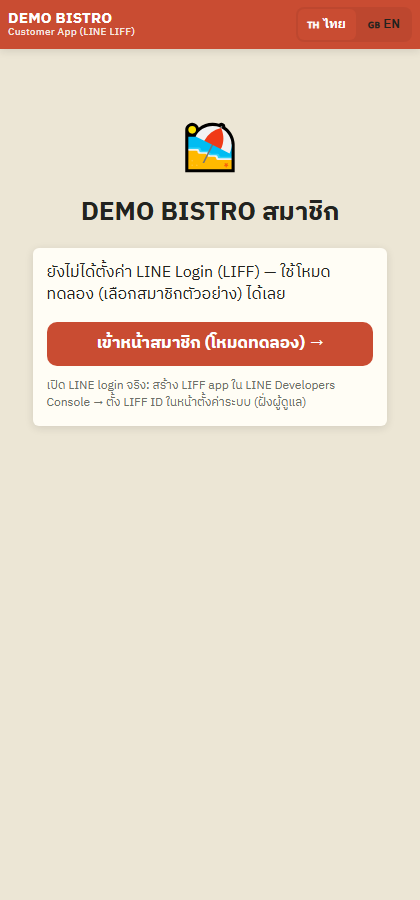
Log in with LINE + fill in details the first time
The customer opens the member app link and logs in with LINE. If they've never entered a phone number/birthday before, a popup forces them to fill in a mobile number (starting with 06/08/09 followed by 9 digits) and a full date of birth before it will close and let them continue — email is optional (if LINE already has one on file it's pre-filled, but still editable).
Until both are filled in, this popup reopens over the whole screen every time the app is opened — it can't just be dismissed.
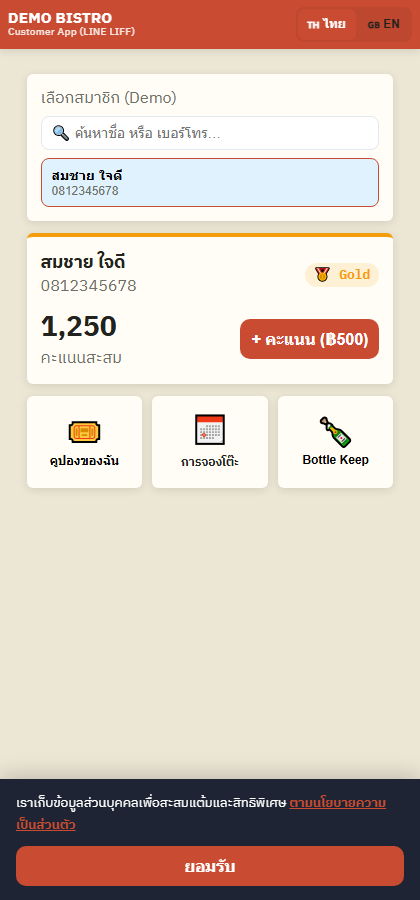
Open full size Member home: points, tier, and expiry warnings
After logging in, the customer sees a member card with their name, phone number, tier (the card's top border color changes per tier), and a large point balance in the middle.
If the shop has FIFO points expiry turned on and any lot is nearing its due date, a red warning bar shows exactly how many points are about to expire and the date — below it are 3 icon buttons: My Coupons, Reserve a Table (goes to the full page), and Bottle Keep — tapping Coupons or Bottle Keep opens a popup.
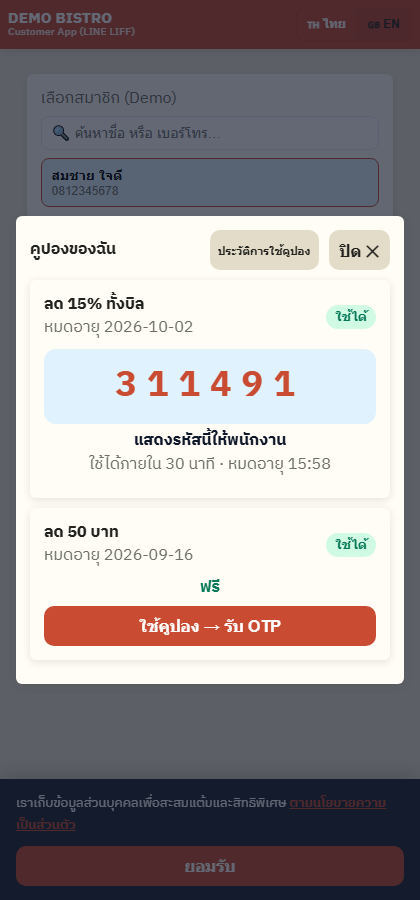
Open full size Redeem a coupon → get an OTP code
Each “valid” coupon card shows the points cost to redeem it (or “Free” if there's none). Pressing “Use coupon → Get OTP” issues a 6-digit code to show to staff, valid for 30 minutes.
If the member doesn't have enough points for a points-cost coupon, the button is disabled with a “Not enough points” message. Coupons tagged “For all members” or “Reusable” show that badge right on the card, and a “Coupon history” link shows only coupons actually already used.
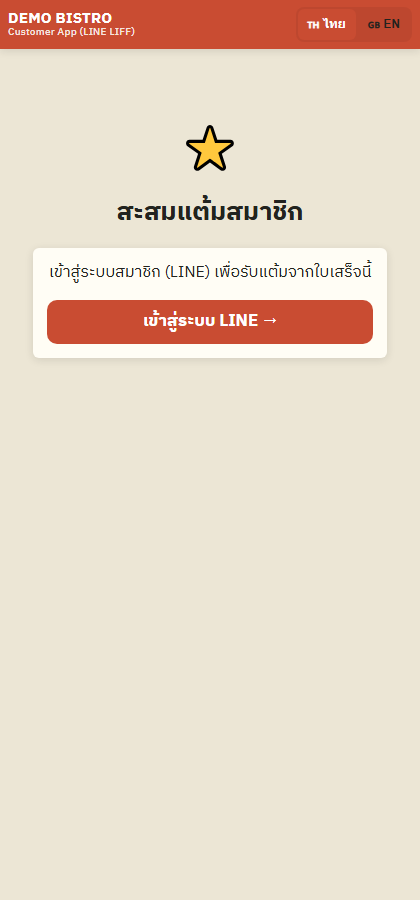
Open full size Scan the receipt QR to claim points
After staff closes the bill and prints the receipt, it carries a “Collect points” QR code — scanning it opens this page. If the customer is already logged in with LINE, points are claimed automatically with no extra tap, along with a popup summarizing the points just earned and the new total.
If not logged in yet, the customer is sent to LINE login first, then automatically brought back to this page to finish claiming once login succeeds.
Open full size
Common points of confusion
Tier can auto-compute — and will overwrite whatever staff just set manually
If the auto-tier feature is turned on in Settings (Silver/Gold minimum spend + a rolling time window), tier is recomputed from the member's spend inside that window every single time one of their bills closes successfully — if staff just manually changed a tier from the edit-member popup or the bulk “set tier” button, that value gets overwritten the very next time this member's bill closes, as long as the feature is on. If the thresholds aren't fully configured (both the Silver/Gold amounts AND the month window), tier is never touched automatically at all — it only ever changes by manual edit.
Manual point adjustment vs. editing the points field — different mechanism, different trail
Editing the “Points” field directly on the edit-member form is an absolute overwrite — no reason, no log of any kind. It works, but it isn't recommended for day-to-day adjustments. The “Adjust points” (+/-) button is a relative increment/decrement that always requires a reason and always requires PIN confirmation — every single use is written to an auditable points ledger. Default to the adjust-points button for routine work.
Duplicate phone numbers are allowed — the system doesn't block them
Nothing checks whether the phone number entered when adding/editing a member is already used by someone else — two different members can be created with the exact same phone number, with no warning at all. If you need uniqueness, check for it yourself before adding (search that phone number in the search box first).
Points expire FIFO, lot-by-lot by earn date — not all at once as a lump balance
When points expiry is enabled (a number of months, set in Settings), each individual lot of points has its own expiry date based on the day it was earned plus that many months — not based on the total balance or the member's last visit. Redeeming/spending always eats the OLDEST surviving lot first (FIFO), so new points never expire alongside old ones. The actual destructive expiry cut runs once per day, from the in-shop machine ONLY (never the standby/cloud instance), and only during the shop's configured operating hours — if the shop machine stays off all day, that day's cut is simply skipped until the machine is next online.
A voided bill after the customer already got a coupon OTP releases the coupon — no points lost
From the moment a customer requests a coupon OTP until the bill actually closes, the coupon sits in a “reserved” state with no points actually deducted yet — deduction only happens at successful bill close. If that bill gets voided/cancelled before it closes, the coupon is automatically released back to “available” for the customer to use again, and no points were ever deducted.
A “reusable” coupon comes back immediately after bill close — unlike a normal one
A normal (single-use) coupon becomes permanently “used” the moment its bill closes successfully — it needs to be granted again before it can be used again. A coupon marked “reusable” instead snaps straight back to “available” the moment its bill closes, so the same member can keep using it over and over with no re-grant needed (its points cost, if any, is still deducted every single time it's used).
Coupon and Bottle Keep OTP codes both last exactly 30 minutes — and a fresh code instantly kills the old one
Both the coupon-redeem code and the bottle-withdraw code are 6-digit codes valid for 30 minutes from the moment the customer requests them. If time runs out before staff enters it, it shows as “expired” and the customer must request a new one from the same screen. Requesting a second code immediately invalidates the previous one, even if that previous code still had time left on its own 30-minute window.
The Demo member picker in the customer app doesn't exist in production
The member-picker screen and the “+ points (฿500)” shortcut button visible in this sandbox/demo's customer app only appear when the demo-mode flag is turned on, purely so testing doesn't require a real LINE login. The real production storefront has neither of these — real customers only ever get in through an actual LINE login.