BOOK 14/25Menu & stock
Receiving & purchasing
All day-to-day stock operations live in one tabbed hub: receiving stock into inventory (with optional AI bill reading), an auto-calculated order plan, waste logging, a simple quick-PO form, and import/export of core data as Excel/CSV — the physical stock count vs system feature is a separate page, see the "Stock check" help module.
Receiving (bring stock into inventory)
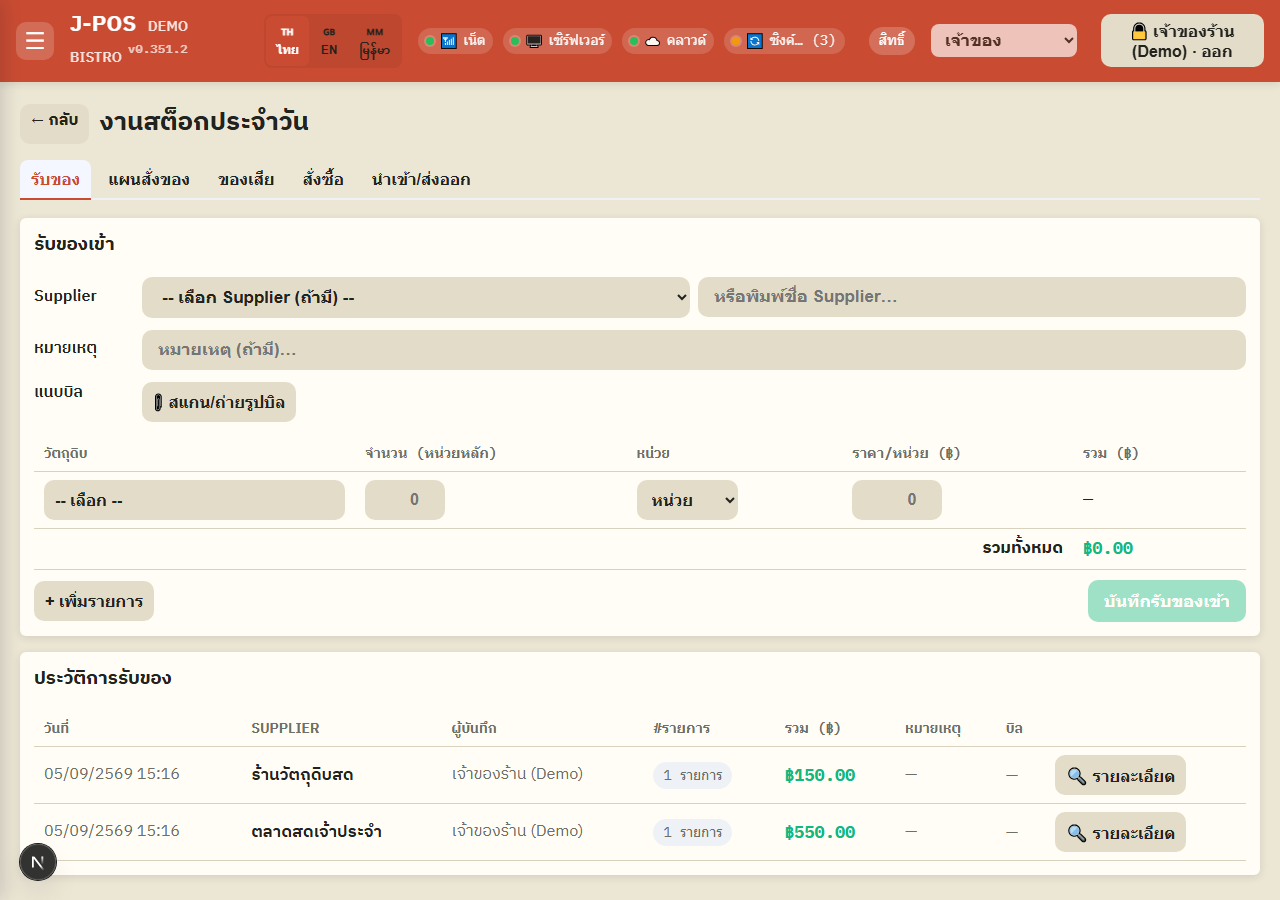
Fill in supplier, note, and attach the bill
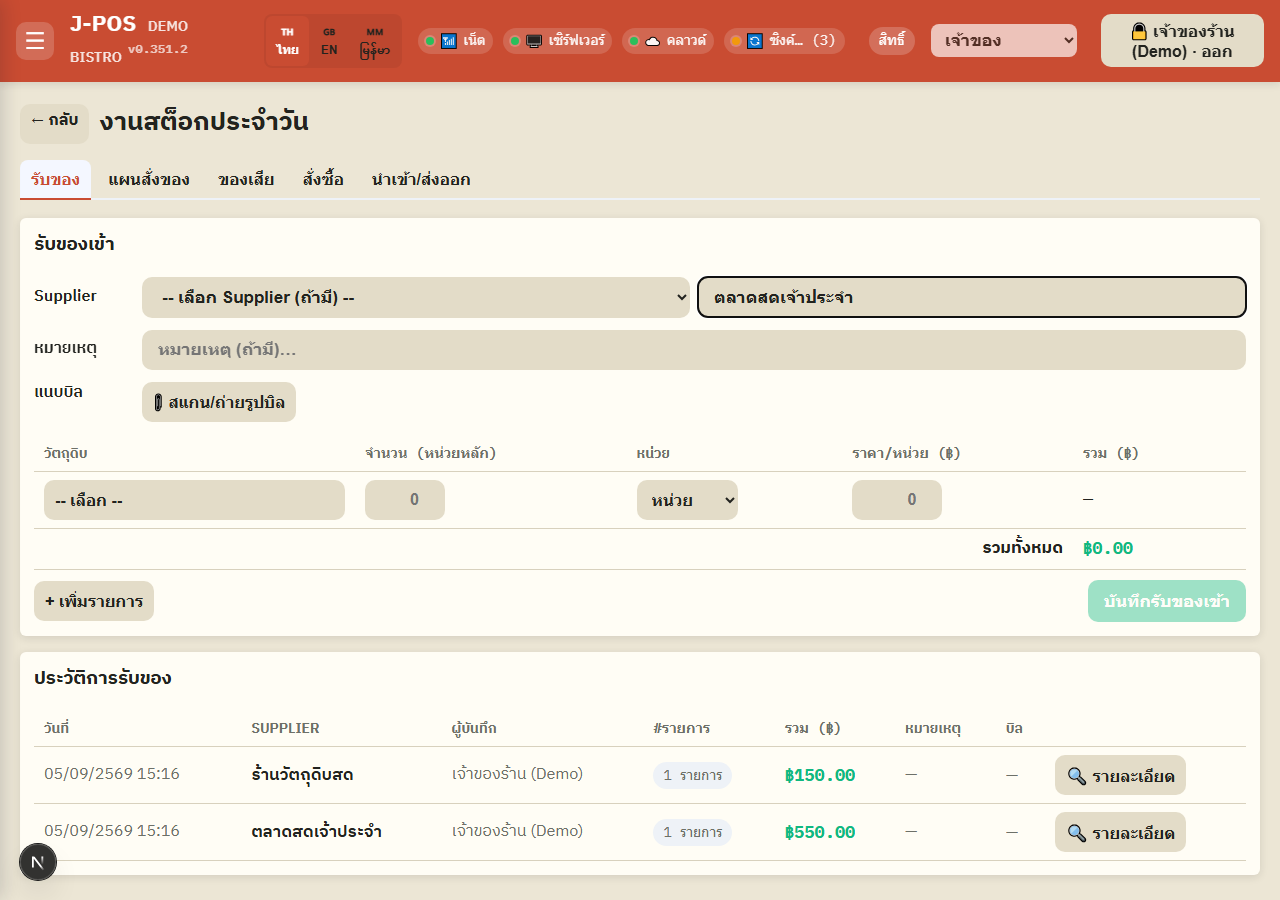
Pick a supplier from the existing list, or type a name freehand if it's not in the system yet (pick one or the other — choosing from the dropdown after typing clears the typed name).
A note is optional. You can also attach a photo or PDF of the actual bill — it's kept as a reference and also feeds the AI auto-read feature in the next step.
Open full size Auto-extract line items from the bill with AI (optional)
After attaching a bill, press "Extract items from bill (AI)" — it reads the product names, quantities, units, and prices from the image/PDF straight into the line-item table, tries to match each one to an existing ingredient, and guesses the supplier name too.
It reports how many items were extracted, how many matched an ingredient, and how many still need you to pick the ingredient manually (the still-empty rows).
Open full size Enter or fix line items by hand
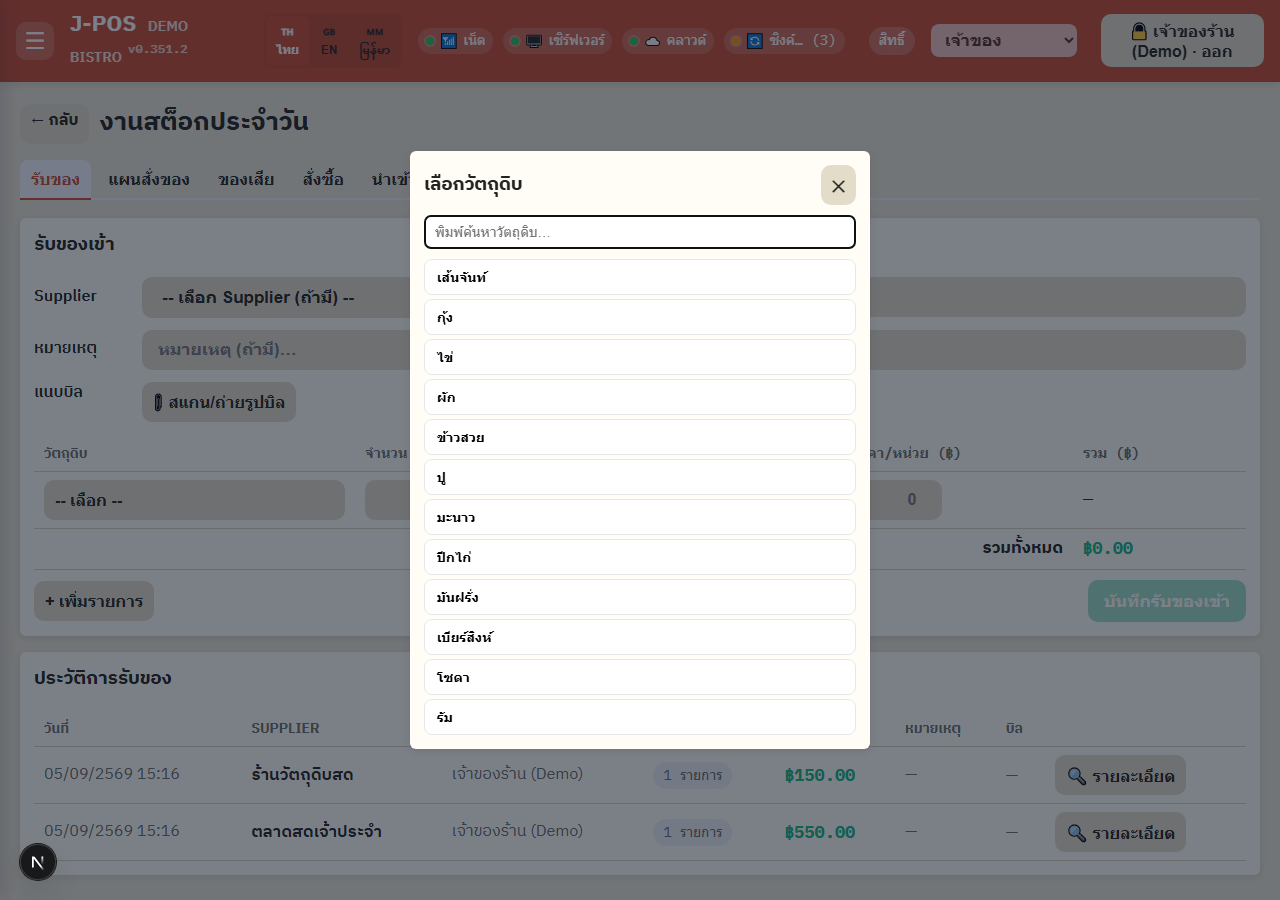
Tap the ingredient picker to open a search — type a name (Thai/English/Myanmar all work) and pick from the list. Once selected, the unit field auto-fills with that ingredient's held (receiving) unit.
Enter quantity and unit cost; the line total and grand total update instantly. Use "+ Add line" to add another row, or ✕ to remove one (at least one row must remain).
Open full size Save the receipt
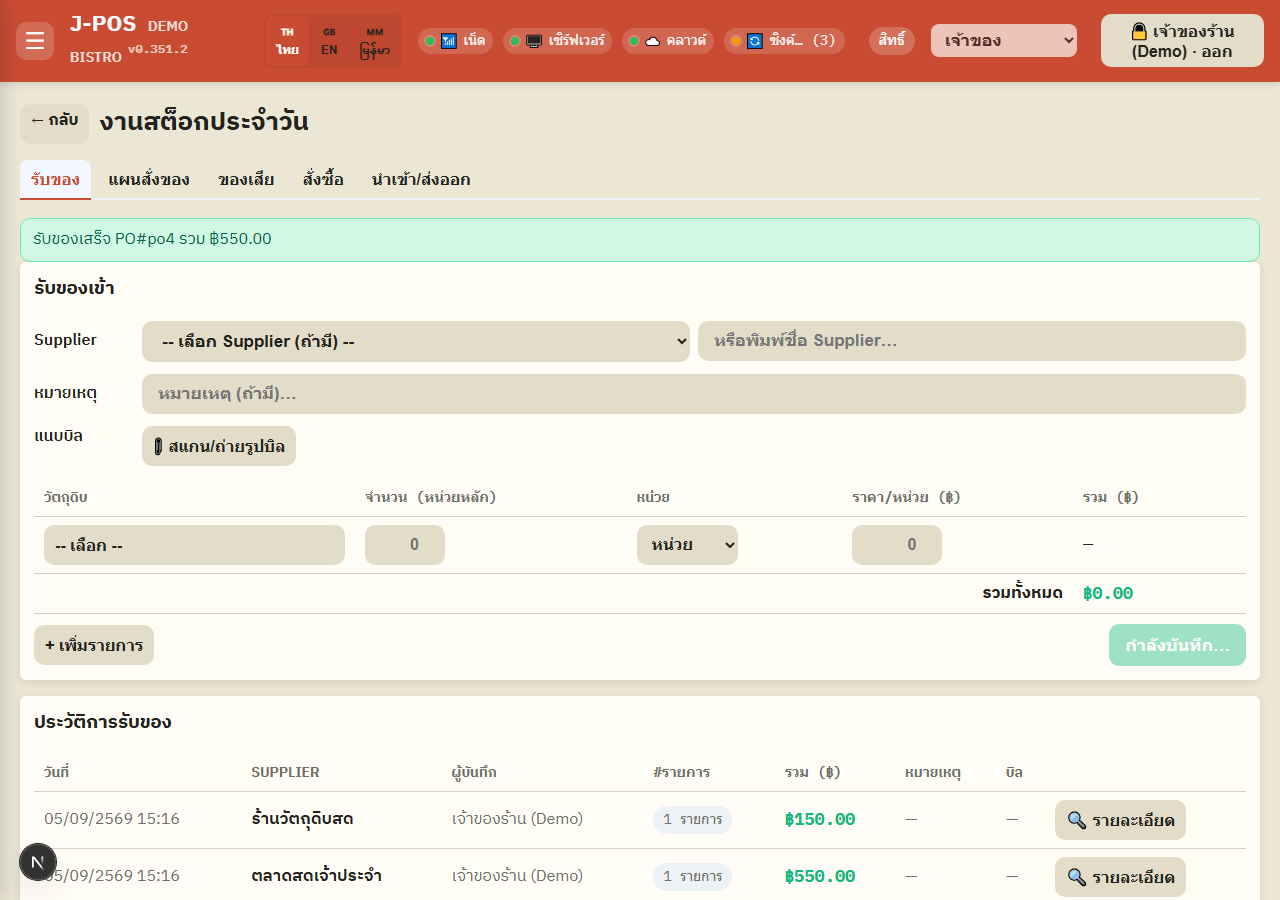
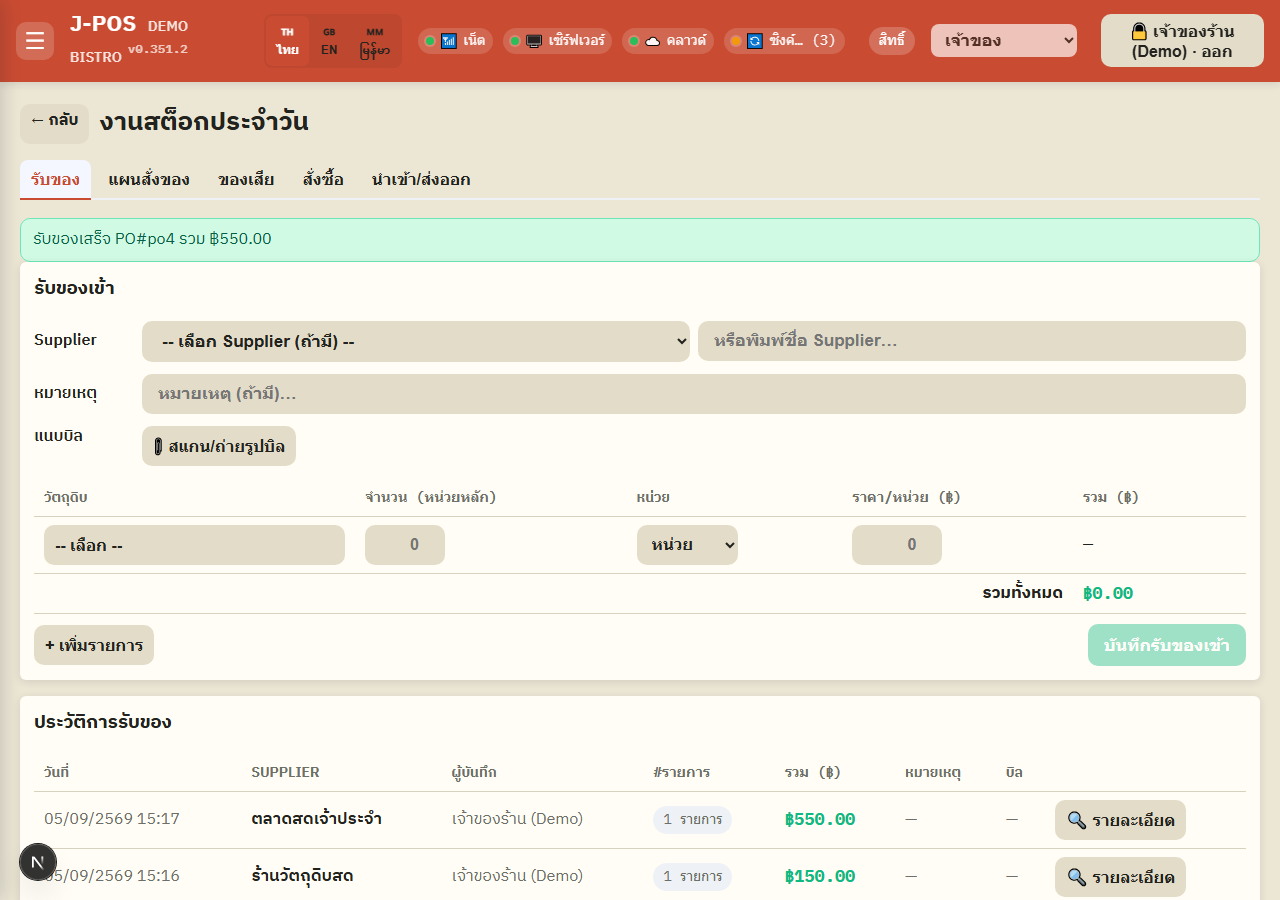
Press "Save receipt" once at least one line has qty > 0 and price ≥ 0 — stock for each ingredient increases in its held unit, and the weighted-average cost is recalculated for every item received.
The success message shows the PO number and total; the form clears itself and is ready for the next bill right away.
Open full size Review receiving history and bill detail
The history table below is newest-first and shows supplier, recorded-by, item count, total, and the attached bill file (if any) — click a row or its "🔍 Detail" button to see every line item on that bill.
Open full size Edit a past PO (for users with edit permission)
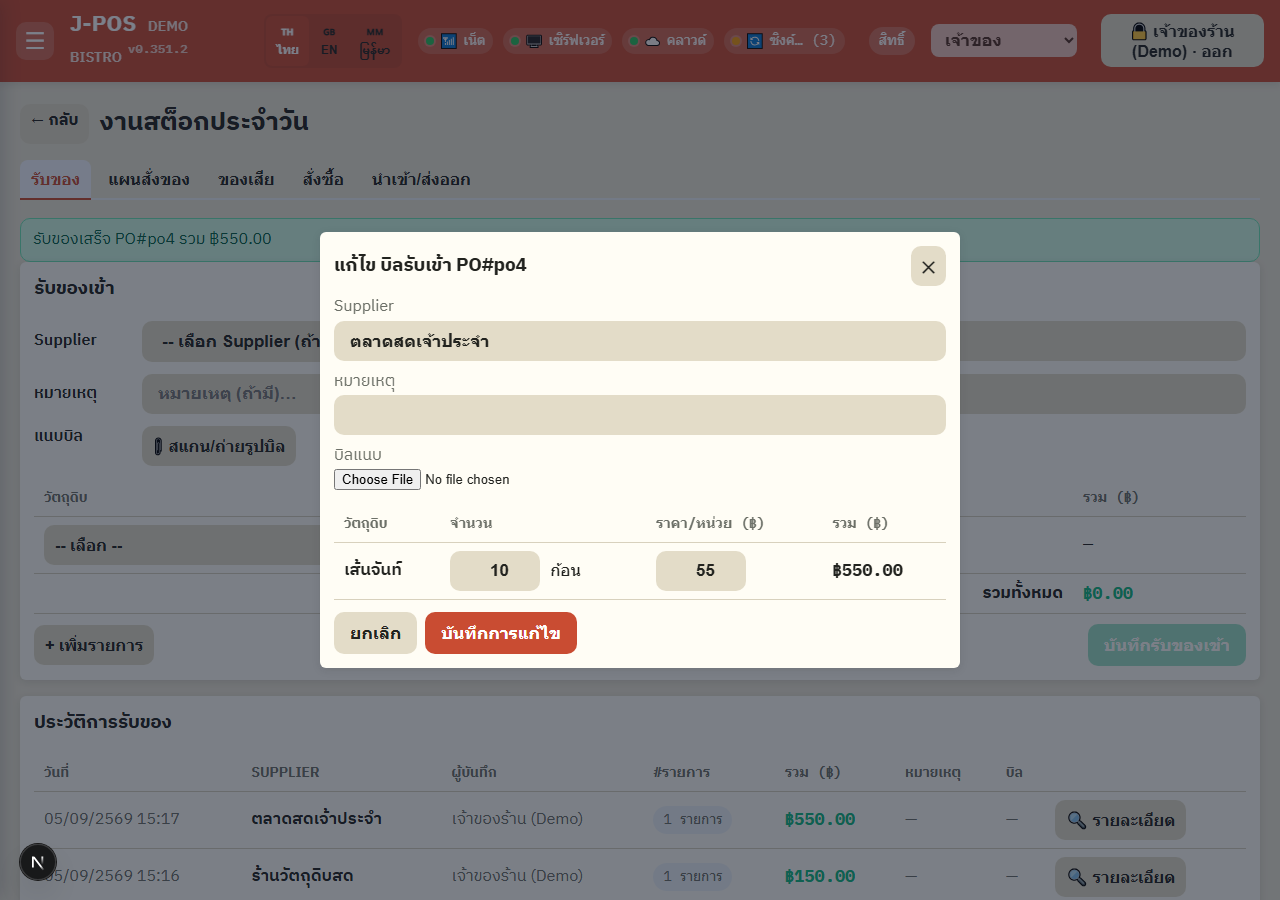
With the "edit PO" permission you'll see a ✏️ Edit button in the detail view. You can edit: supplier name, note, the attached file, and the quantity/cost of each existing line.
Important limit: only existing lines can be edited — you cannot add a line, remove a line, or repoint an existing line to a different ingredient (record a separate new receipt for anything that's missing or extra).
Stock and cost are adjusted automatically based on the delta from the edit (not by undoing then redoing the whole receipt) — if the edit would push stock negative, the save is blocked with an immediate warning. If a unit cost swings more than 5x in either direction, it saves but flags a warning (in case that really is a genuine correction, e.g. a decimal-point typo).
Open full size
Order plan (auto-calculated)
Open the order plan
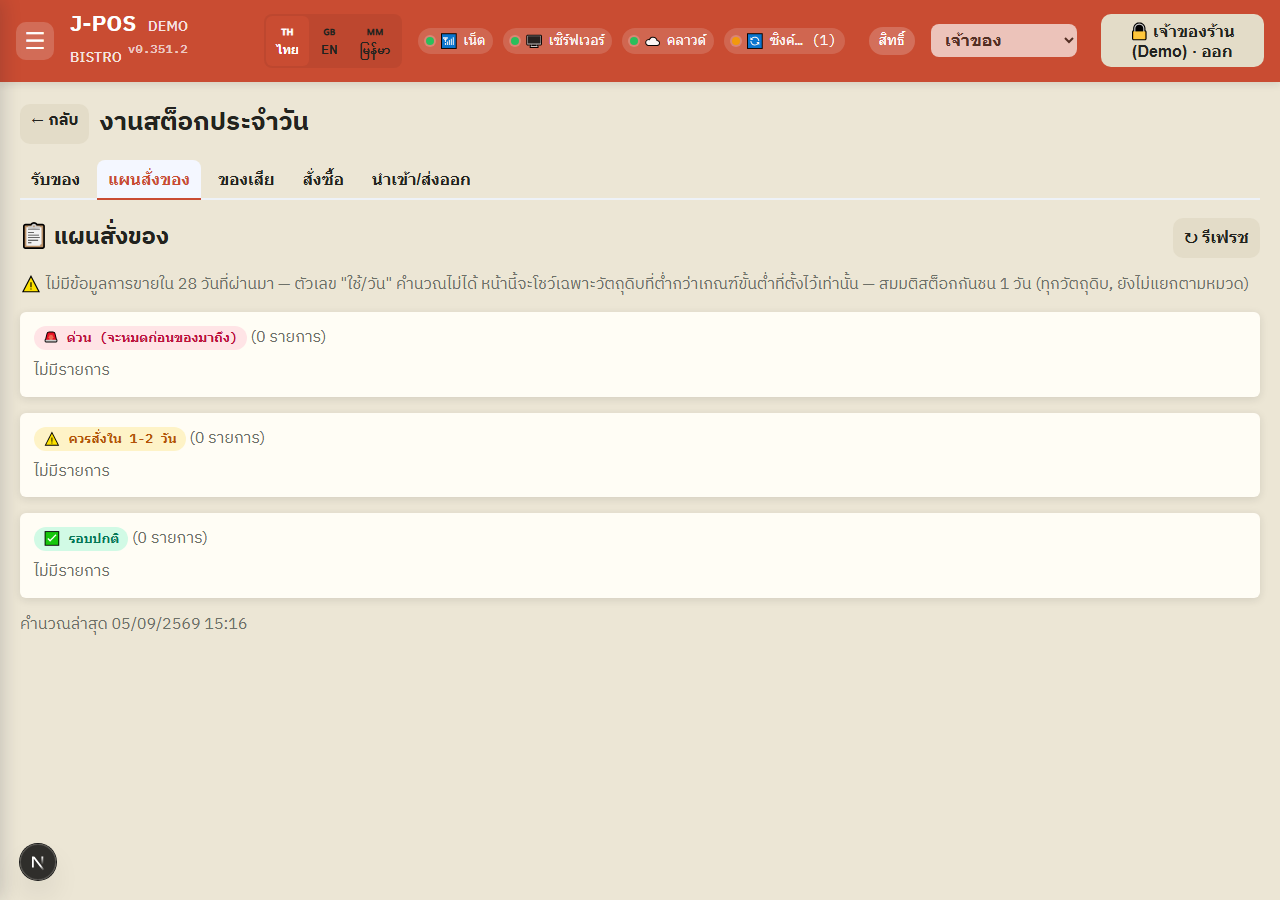
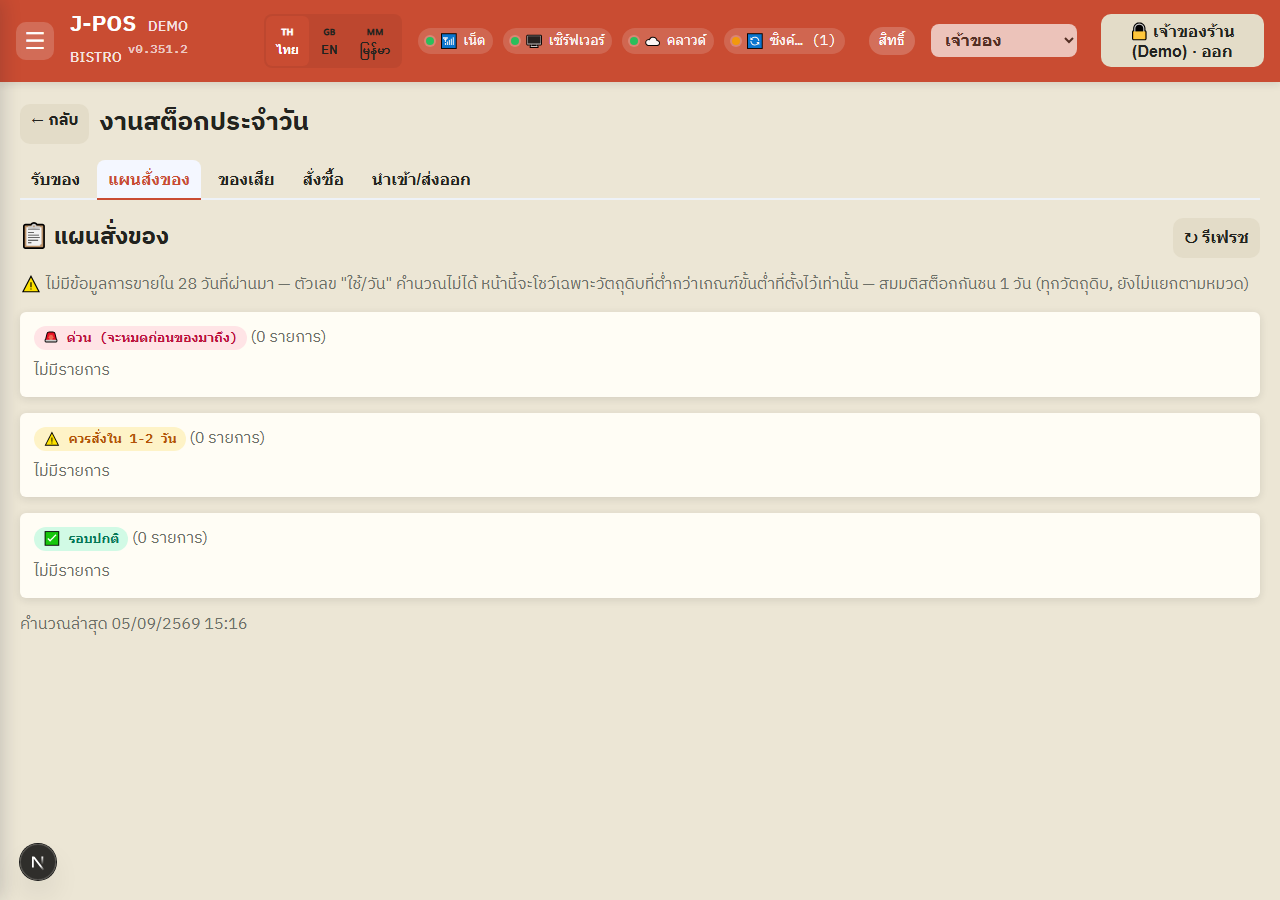
Calculated from recent sales + current stock + each supplier's lead time (from trade terms), assuming a small buffer of extra stock (in days) on top of every ingredient.
The note above the tables always tells you one of three data states: no sales data at all in the lookback window (daily usage can't be computed, only items below their low threshold show), some data but less than the configured window (numbers aren't stable yet), or a full window of data (numbers are normally reliable).
Open full size Read the urgency-tiered tables
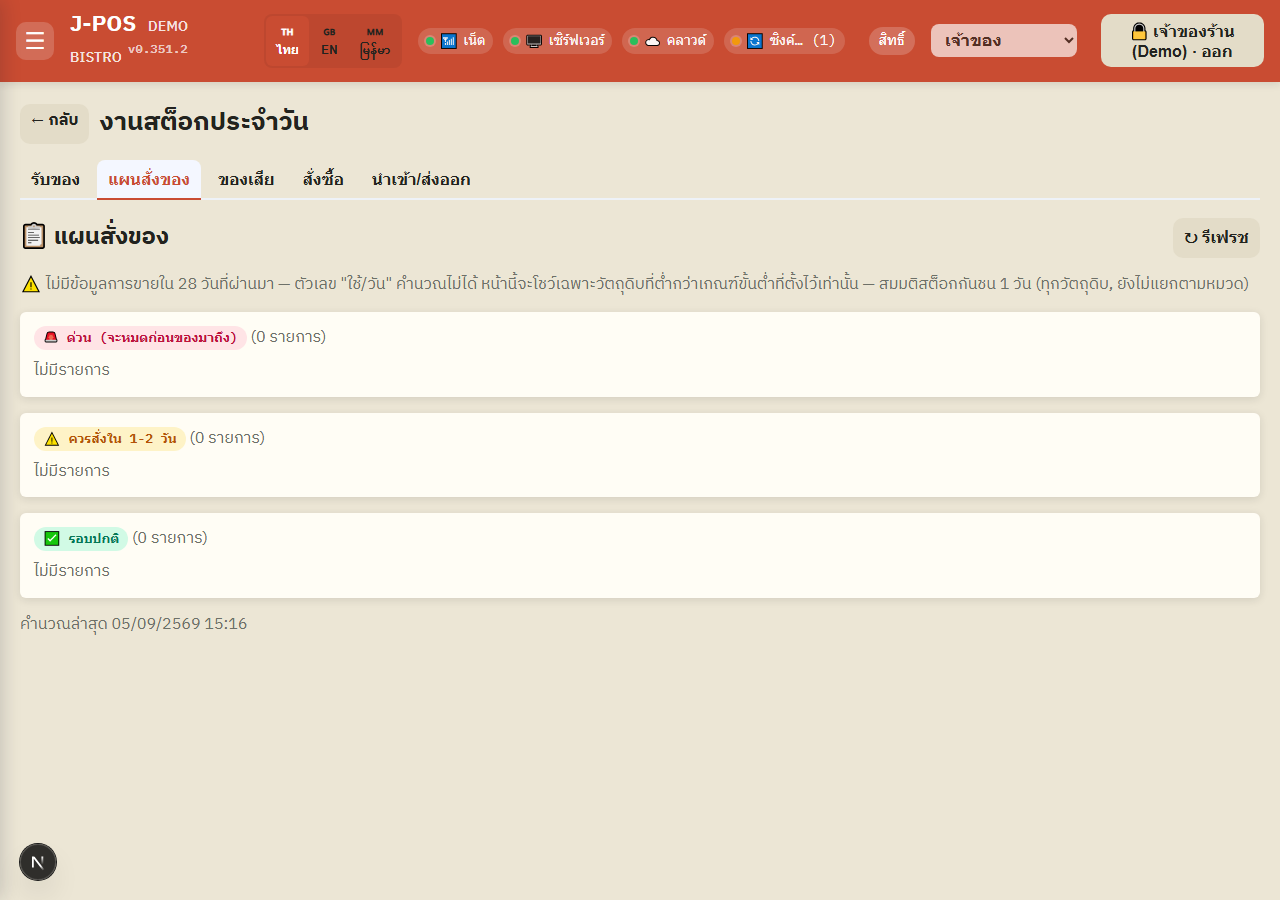
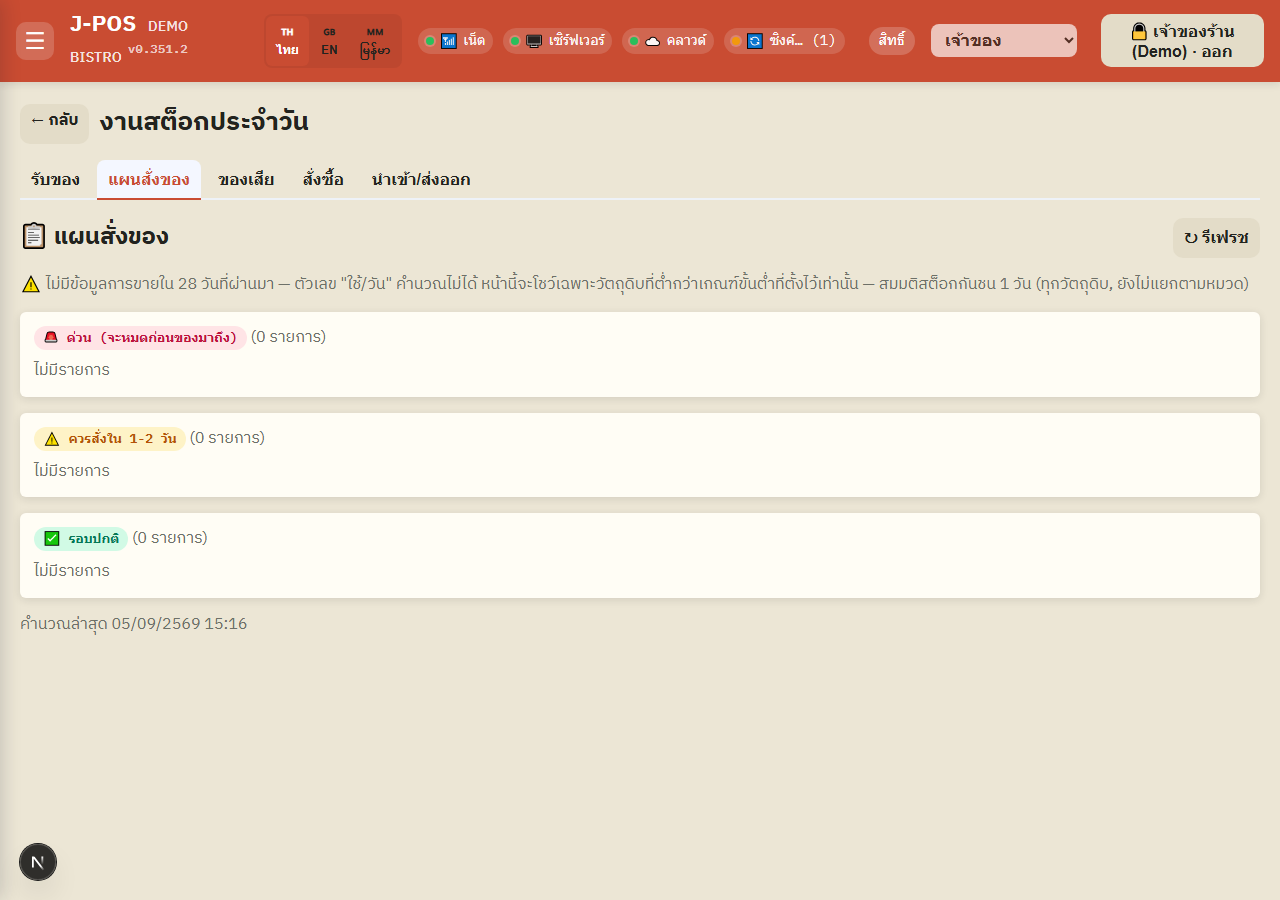
Split into three groups: 🚨 Critical (will run out before the next delivery), ⚠️ Order within 1-2 days, ✅ Normal cycle — each row shows current stock, average daily usage (with a trend-up/down note if it differs from the average by more than 5%), days until stock-out, delivery lead time, and the suggested order quantity.
A "below threshold" badge means that item is under its configured low-stock alert directly — unrelated to the sales calculation. A "usage may be incomplete" badge means some sales rows with a mismatched unit were skipped from the calculation.
Open full size Items missing trade terms
Ingredients with usage but no computable order date/quantity land in this separate table with one of three reasons: no default supplier set, a supplier is set but trade terms aren't filled in, or trade terms are filled in but lead time isn't — go fill these in at Inventory management → Suppliers tab → Trade terms.
If a yellow banner above says the trade-terms database couldn't be reached, be careful — rows in this table may not actually be unfilled, just temporarily unreachable. Try refreshing first before re-entering anything.
Open full size Per-supplier summary
The summary cards at the bottom show the item count and total suggested order value per supplier, along with its order days (if set) and how many items still have no cost price (if any) — press ↻ Refresh to recompute at any time.
Open full size
Waste
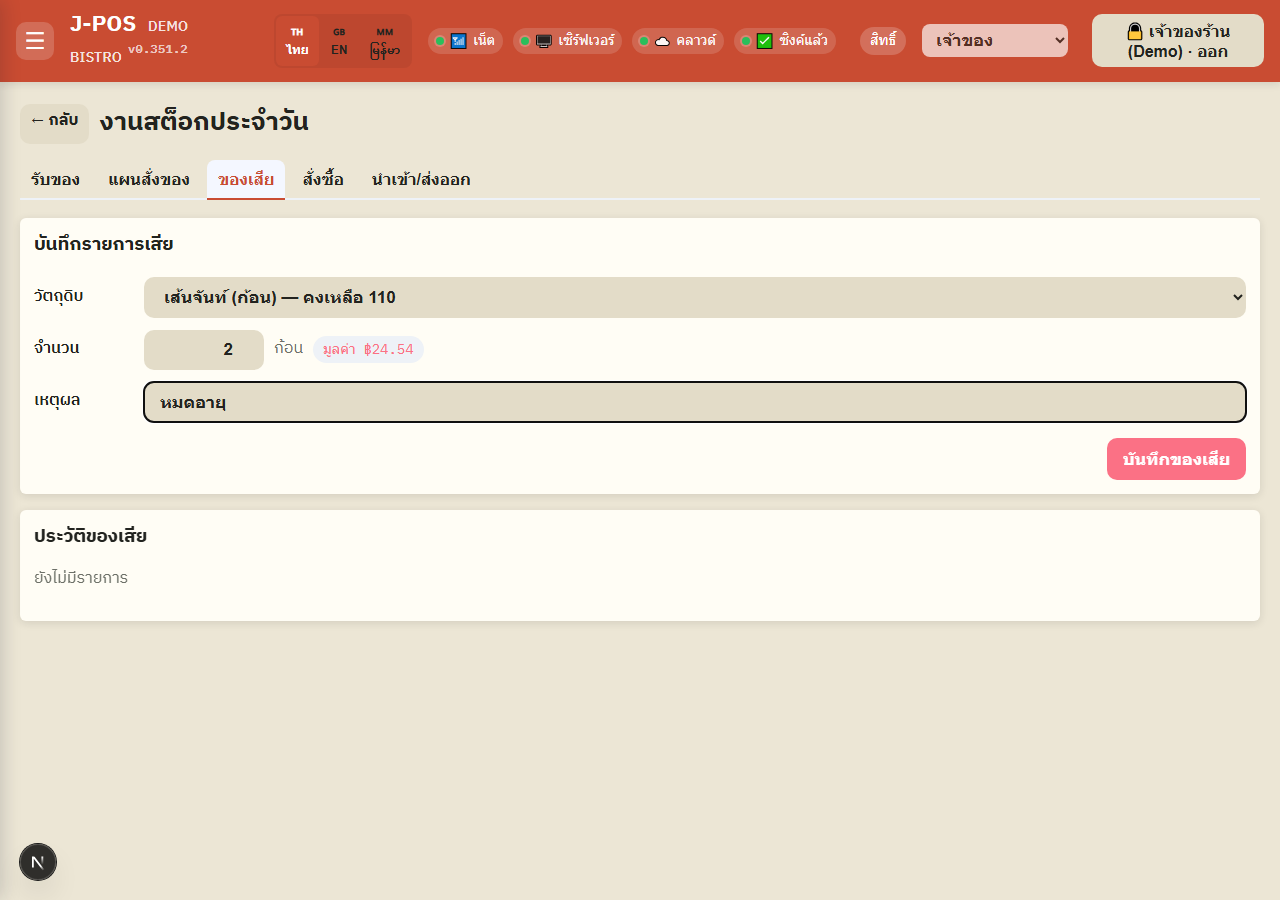
Log a waste entry
Pick an ingredient, enter the wasted quantity (in that ingredient's held unit), and pick or type a reason (e.g. expired, dropped, eaten by animals) — the estimated loss value shows before you save, computed from that ingredient's current cost per unit (the value only shows for staff with cost-view permission).
Press "Save waste" to deduct the stock immediately; it always lands in the stock movement history as a "waste" entry, so it can be traced later.
Open full size Review waste history
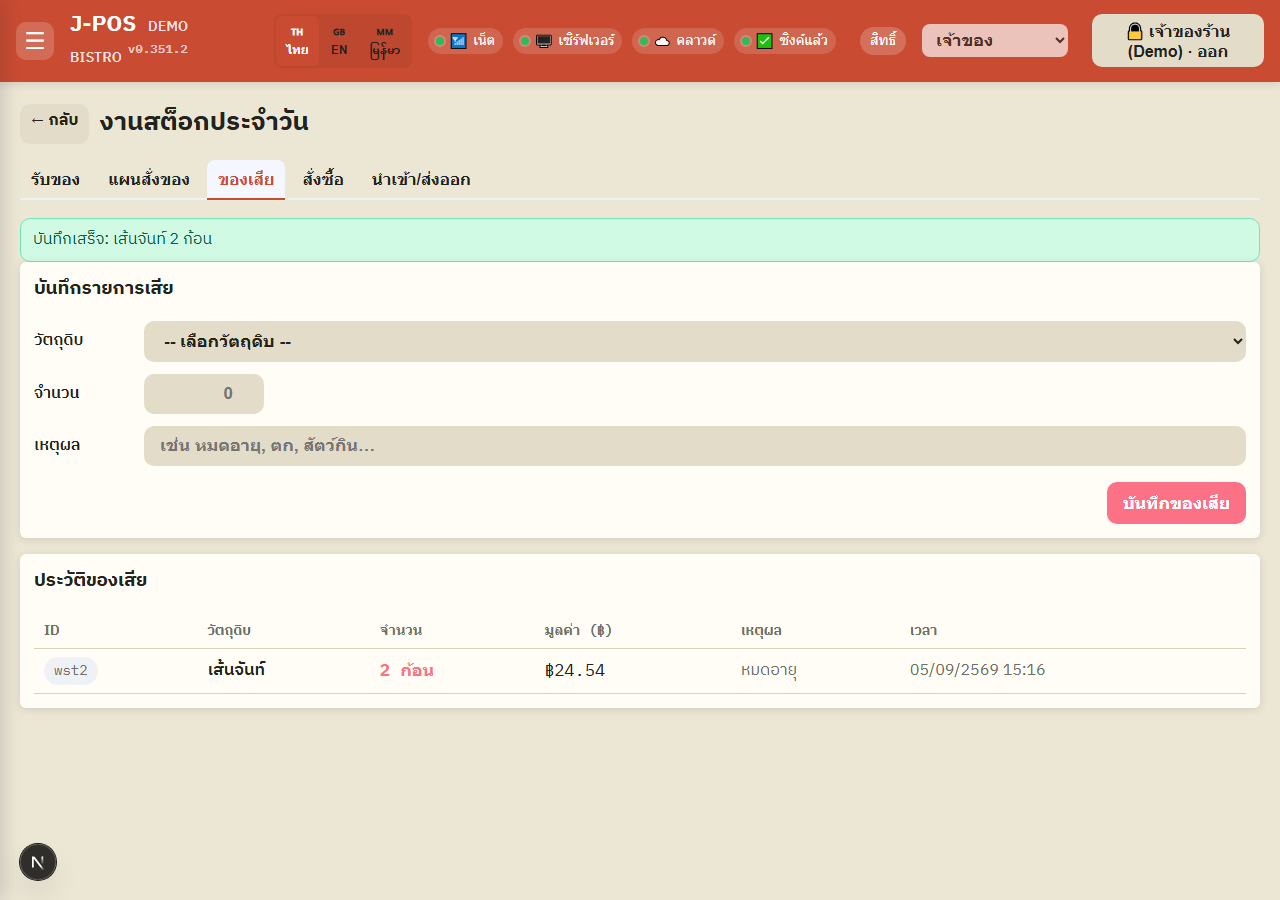
The history table below lists every waste entry ever logged, newest-first, with the loss value per entry and the time it was recorded (the value column only shows for staff with cost-view permission).
Open full size
Purchase (quick PO)
Create a quick PO
This tab is for a fast receipt with no bill attachment and no AI reading — type the supplier name (free text only, no dropdown of existing suppliers), pick ingredients, enter quantity and cost, then press "Save receipt".
Important: this button behaves exactly like the Receiving tab — it receives stock into inventory and deducts immediately, it does NOT create a pending order that waits for the supplier to deliver later. If you need to attach a bill, use AI reading, or pick a supplier from the saved list, use the Receiving tab instead.
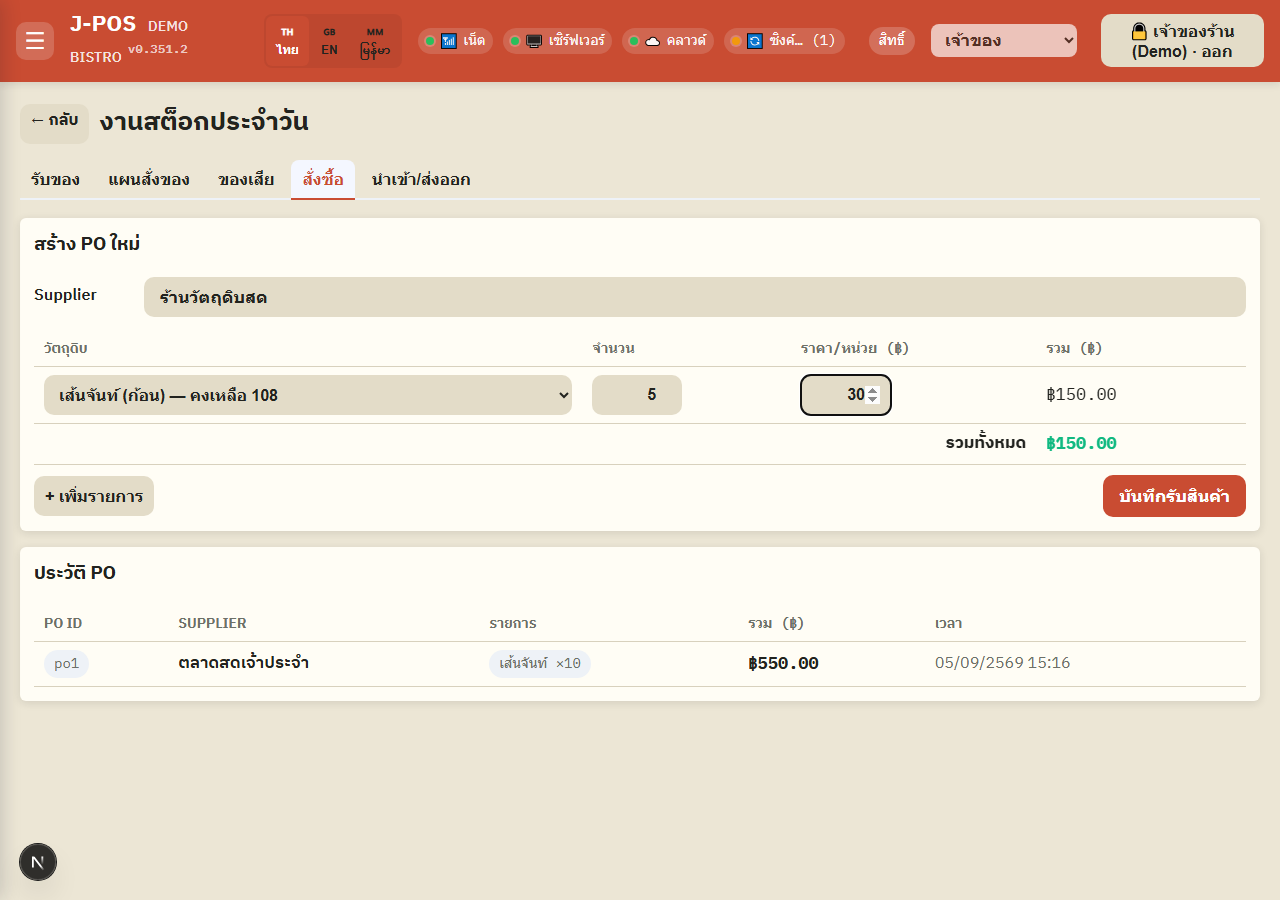
Open full size Review this tab's PO history
The table below shows PO history created from this tab (it shares the same data as the Receiving tab), with a condensed item list per row.
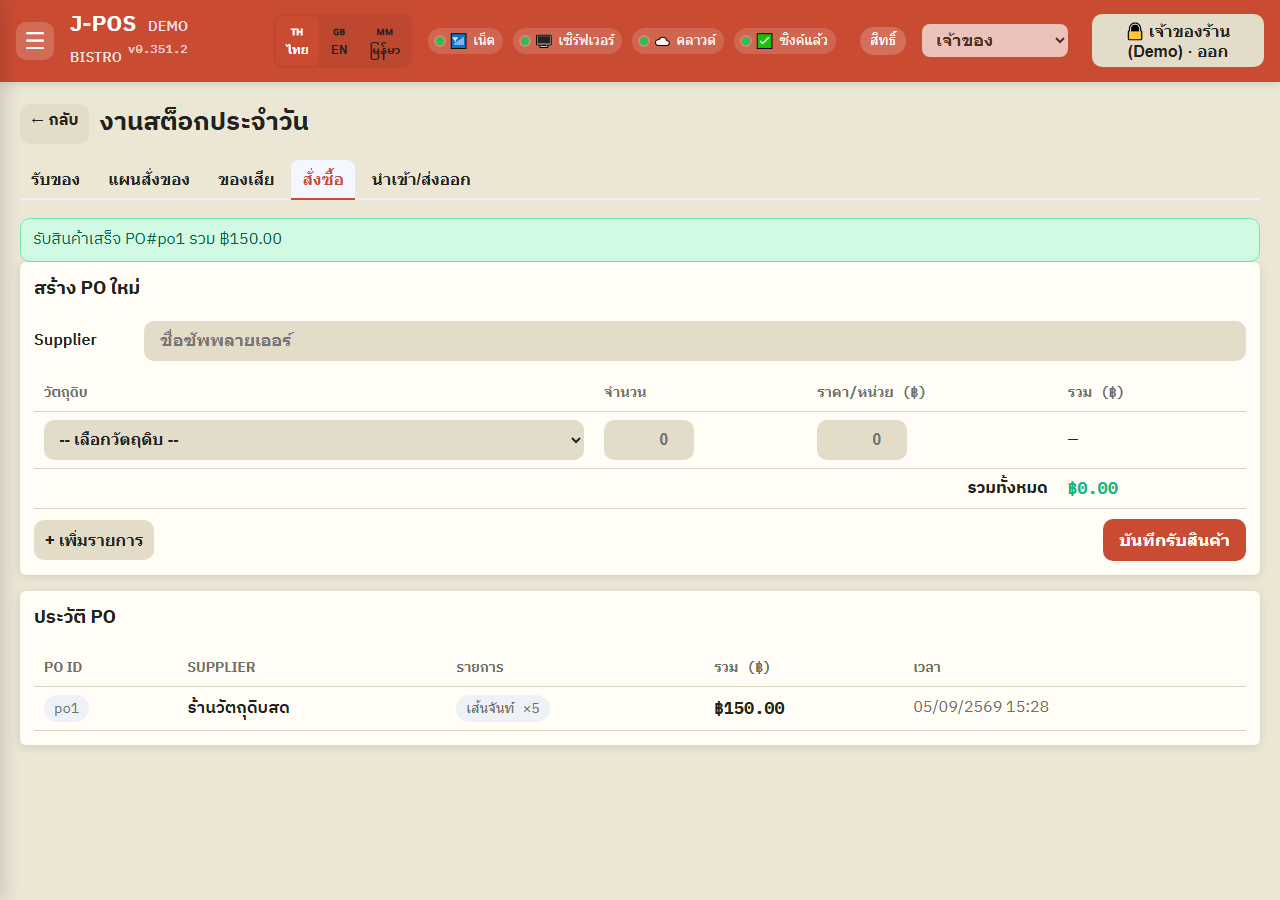
Open full size
Import / export
See supported data + export or download a template
Five data types are supported: floor plan (zones + tables), menu structure (groups + categories), menu items, ingredient stock, and CRM members — each shows a table of column names, an example value, and a note on how to fill it in.
Press "⬇ Export current data" to download today's real data (edit and re-import it), or "📋 Template" to download a blank file with one example row for entering new data — both .xlsx and .csv are available.
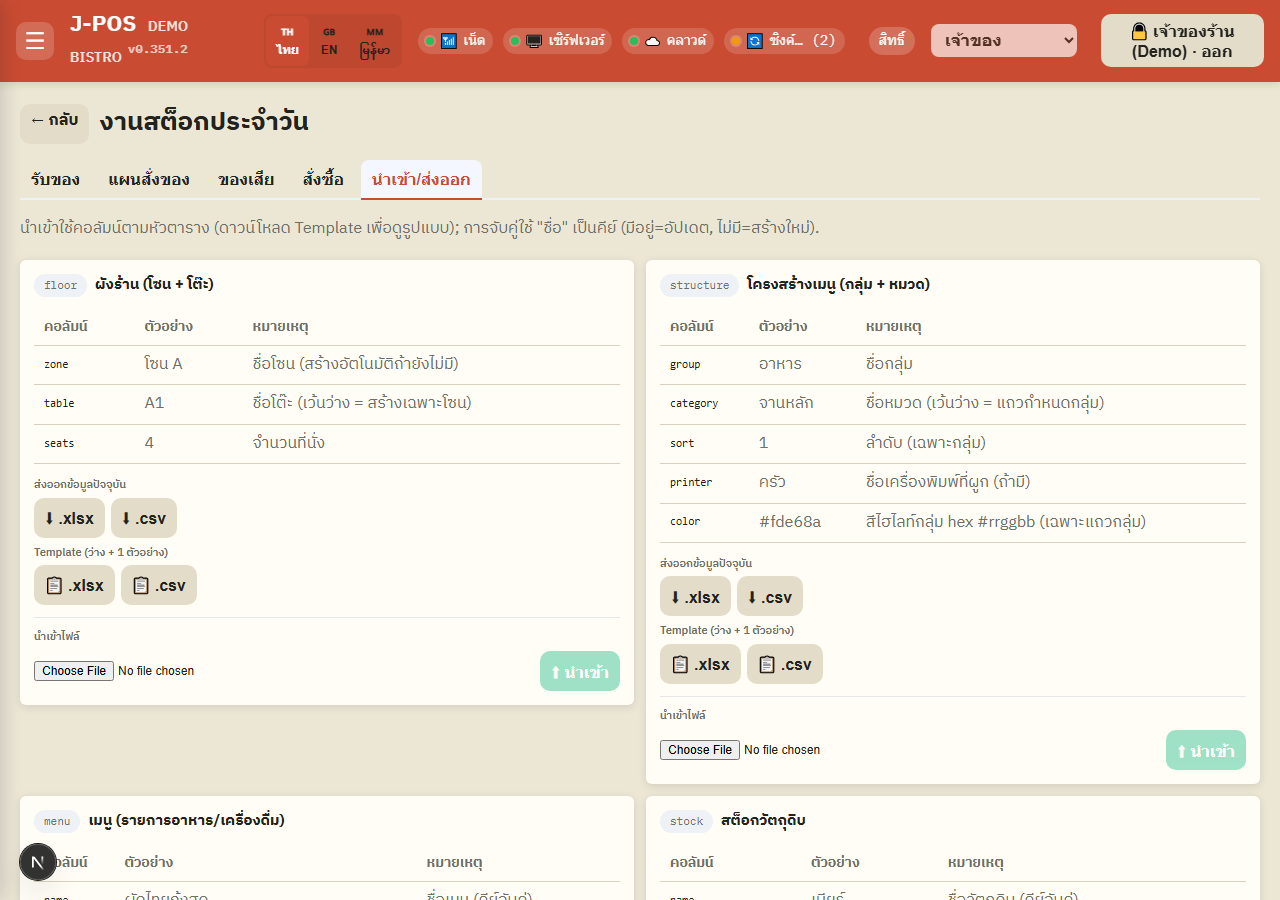
Open full size Import a file
Pick a .xlsx or .csv file (up to 5MB) and press "⬆ Import" — it always asks for confirmation first, since importing creates or edits real data.
Most rows match by "name" as the key (an existing name = update, no match = create new) — except CRM members, which match by member id or phone number instead. Caveat: if a name is typed even slightly differently from the existing one (e.g. an extra space), the system treats it as a brand-new row and creates a duplicate instead of updating.
After import it summarizes how many rows were created, updated, skipped, and any errors — error rows are never imported; fix the file and re-import just the failed rows.
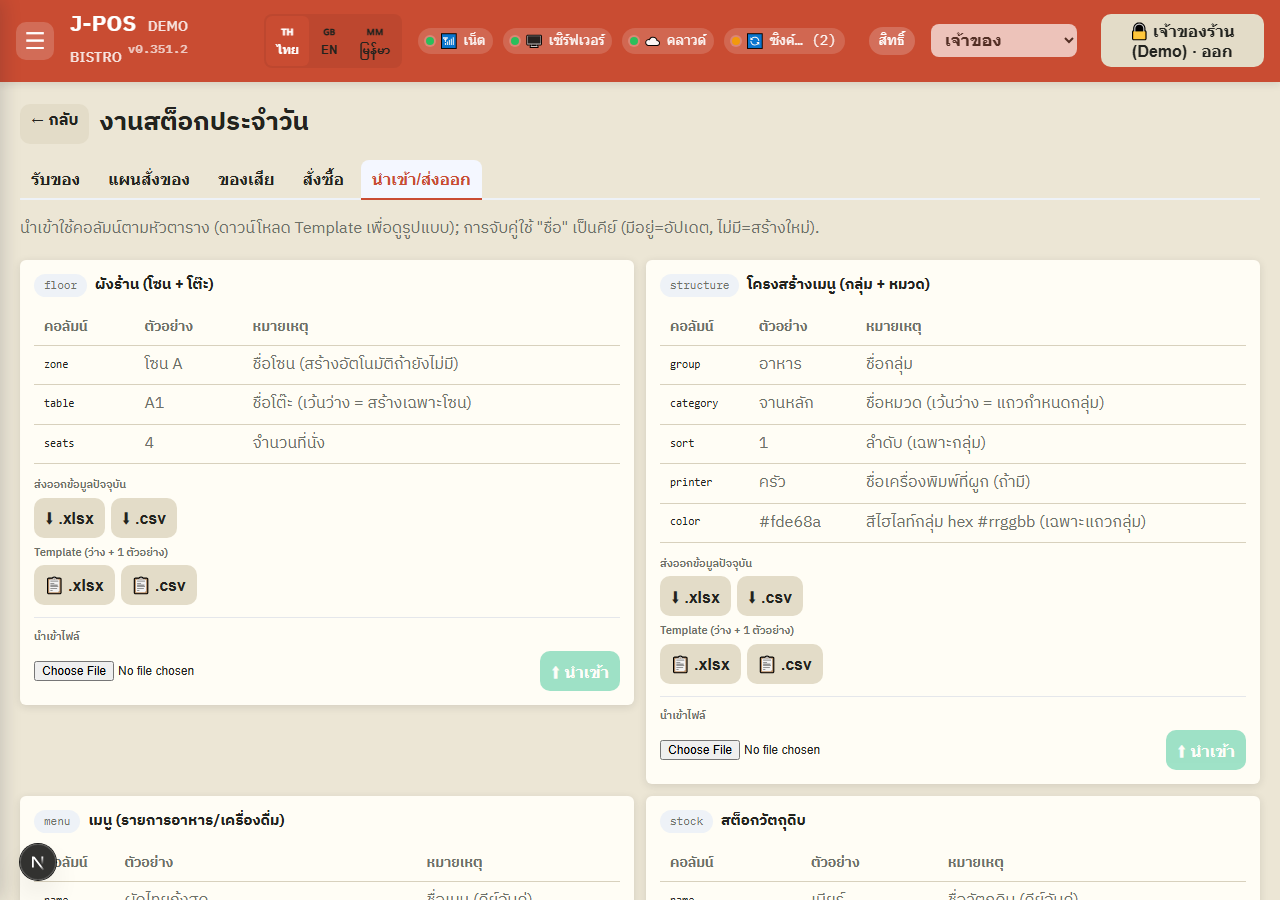
Open full size
Common points of confusion
Receiving stock does NOT auto-reopen 86'd menu items
The old auto-86 behavior that automatically reopened a menu item once its ingredient had stock again has been disabled. Receiving stock (from either the Receiving or Purchase tab) only adds stock — a menu item that was manually turned off stays off until a staff member manually re-enables it on the menu management page.
AI bill reading can be wrong — always check before saving
The AI bill-extraction feature saves a lot of typing, but the numbers it reads (quantity, price, or which ingredient it matched) can be wrong, especially on handwritten or blurry bills — always review every row before pressing "Save receipt". Nothing locks you out of correcting an AI-filled value.
Editing a past PO only touches quantity/cost, never its structure
Editing a PO (for permitted users) only changes the quantity and cost of lines that already exist on that bill — you cannot add a line, remove one, or repoint an existing line to a different ingredient. If the real bill had an item that was typed wrong or left out, record it as a separate new receipt instead.
"Can't reach the database" is not the same as "trade terms not filled in"
If the order plan shows a banner saying the trade-terms database couldn't be reached, rows that appear under "missing trade terms" at that moment may actually already be filled in — the system just couldn't read them temporarily. Don't rush to re-enter them; refresh first, and only re-enter for real if the same rows still show up after the database is reachable again.
"Purchase" and "Receiving" both receive stock immediately — they only differ in form
It's easy to assume the "Purchase" tab issues an order the supplier fulfills later, but both tabs record stock coming into inventory right away. The difference is just the form: Purchase has no bill attachment, no AI reading, and requires typing the supplier name (no dropdown), while Receiving has all of that. Default to the Receiving tab; use Purchase only when you want a quick entry with no supporting evidence.
Duplicate rows after import usually mean the name didn't match exactly
Import matching is mostly an exact "name" key (case-sensitive, whitespace-sensitive) — if the imported file's name differs even slightly from what's already in the system (extra/missing space, different casing), it creates a separate new row instead of updating the existing one. Export the current data and edit that file, rather than retyping names from scratch, so names always match exactly.
Waste value is computed from the CURRENT cost, not the cost when that batch was bought
The loss value shown when logging waste is computed from that ingredient's latest cost per unit (the weighted average across every receipt), not the cost that was actually paid for the specific batch that got wasted. If cost has changed significantly since that batch was received, the displayed value may not exactly match the real loss.