BOOK 13/25Menu & stock
Inventory
Manage the shop-wide master data for ingredients — the ingredient list itself, the shared unit list, suppliers with their trade terms, the reorder point (ROP) threshold, and prep-item recipes. This is different from "Stock check" (counting physical stock against the system) and from "Receiving / Order plan" (recording stock coming in and calculating what to order today).
Ingredient list (add / edit / delete)
Open the ingredient list
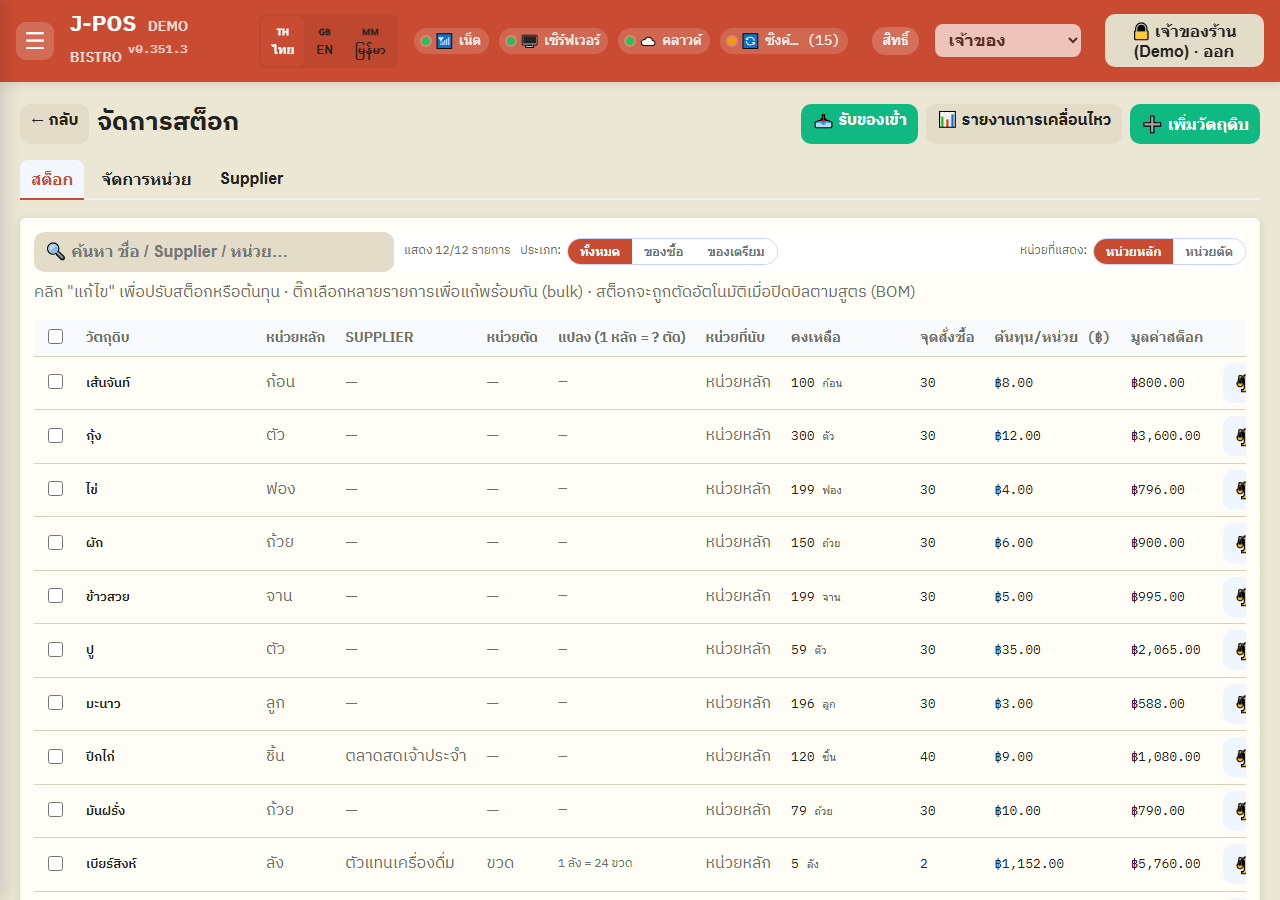
The main table lists every ingredient with its held unit, supplier, deduct unit (if any), the conversion factor, current stock, and reorder point — search by name/supplier/unit above the table.
The "type" filter splits rows into buy / prep / all, and you can switch which unit the "current stock" column displays (held unit or deduct unit) — both are just filters/display views, they don't touch the underlying data.
Open full size Add a new ingredient
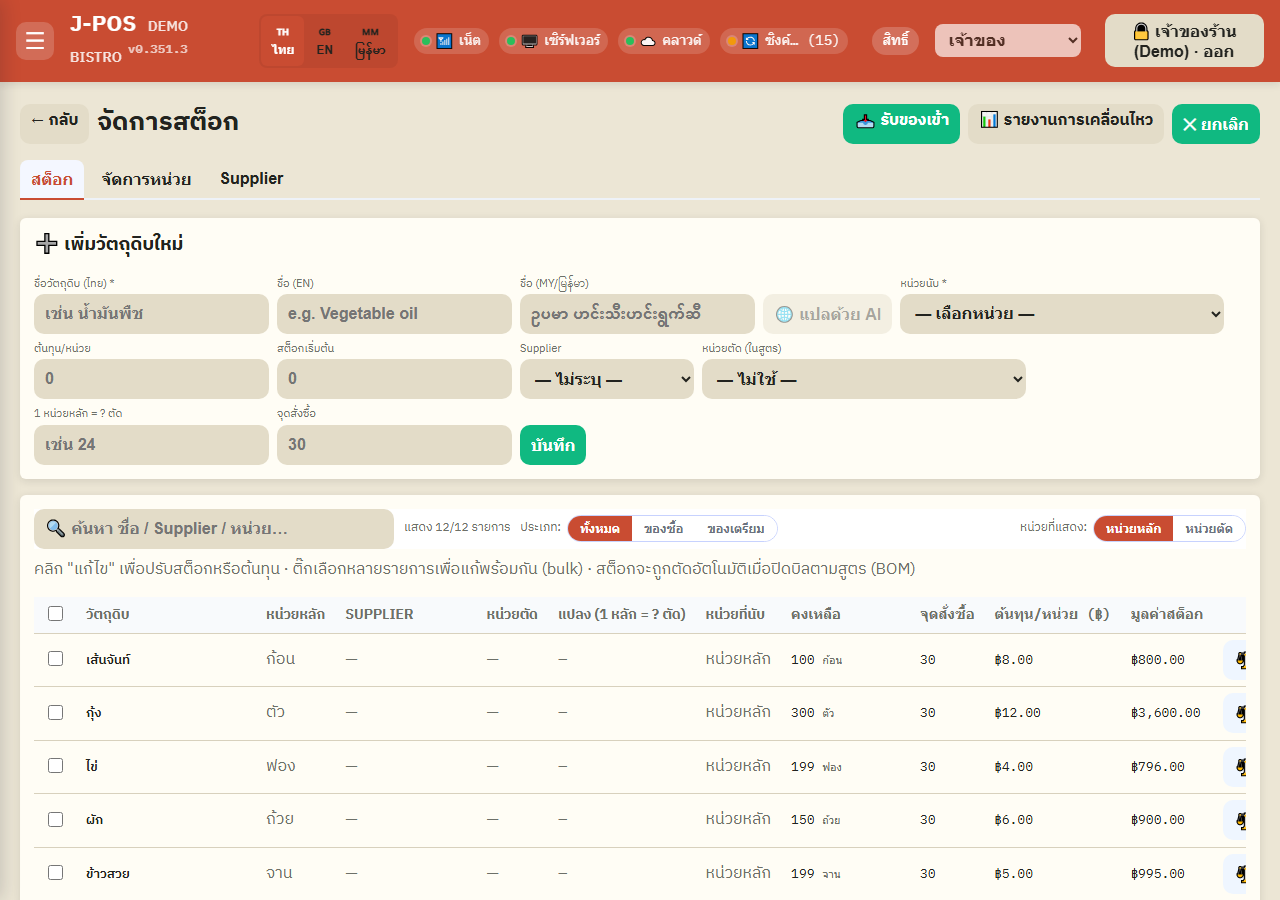
Name (Thai) and unit are always required. Everything else — EN/MY name, cost per unit, starting stock, supplier, deduct unit + its conversion factor, and reorder point — is optional. Press "Translate with AI" to auto-fill the EN/Myanmar name from whatever Thai name you typed.
If you set a deduct unit (the unit used in recipes, e.g. "bottle" vs a held unit of "case"), you must also fill in the conversion factor "1 held unit = ? deduct units" — leave it blank and the save is blocked with a warning.
Open full size Edit a single ingredient
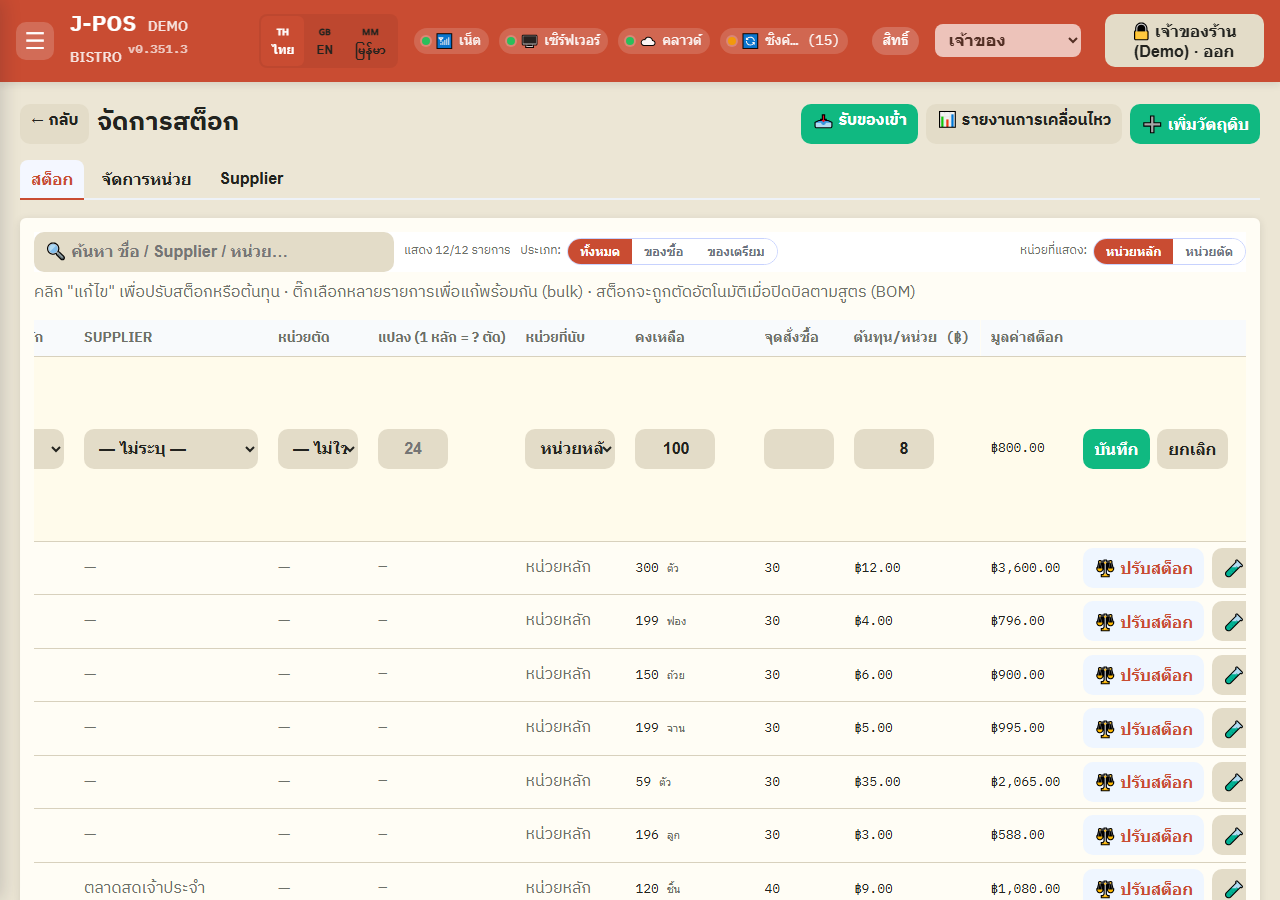
Press "Edit" on a row to open inline editing — every field can be changed, including the main name (renaming updates every menu that references this ingredient's id instantly, since they link by id, not name).
Changing the held unit always shows a warning first that it's a label-only rename — stock, cost, and recipe numbers are never auto-converted. Double-check the numbers yourself after renaming.
Press "Delete" to remove that ingredient permanently.
Open full size Bulk-edit multiple rows at once
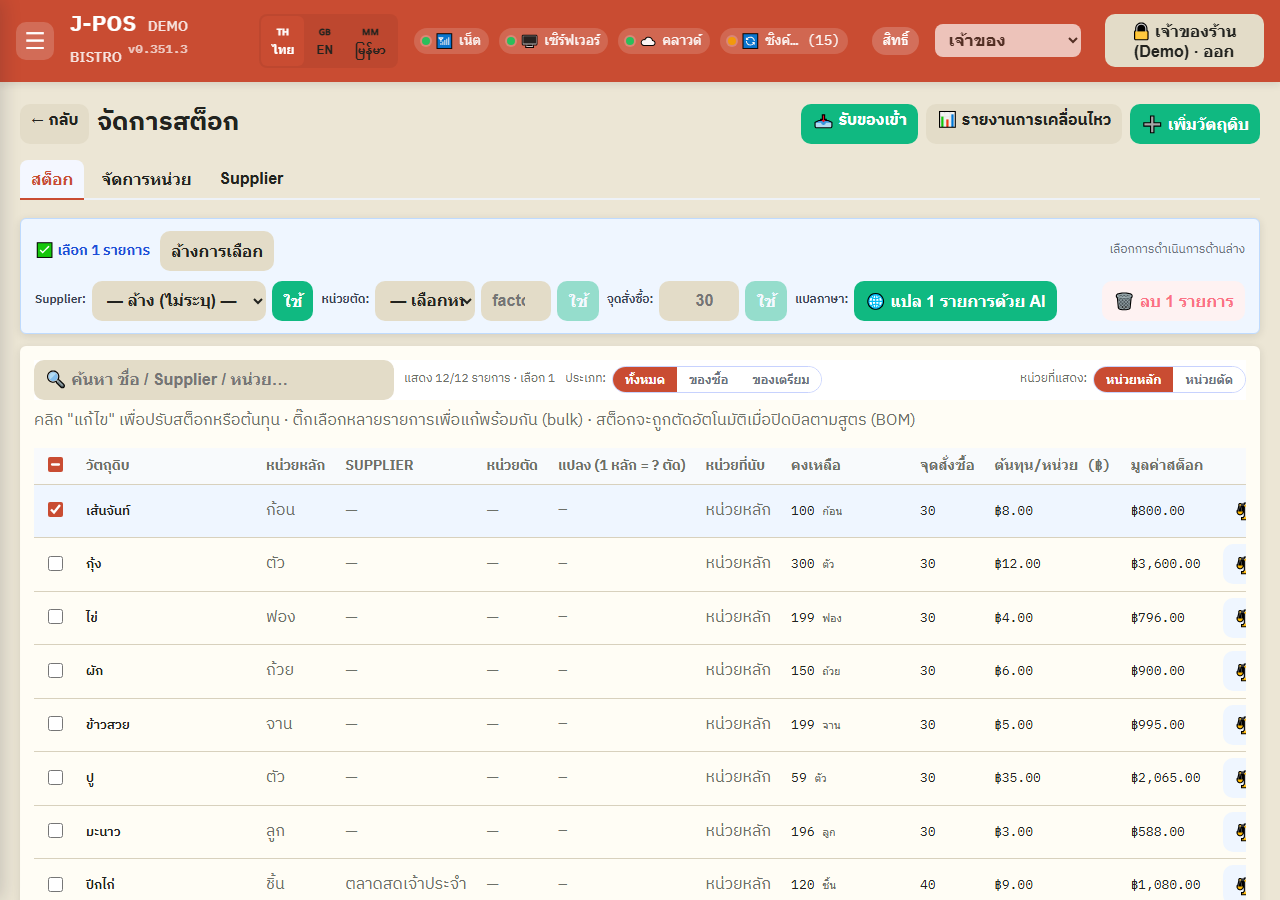
Check multiple rows (or "select all" within the current filter) and a toolbar appears above the table letting you apply four things at once: supplier, deduct unit + conversion factor, reorder point, and AI EN/MY translation.
You can also bulk-delete (red button, top right) — it always asks for confirmation first since deletion can't be undone.
Open full size
Units (the shop-wide master list)
Add / edit / delete a unit
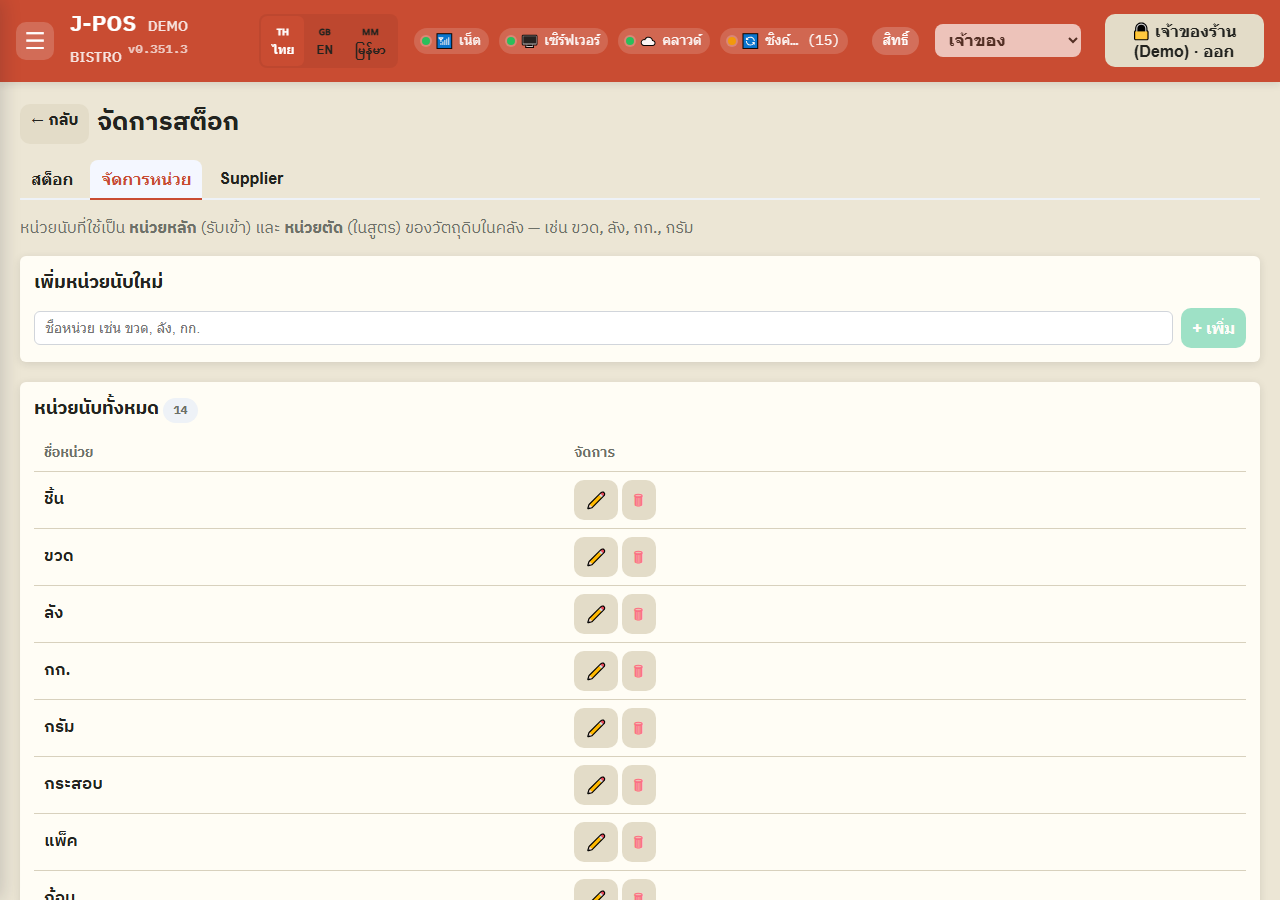
The "Manage units" tab holds the shared list of unit names every ingredient in the shop can use as either its held unit (receiving) or its deduct unit (in recipes) — add a new name here and it instantly appears in every unit dropdown.
You cannot delete a unit that any ingredient still uses (as either its held or deduct unit) — the save is blocked and the system names which ingredients are using it. Change those ingredients to a different unit first.
Open full size
Suppliers and trade terms
Add / edit / delete a supplier
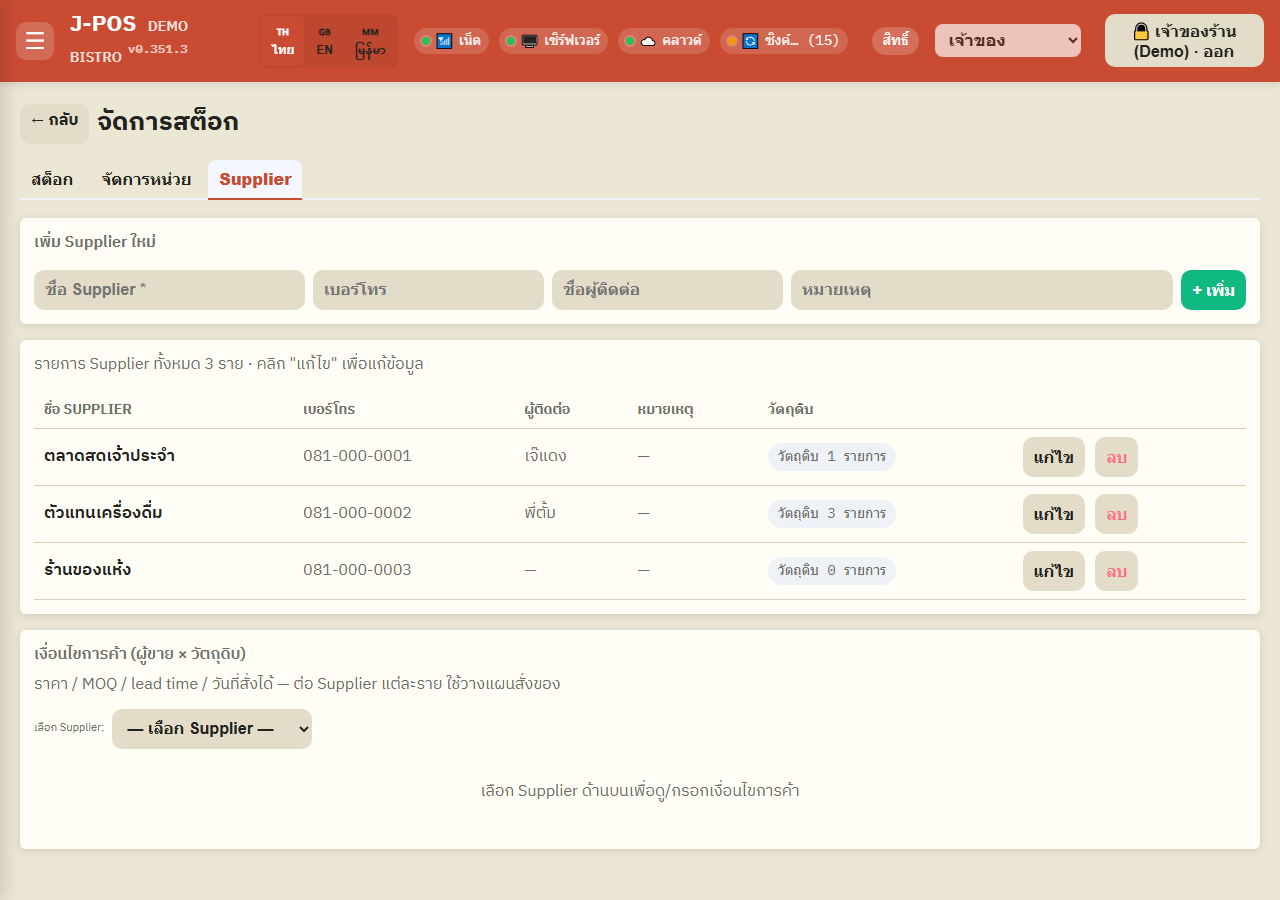
Name is required; phone, contact, and note are optional — the table also shows how many ingredients are currently linked to each supplier.
Deleting a supplier that has ingredients linked to it is NOT blocked — those ingredients just become "no supplier", they are never deleted or taken off sale.
Open full size Trade terms (price / MOQ / lead time / order days)
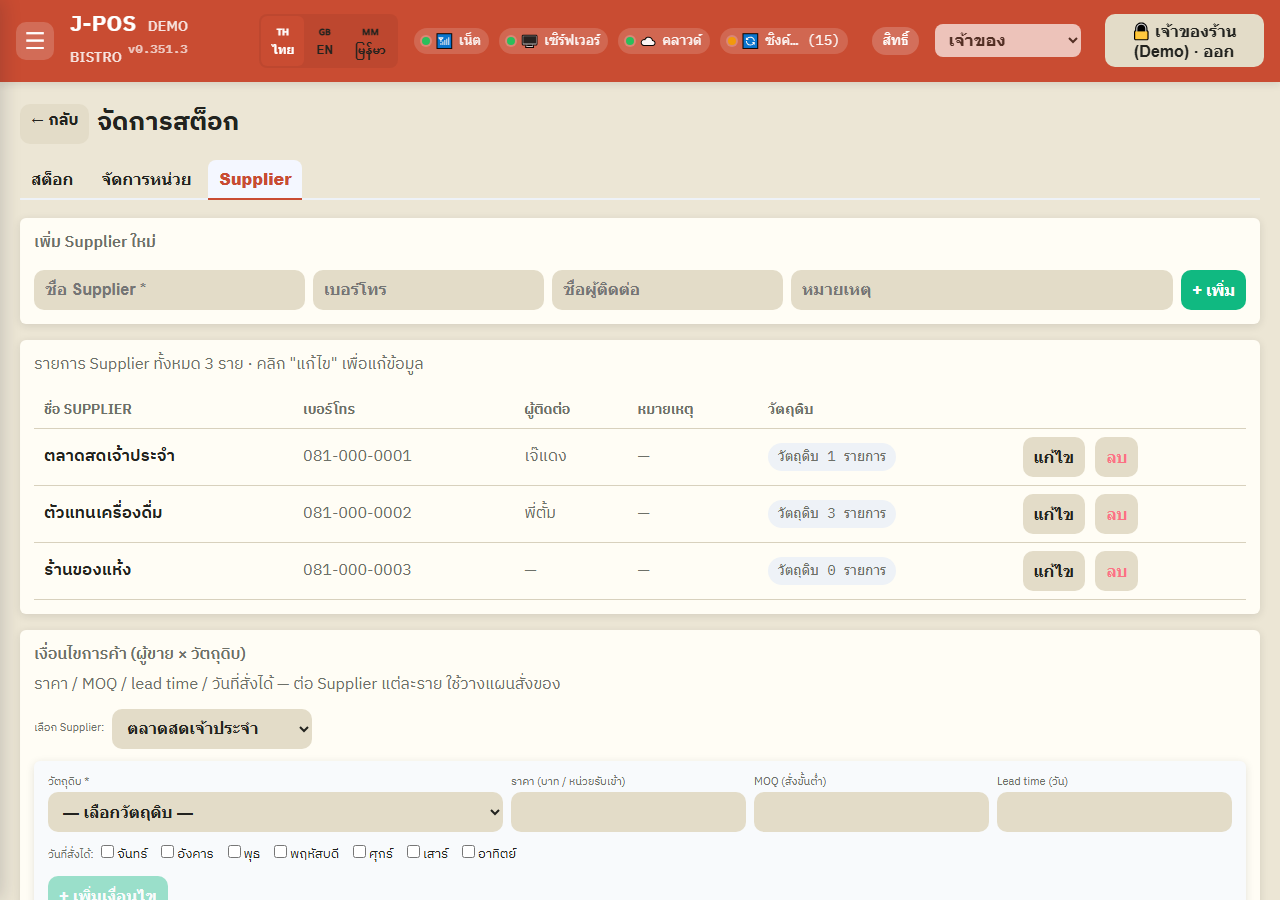
Pick a supplier first, then pick an ingredient to fill in unit price, MOQ (minimum order quantity), lead time (days until delivery), and which days of the week you can place an order — every field is optional, leave it blank if you don't know it yet.
This data is the sole source the "Order plan" (in the Receiving module) uses to figure out which ingredients will run out before the next delivery (lead time) and when to order — if it's not filled in, that ingredient shows up under "missing trade terms" on the order plan instead.
Open full size
Prep items — recipe and batch production
Set / edit a prep item's recipe
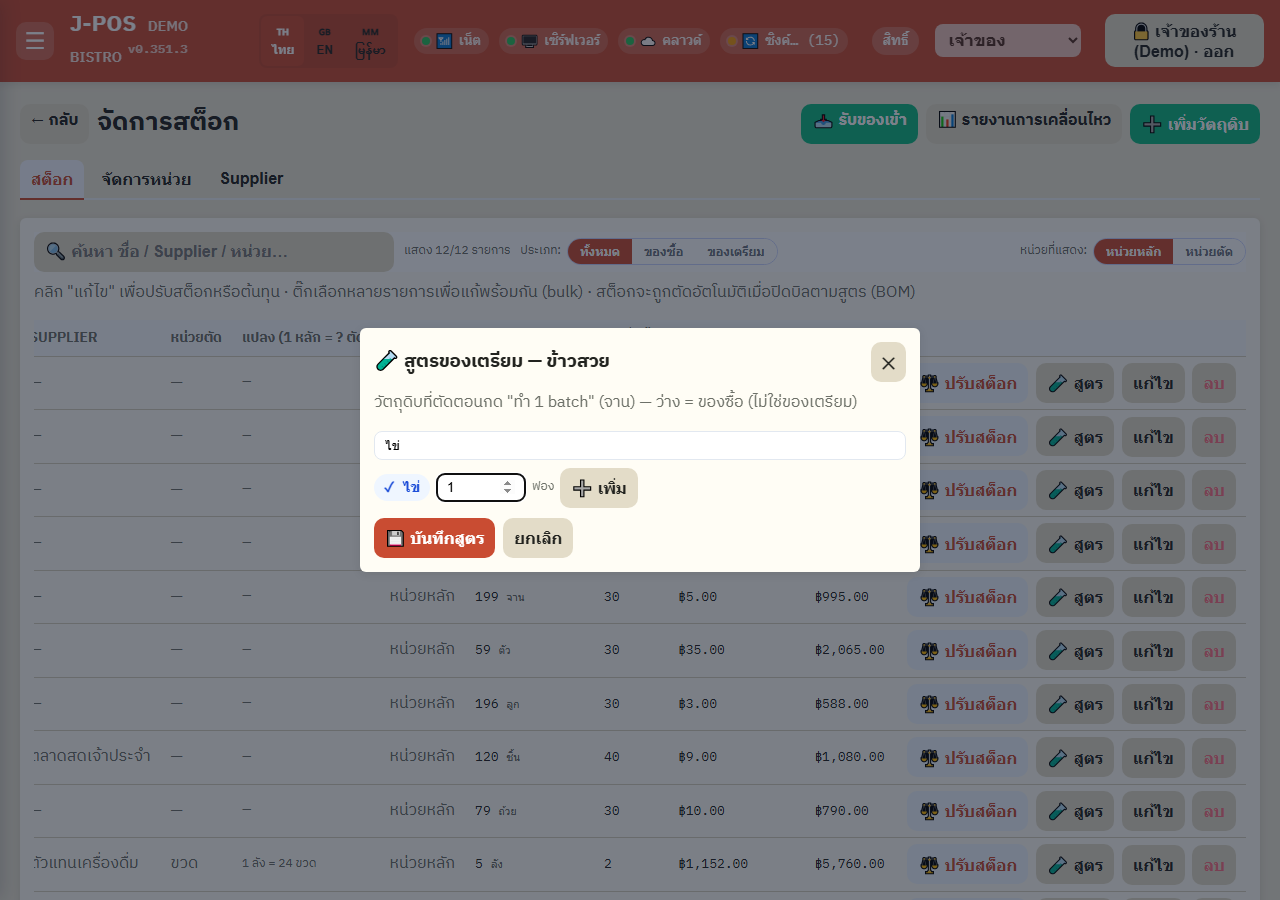
Press the "🧪 Recipe" button on any ingredient row to open the same recipe editor used for menu items/BOM, then add other ingredients as "components" with a quantity per batch.
Whether an ingredient counts as "buy" or "prep" isn't a separate flag you set — it's derived from whether it has any recipe components (≥1 line = prep immediately; clear all components = it becomes "buy" again immediately). There's no dedicated on/off switch to look for.
Open full size Produce a batch
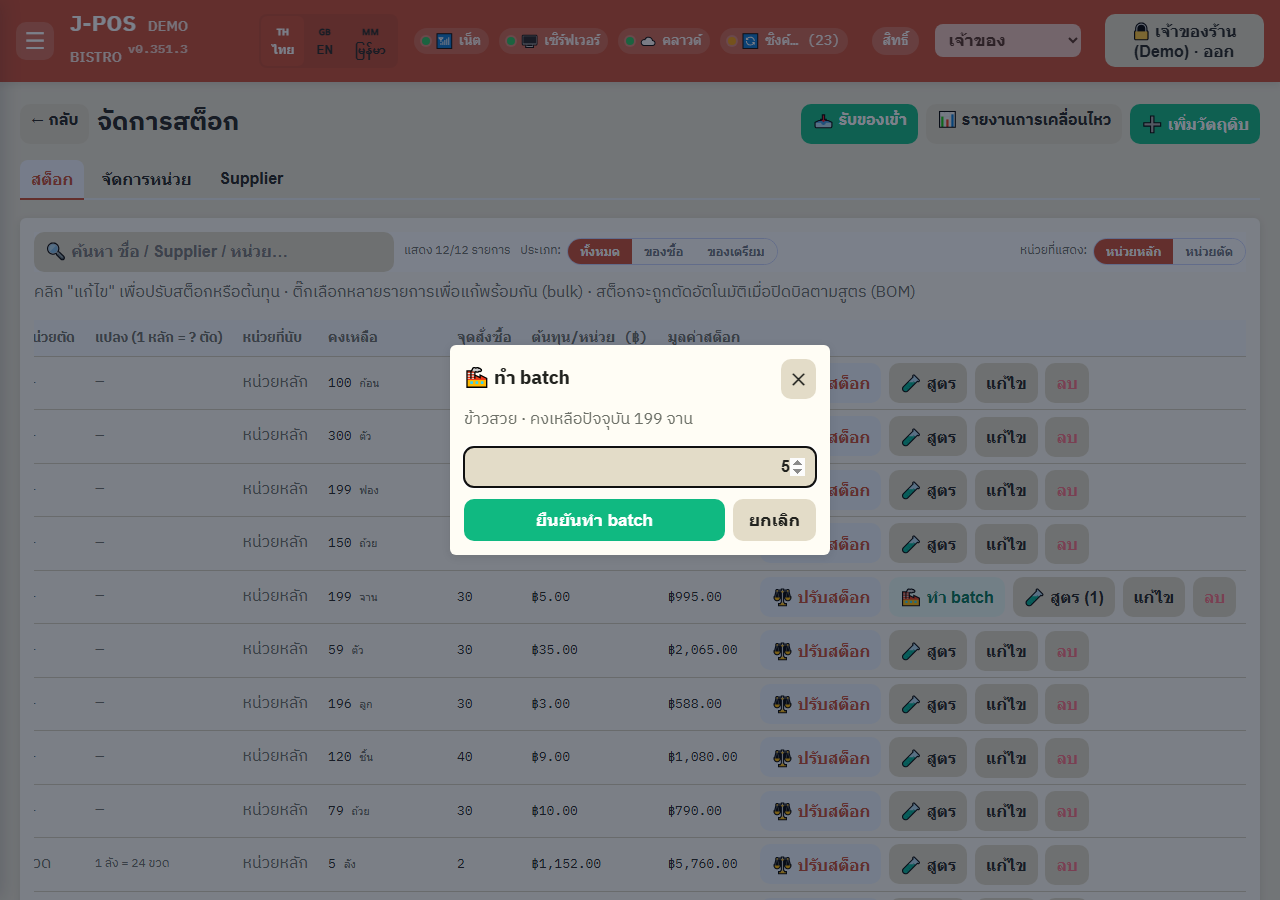
Press "🏭 Produce batch" (only shown once a recipe exists), enter how many batches to make — the system deducts every component per the recipe × batch count, then adds the produced quantity to the prep item's own stock.
If any component doesn't have enough stock, the whole action is blocked upfront with exactly what's short, before anything gets deducted — this is intentionally different from closing a menu sale, which always completes even with insufficient stock (it just goes negative, it never blocks the sale).
Open full size
Common points of confusion
Deleting an ingredient still referenced by a recipe — no warning, no block at all
You can always press "Delete" on an ingredient even while a menu recipe or a prep recipe still references its id — there's no check before deletion. What happens next differs by where it's referenced: a prep recipe ("Produce batch") skips that line and shows a visible alert; but a menu recipe used at sale time (BOM) skips deducting that line completely SILENTLY, with no alert whatsoever. Before deleting an ingredient, check the menu/recipe pages first to see if anything still uses it.
Renaming a unit two different ways gives two different results — one warns, the other doesn't warn and doesn't relink anything
Changing an ingredient's held unit through inline edit always warns first that it's a label-only change (stock, cost, and recipe numbers aren't converted). But renaming the unit itself directly on the "Manage units" tab (the ✏️ rename button) shows no warning at all — and more importantly, every ingredient that was using the old unit name is NOT updated to the new name (ingredients match units by name string, not id). Those ingredients instantly become "using a unit not in the master list" (you'll see a "(not in master list)" fallback option in that row's unit dropdown). If you rename a unit that ingredients are already using, you'll need to go update each of those ingredients' unit fields yourself afterward.
Setting a deduct unit without its conversion factor can't be saved
A deduct unit (the unit used to deduct stock in recipes, e.g. "bottle" when the held unit is "case") must always come paired with "1 held unit = ? deduct units", both when adding a new ingredient and when editing one — fill in the deduct unit but leave the factor blank or zero, and the save is blocked with a warning.
Deleting a unit and deleting a supplier behave differently — don't expect the same rule
Deleting a unit still used by any ingredient (as either held or deduct unit) is blocked immediately, until those ingredients are switched to a different unit. Deleting a supplier that has ingredients linked to it, by contrast, is never blocked — those ingredients simply become "no supplier".
The reorder point (ROP) set here is a fixed threshold, not a number computed from real sales
The "reorder point" number on this page only triggers the ⚠️ icon once stock drops below it (here and on the stock check screen) — it's a fixed number you set yourself, unrelated to any sales history. For a number computed from actual sales plus each supplier's lead time, use the "Order plan" page in the Receiving module instead — it draws on entirely different data. If a reorder point was never set at all, the system silently defaults to 30 (held units) — leaving it blank doesn't mean the alert never fires.
The "buy / prep" filter is a live computed view, not a stored value
The "buy / prep" filter above the table doesn't read from a separately saved field — it checks live, every time, whether that ingredient currently has a prep recipe (from "Set / edit a prep item's recipe"). So if you just cleared all its components down to none, that ingredient jumps from "prep" to "buy" immediately, with no extra save step needed.