BOOK 16/25Customers & promotions
Promotions
Set “buy X qualifying items” conditions that auto-apply an end-of-bill discount (a fixed baht amount off, a percent off, or 1 free item) from the “Manage” menu → “Manage Promotions.” Scope by item / category / group, or the whole order, with an optional day/date/time window. Unlike member coupons (see the “Members” page), promotions are re-derived from the live order every time — they aren't tied to any one member and don't spend redemption points.
Set conditions and add a new promotion
Open “Manage Promotions” + check access
Go to the “Manage” menu and choose “Manage Promotions” (🎁 icon) — you need settings.manage to open this page at all; without it you see a permission-denied message instead of the form.
Having settings.manage only gets you into the page — it doesn't guarantee you can save. Actually adding/editing/deleting (the POST call) also requires menu.edit at the same time. Missing menu.edit means the form works fine right up until you press save, which then errors.
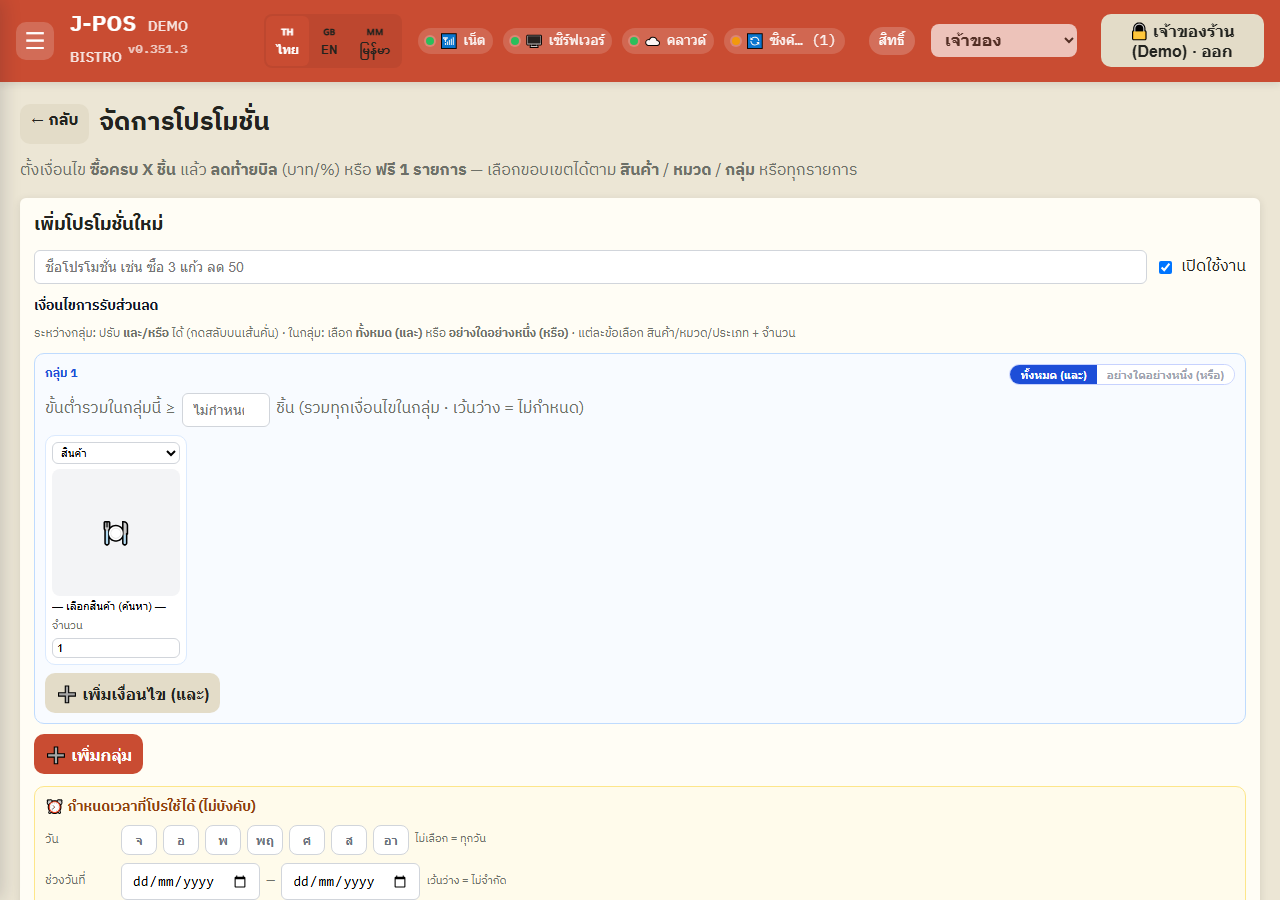
Open full size Name the promotion and toggle it on/off
Enter a name (required, e.g. “Buy 3 drinks, ฿50 off”) and check “Enabled” if it should take effect the moment you save — you can also create it disabled and turn it on later.
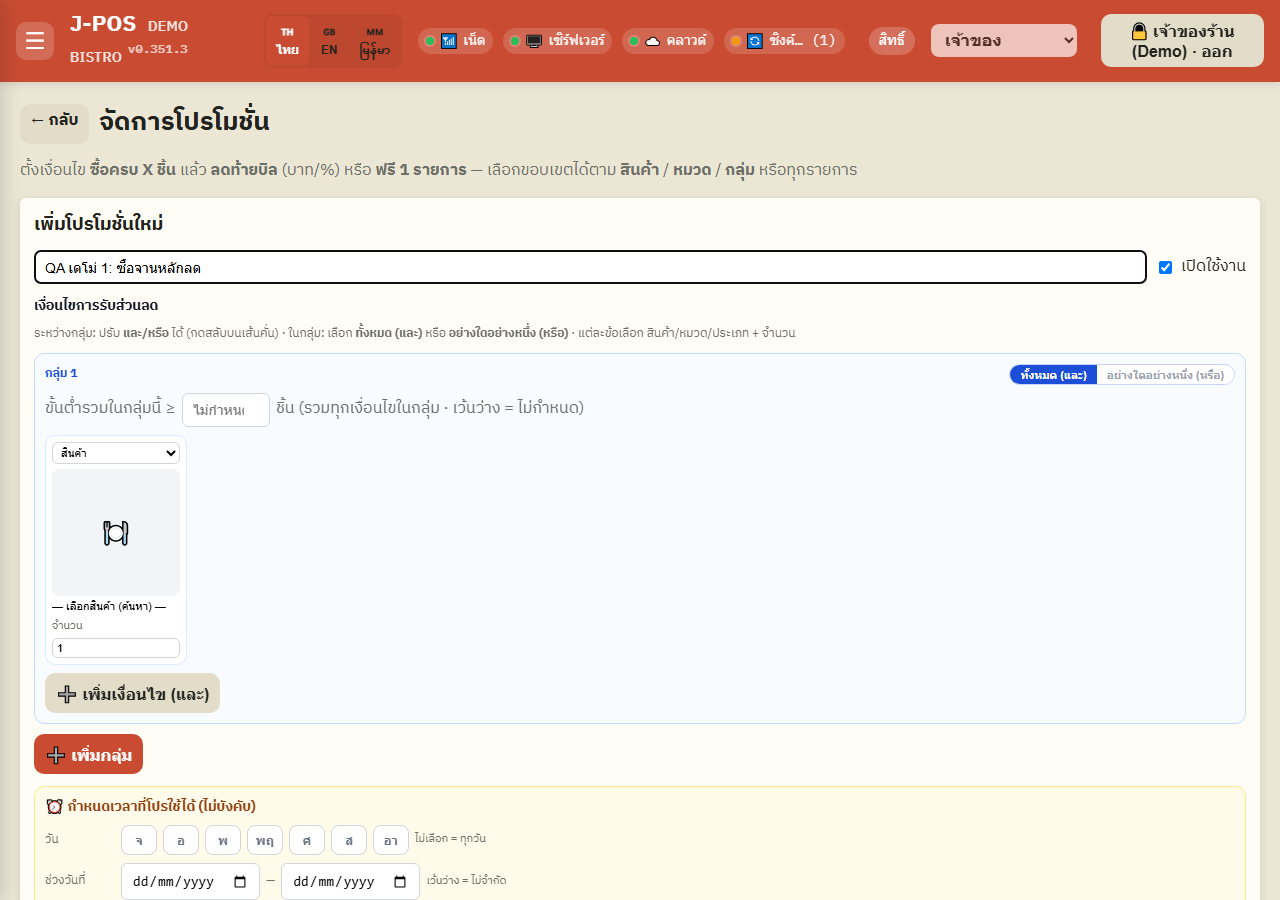
Open full size Set the qualifying condition (a single group)
Pick a target type per condition — item / category / group (menu group) — and its minimum quantity. Within one group you choose whether ALL conditions must be met (“และ”/AND) or just ANY ONE (“หรือ”/OR).
An optional “group total minimum” stacks on top of the individual conditions — e.g. each item condition must still be met, AND the combined quantity across the whole group must also reach the number you set.
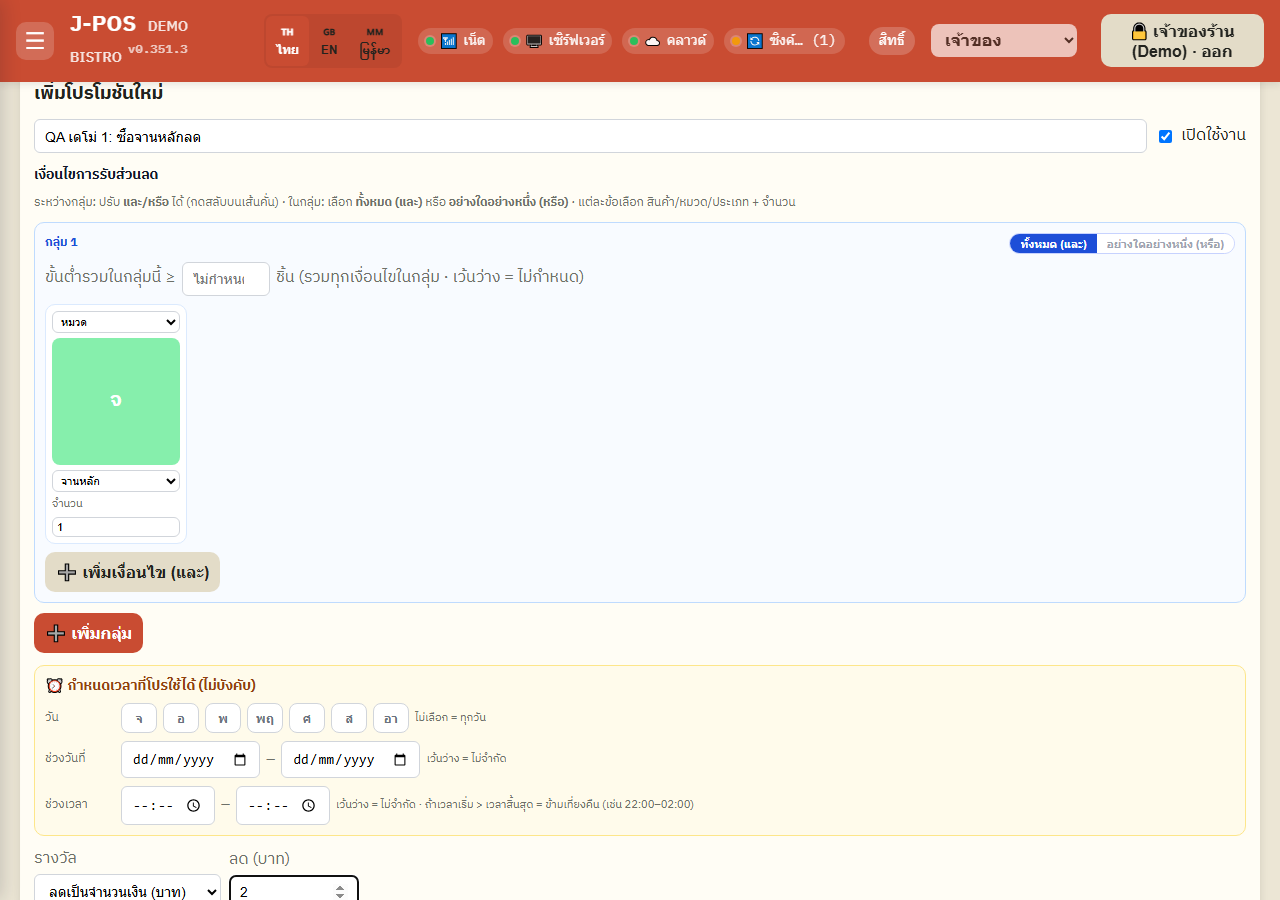
Open full size Add more condition groups + the join between them
Press “➕ Add group” to add a second, independent set of conditions, then flip the AND/OR toggle on the divider between groups to decide whether the promo needs BOTH groups met or EITHER ONE. Joins are evaluated left to right, gap by gap — there's no operator precedence.
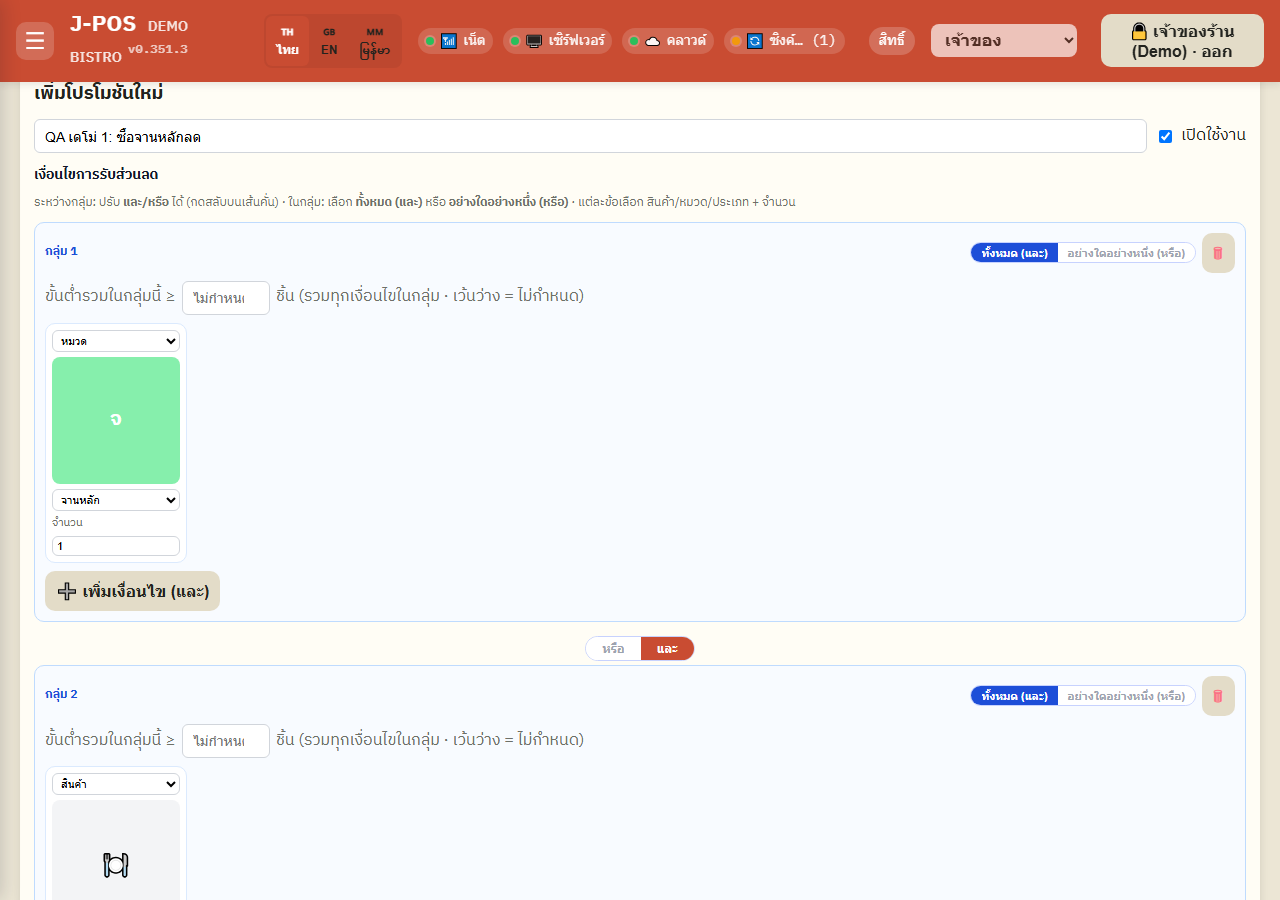
Open full size Set the availability window (optional)
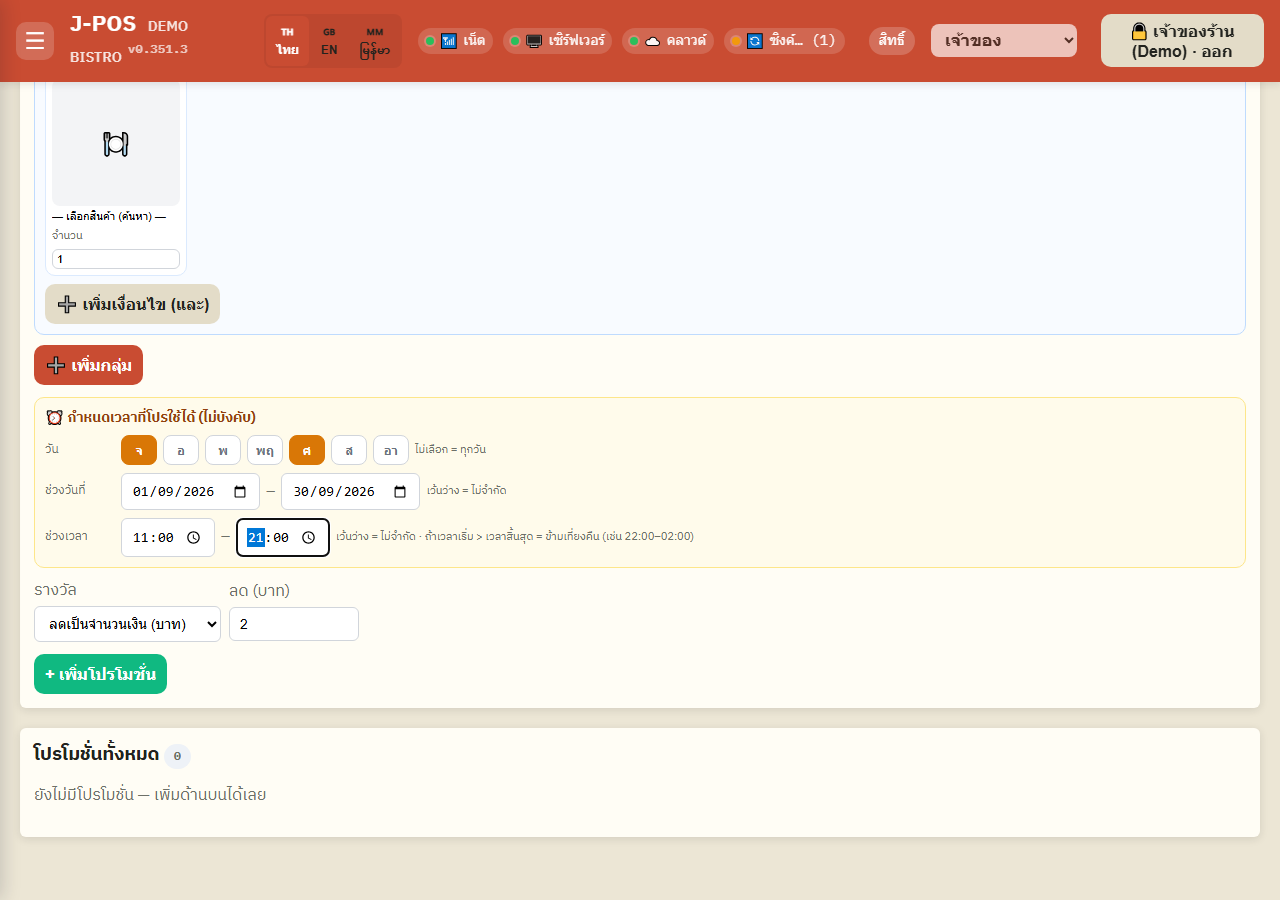
Choose which weekdays it's valid on (none selected = every day), a start/end date range, and a start/end time window for each day — leaving any axis blank means that axis has no restriction.
If the start date is set after the end date, the form warns immediately because that leaves no day the promo can ever apply on. A start time later than the end time (e.g. 22:00–02:00) is automatically read as wrapping past midnight — no need to split it into two entries.
Open full size Pick the reward and save
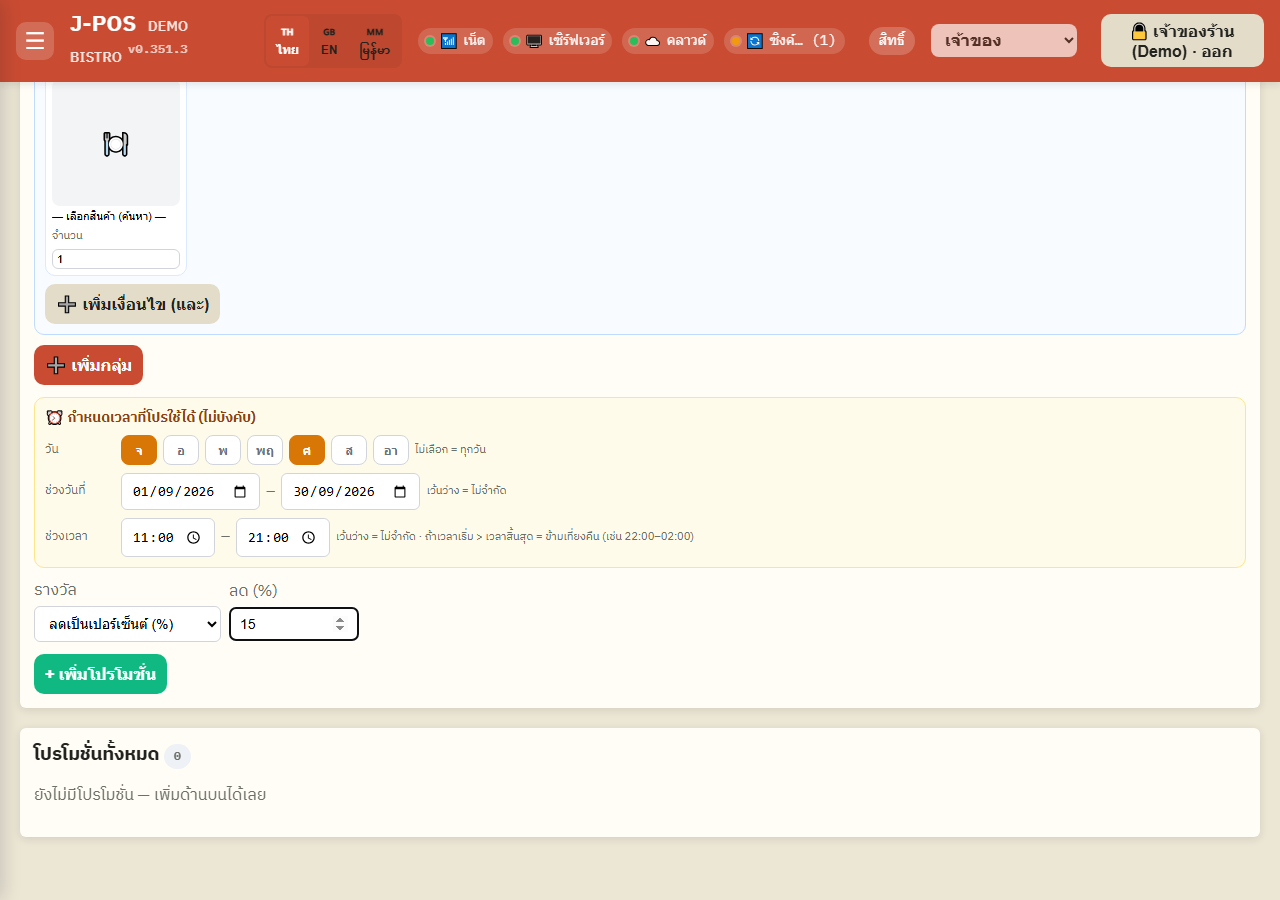
Choose a reward type — a fixed baht amount off, a percent off, the cheapest qualifying item free, or one specific pre-chosen item free — then press “+ Add promotion”.
Percent-off is computed only from the subtotal of the qualifying lines, not the whole bill. A fixed-baht discount is a flat value with no relation to that subtotal at all — if it's set higher than the actual bill total, it simply gets trimmed down to match (see “Combined discounts exceeding the bill” below).
Open full size Review the full promotions list
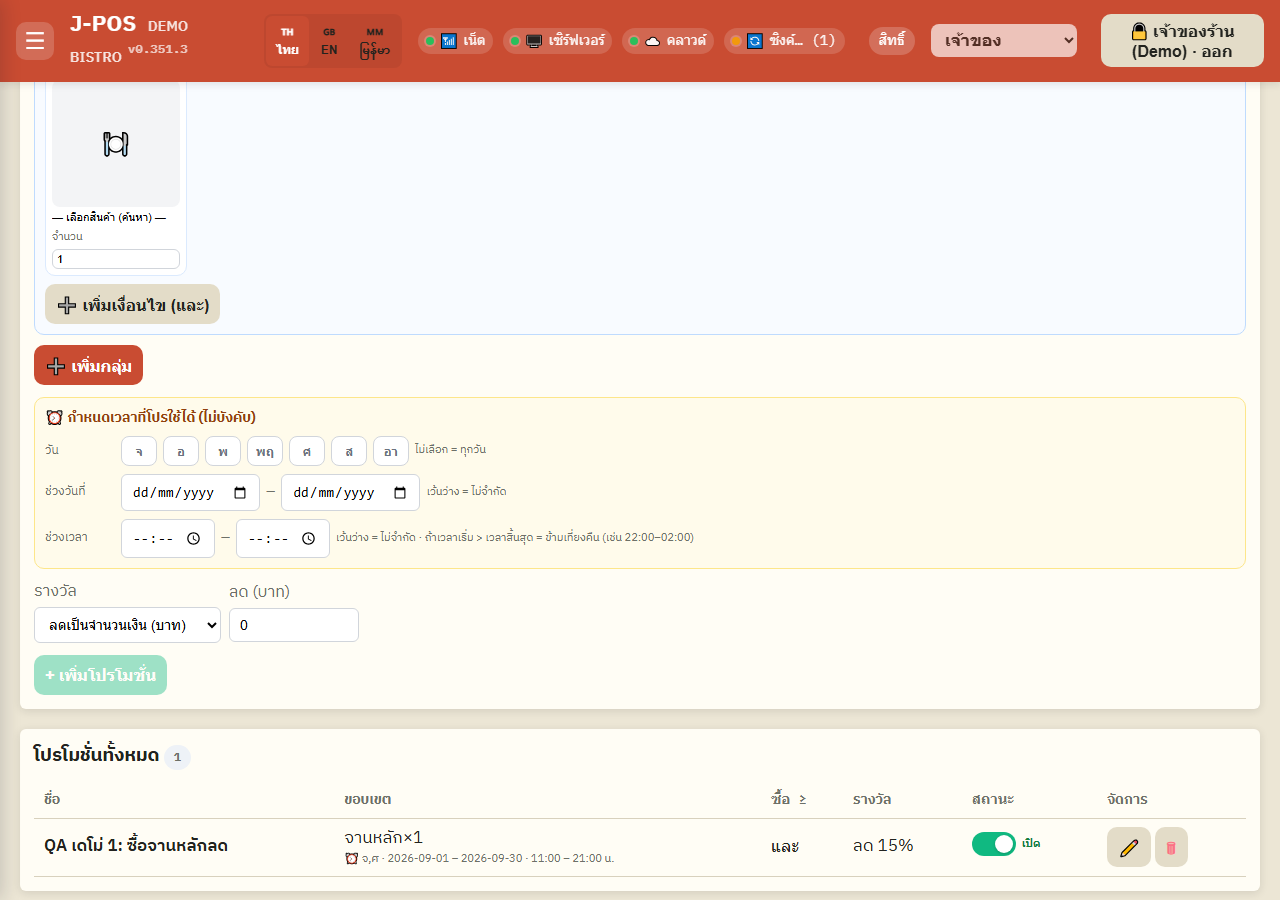
The table below the form lists every promotion with a plain-language scope summary (e.g. “Beer×2 AND Ice×1”), its minimum-purchase condition, its reward, and its enabled/disabled status.
Open full size
Edit, toggle, and delete existing promotions
Edit / quick-toggle / delete
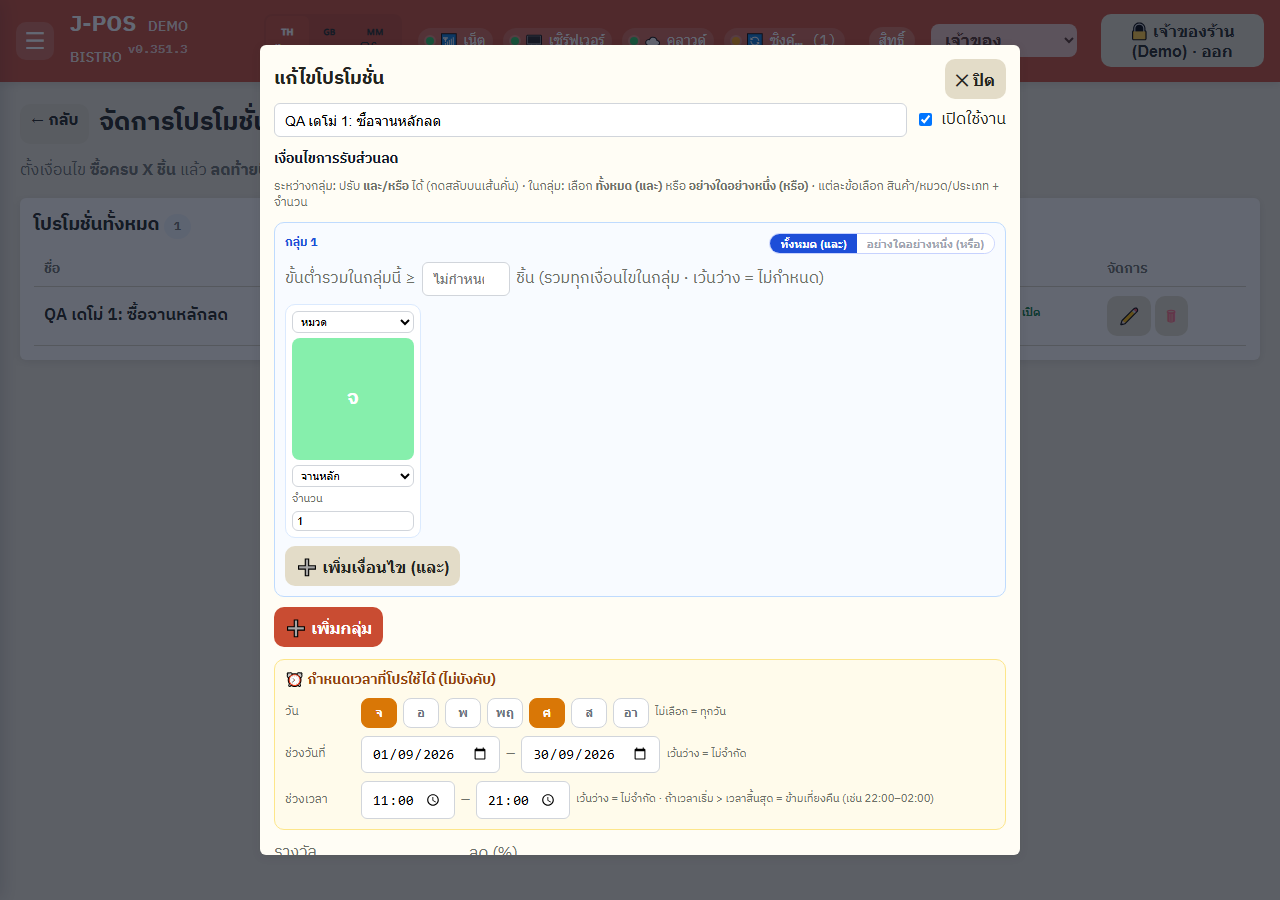
Press the pencil icon on a row to open the edit popup (same form as adding), then press “Save changes.” The enabled/disabled switch in the table works instantly without opening that popup at all — it updates the screen right away and rolls back automatically if the save fails.
Press the trash icon to permanently delete a promotion — the system always asks for confirmation first. Deletion cannot be undone; you'd have to recreate it from scratch.
Open full size
Promotion discounts during an actual sale (the bill screen)
Auto-applied promos on the bill + removing one from just this bill
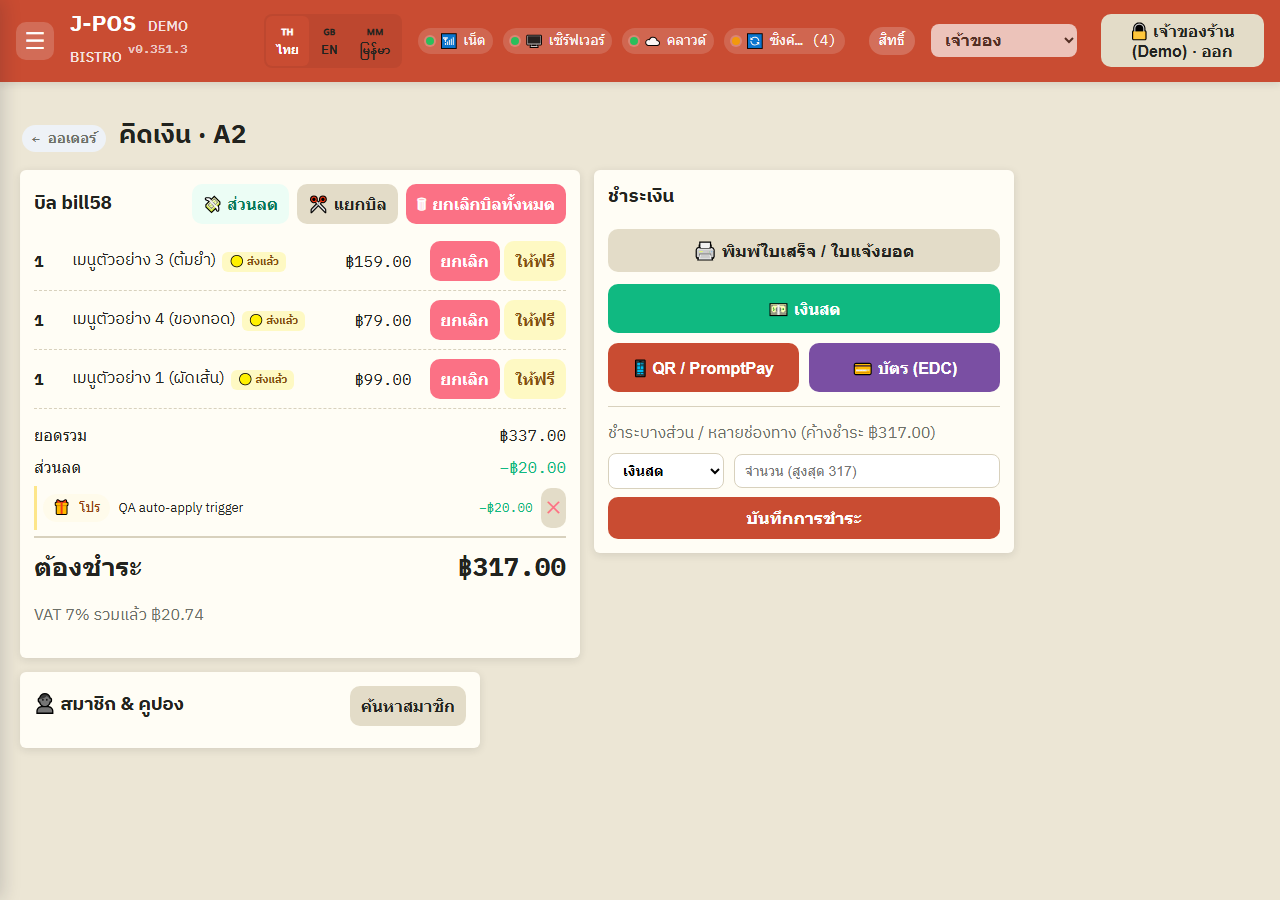
Any qualifying, enabled promotion appears on the bill on its own — nothing to press. It's recalculated fresh from the bill's live order lines every time something changes (an item added/removed/voided), so a promo that no longer qualifies simply disappears again on its own, with no one needing to do anything.
Press the “✕” next to a promo's name on the bill to remove just that promo from just this bill — the system remembers it as an excluded promo for this specific bill (not a one-time skip). Even if you add/remove items and the condition becomes true again, an excluded promo will NOT come back on its own until you use the control in the next step.
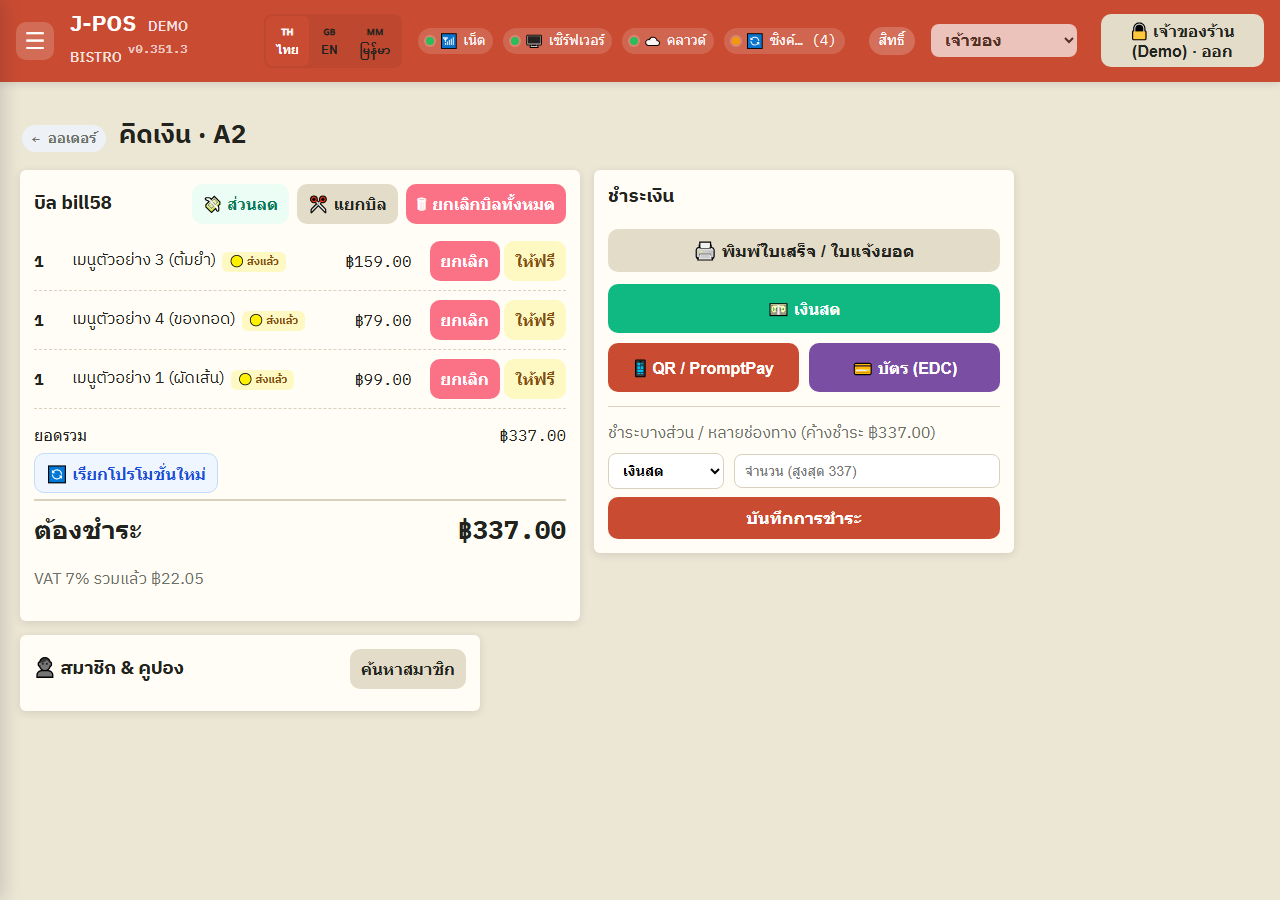
Open full size Bring back a promo you removed from this bill
The “🔄 Re-evaluate promotions” button only appears when this bill currently has at least one removed promo on record. Pressing it clears every exclusion on this bill and re-derives promotions from the current order lines from scratch, exactly as if the bill had just been opened — pressing it again is harmless and never stacks discounts.
Open full size
Common points of confusion
Multiple promotions can stack — nothing picks the “best” one or blocks overlap
Every enabled promotion that qualifies at the same time gets added into the same bill's total discount — the system never picks only the biggest one and never prevents two promos from both applying together. If you don't want certain promos to overlap, you have to prevent it yourself (non-overlapping conditions/schedules), or manually remove the unwanted one from that specific bill (see “Auto-applied promos on the bill” above).
Combined discounts exceeding the bill: promotions get trimmed FIRST — before coupons, employee discounts, or a manually typed discount
If the sum of every discount source (promotions + coupon + employee discount + a manually typed-in discount) exceeds the pre-discount item total, the excess is trimmed in this exact order: promotions first, then coupon, then employee discount, and the manually typed discount last. That means a promotion can get trimmed all the way down to ฿0 even though it genuinely qualified, while a manually typed discount survives untouched — because that one is treated as the staff's deliberate final call and is protected the longest.
“Cheapest item free” / “chosen item free” always frees exactly ONE unit, no matter how many were ordered
Both these reward types price off a single unit of a qualifying line and give exactly that much off — nothing more. A “buy 2, get the cheapest one free” promo doesn't scale up if the customer orders 6 — it still frees just 1 unit, not 3 (it's not "how many times the minimum divides into the order quantity"). If you want the free count to scale with quantity ordered, you have to build that as several separate promotions.
“Chosen item free” gives no discount at all if that item isn't actually on the bill
The “free chosen item” reward only triggers if the specific item picked when the promo was created is actually ordered on this bill AND is part of the qualifying lines — if the customer meets the purchase condition but never ordered the item set as the freebie, this promo silently contributes zero discount, with no warning shown anywhere (it looks identical to a promo that was never configured at all).
Being able to open the page doesn't mean you can save — two permissions are required together
The “Manage Promotions” page itself opens with settings.manage alone, but actually adding/editing/deleting (the save action) always additionally requires menu.edit. Staff with settings.manage but not menu.edit see a fully working form all the way through — pressing save is what fails, with an error message, instead of being blocked from the page in the first place.
A reversed date range means the promo NEVER applies — not that it applies every day
If the start date is entered after the end date by mistake, the system treats it as no date ever falling in that range — the promo becomes permanently unusable until the dates are corrected (the safe failure direction is "never discounts," not "discounts every day by accident"). The form shows an immediate red warning for this exact input mistake, but editing the promo directly through the API bypasses that warning.
Weekday scheduling follows the shift's opening date, not the real calendar clock — a bill running past midnight still counts as the earlier day
Day-of-week and date-range checks are evaluated against the BUSINESS DATE the current shift opened on, not the literal calendar date at the moment of checkout — a table opened Friday night that's still running at 1 AM Saturday still counts as "Friday" for a promo scheduled to Fridays only. Time-of-day windows (e.g. 22:00–02:00) always use the real wall clock instead, regardless of business date.
Promotions are recomputed live — disabling, deleting, or letting the schedule expire on an open bill quietly drops the discount on the next recalculation
Unlike a coupon (locked to the bill permanently once redeemed), a promotion's discount is re-derived from the bill's live order lines every single time something changes (items added/removed/voided, service charge toggled, etc.). If staff disable a promo, delete it outright, or its schedule window simply expires while a bill is still open, that bill stops receiving that promo's discount the moment the next recalculation runs — with no notice shown to staff on the bill screen about what happened. (A bill that's already closed/paid is never recalculated again, so none of this touches anything retroactively.)