BOOK 11/25Menu & stock
Recipe book
The Recipe Book is a view/log for cooking steps, a finished-dish photo, prep/cook time, allergens, and printing either a full recipe book or a BOM-only shopping sheet for the kitchen — separate from the "Menu" page, which is where the actual recipe/ingredients (BOM) get edited. This page never edits the BOM, it only references it. Requires recipe.view to open at all (recipe.edit additionally unlocks editing and restoring older versions).
📖 View the Recipe Book (requires recipe.view)
Open the Recipe Book page
Go to "📖 Recipe Book" — the summary cards at the top count total items, items with steps already saved, and items with none saved yet.
This count comes from the jpos_recipe_book table (Neon), a separate store from an item's recipe/BOM — an item can have a complete BOM and still count as "no steps yet" if nobody has written the method down.
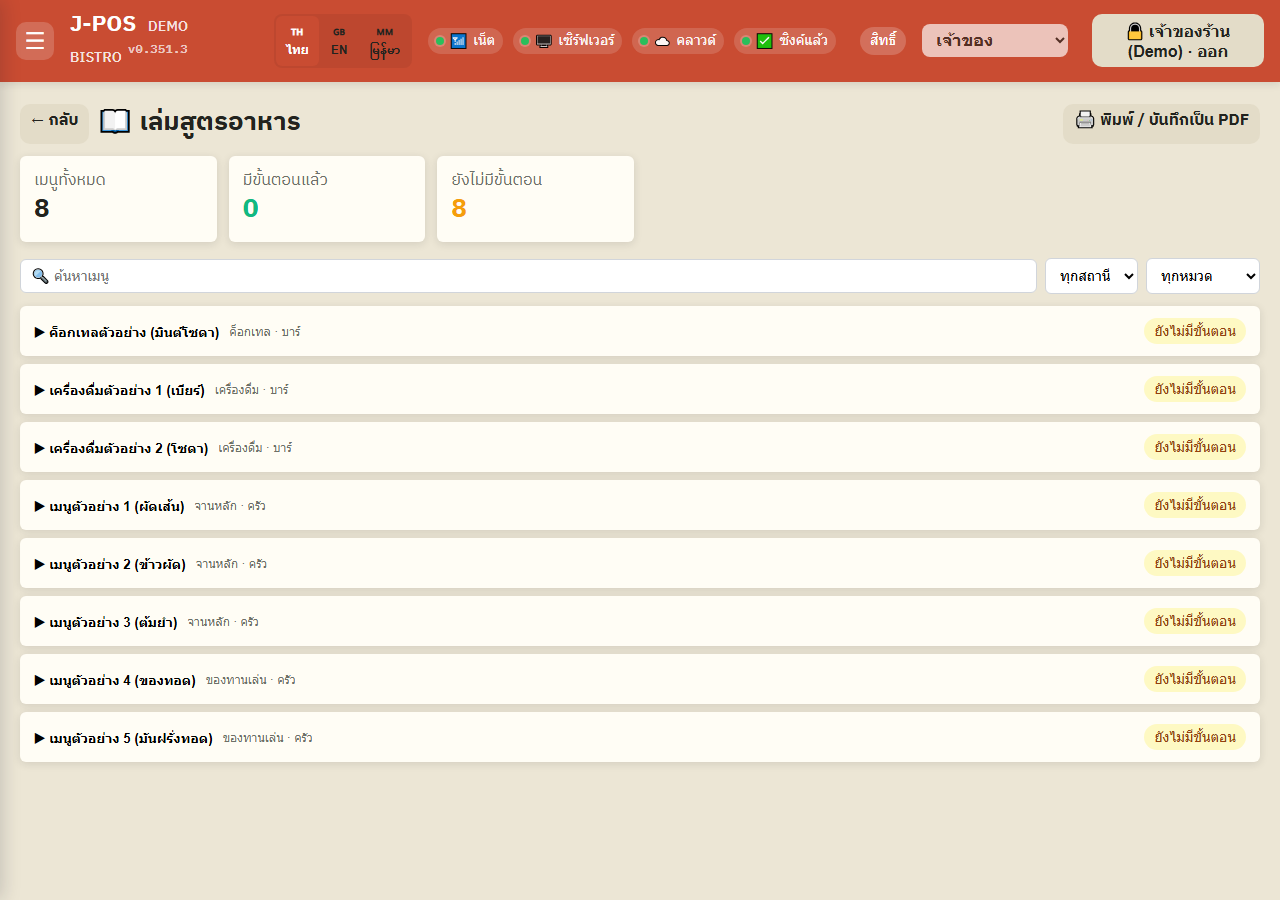
Open full size Search + filter the item list
Use the "🔍 Search menu" box, or the "All stations" / "All categories" filters, to narrow the list down.
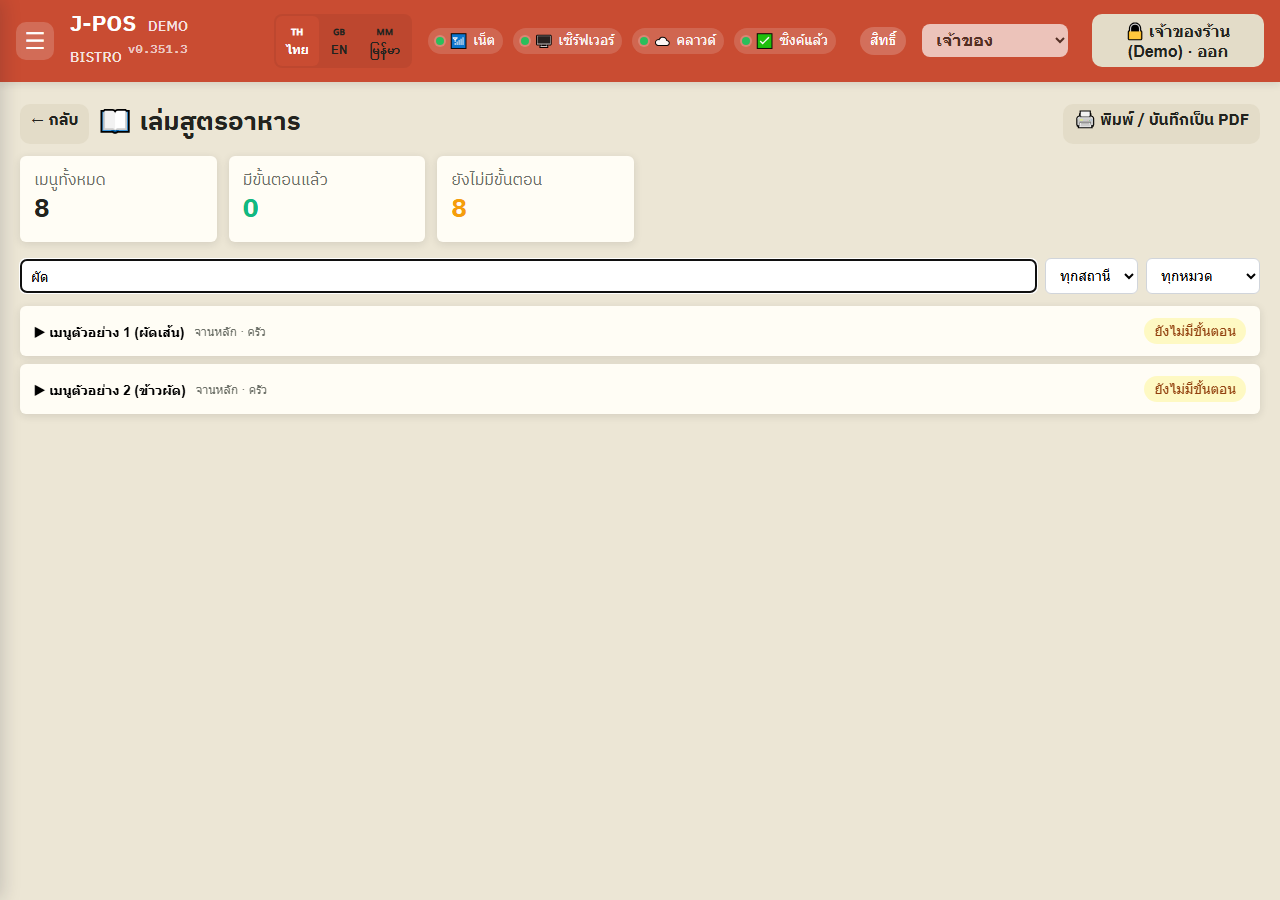
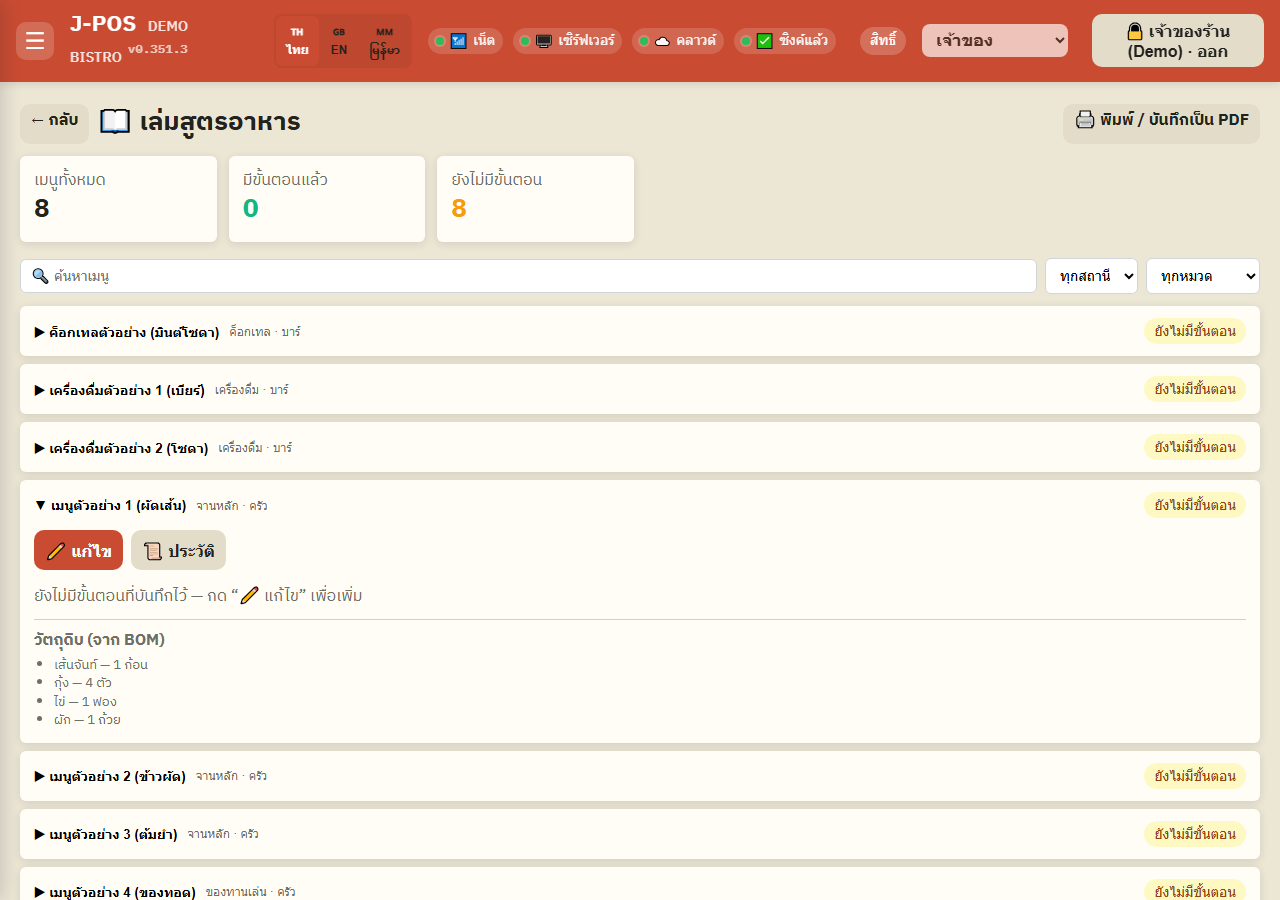
Open full size View an item's recipe detail
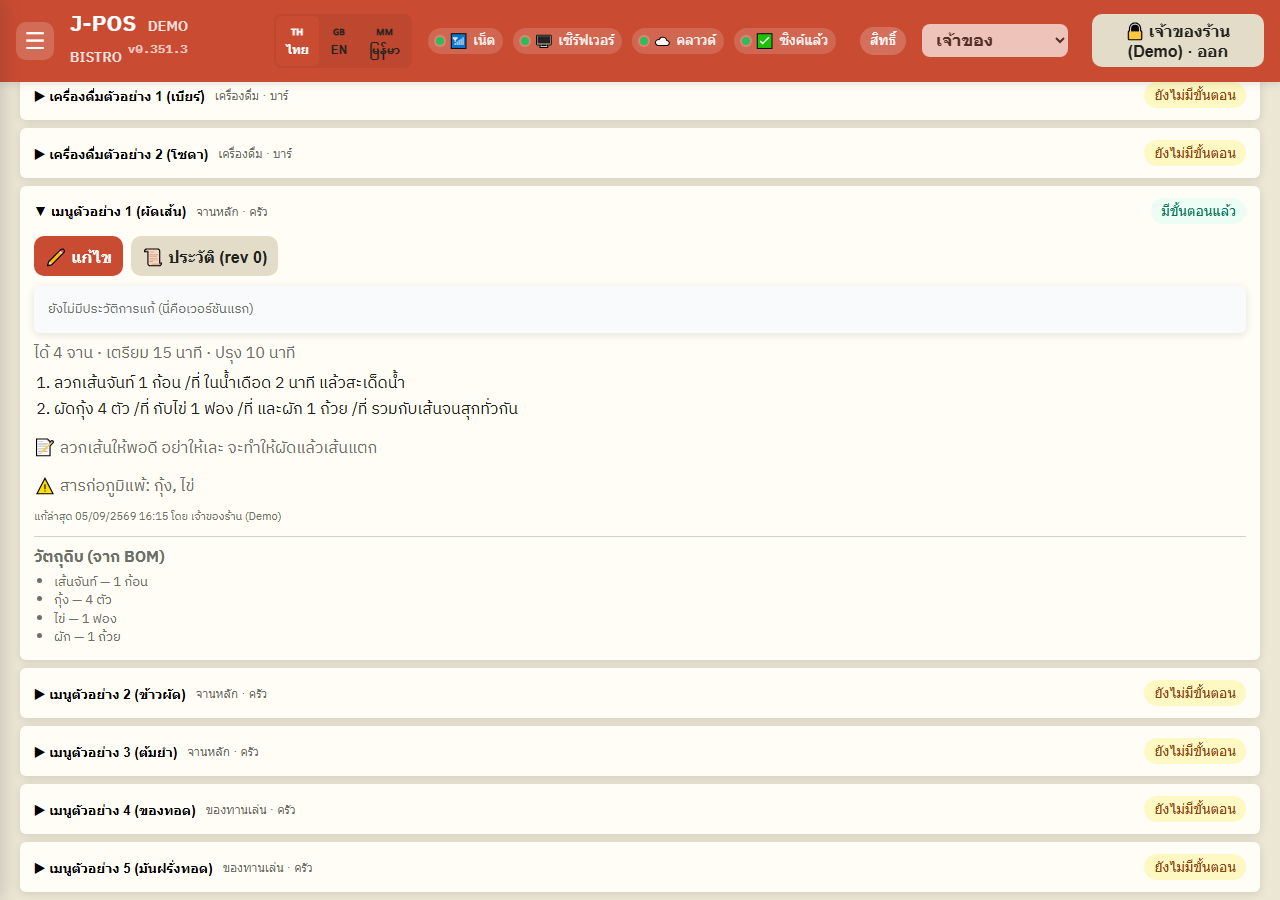
Click an item's name to expand it — if nobody has saved steps yet, it just says "No steps saved yet" (not an error), with a read-only "Ingredients (from BOM)" list below, pulled straight from that item's real recipe (quantity/unit only — never a cost or price here, even for an account with cost.view).
An account with recipe.edit additionally sees an "✏️ Edit" button.
Open full size
✏️ Edit the Recipe Book (requires recipe.edit, on top of recipe.view)
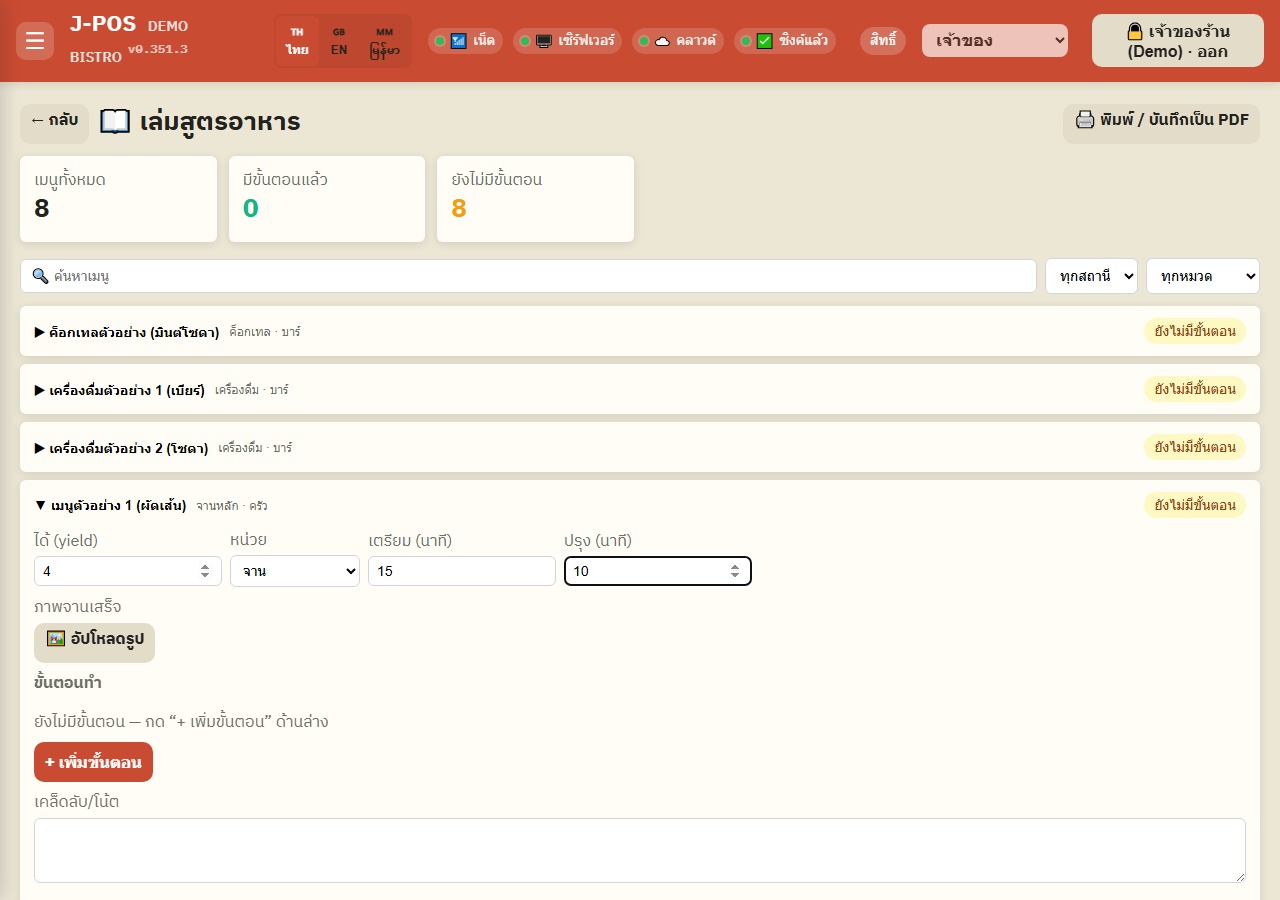
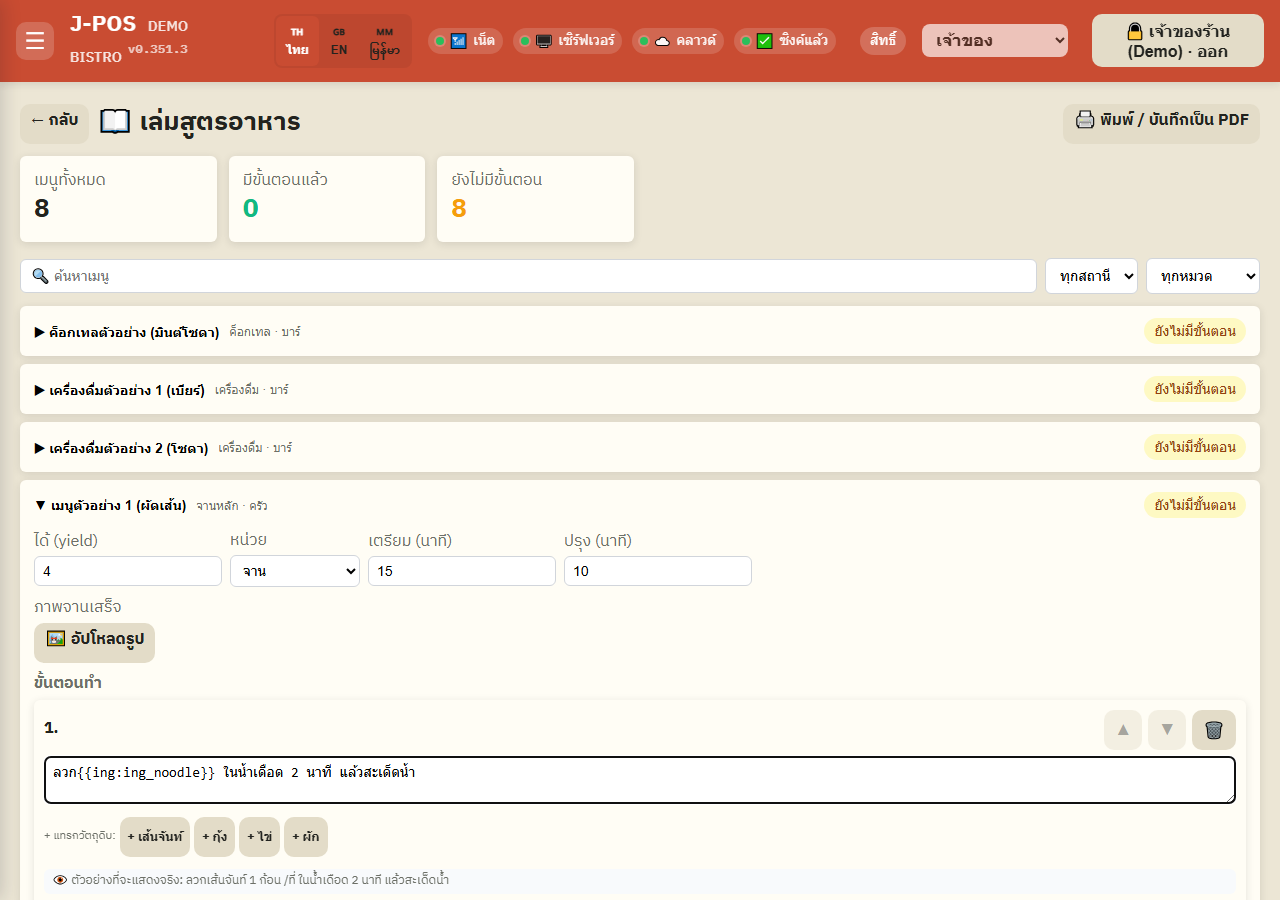
Open the edit form — yield + prep/cook time + finished-dish photo
Press "✏️ Edit" to fill in "Yield" + its unit, "Prep (min)", and "Cook (min)" — every field is optional, blank is fine.
Upload a finished-dish photo ("🖼️ Upload photo") — it shows in both the normal view and the "full recipe book" print mode.
Open full size Add cooking steps + quick-insert ingredients (live tokens)
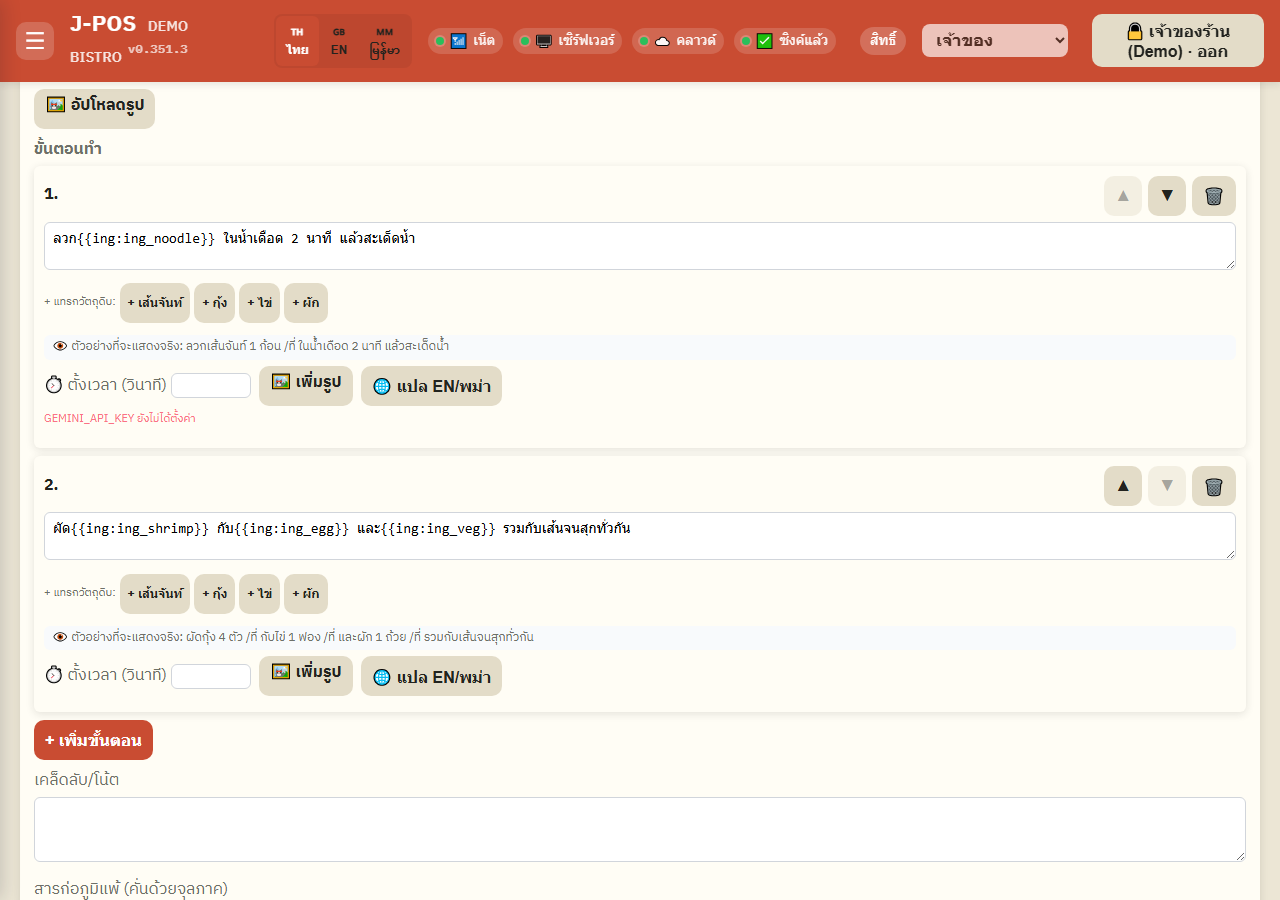
Press "+ Add step" and type the method — the "+ <ingredient name>" chips under the text box are built from that item's own BOM; clicking one inserts it at the cursor instead of typing the name/quantity by hand.
What gets inserted is not frozen text but a "live token" — a "👁️ Live preview" line under the box always shows what will actually display before you save (see the edge cases below for what this token behavior means in practice).
Use the ▲/▼ buttons on each step to reorder (no drag-and-drop), and optionally set a "⏱️ Timer (seconds)" per step.
Open full size Translate a step to EN/Burmese
Press "🌐 Translate EN/Burmese" on a step to have Gemini auto-translate the Thai text — if the shop hasn't configured GEMINI_API_KEY, the button says so directly instead of silently failing or showing a generic error.
If a step contains ingredient tokens, they're converted to a readable name/quantity before being sent to Gemini and converted back into the target language automatically — the raw {{ing:...}} syntax is never sent to the AI.
Open full size Notes + allergens + save
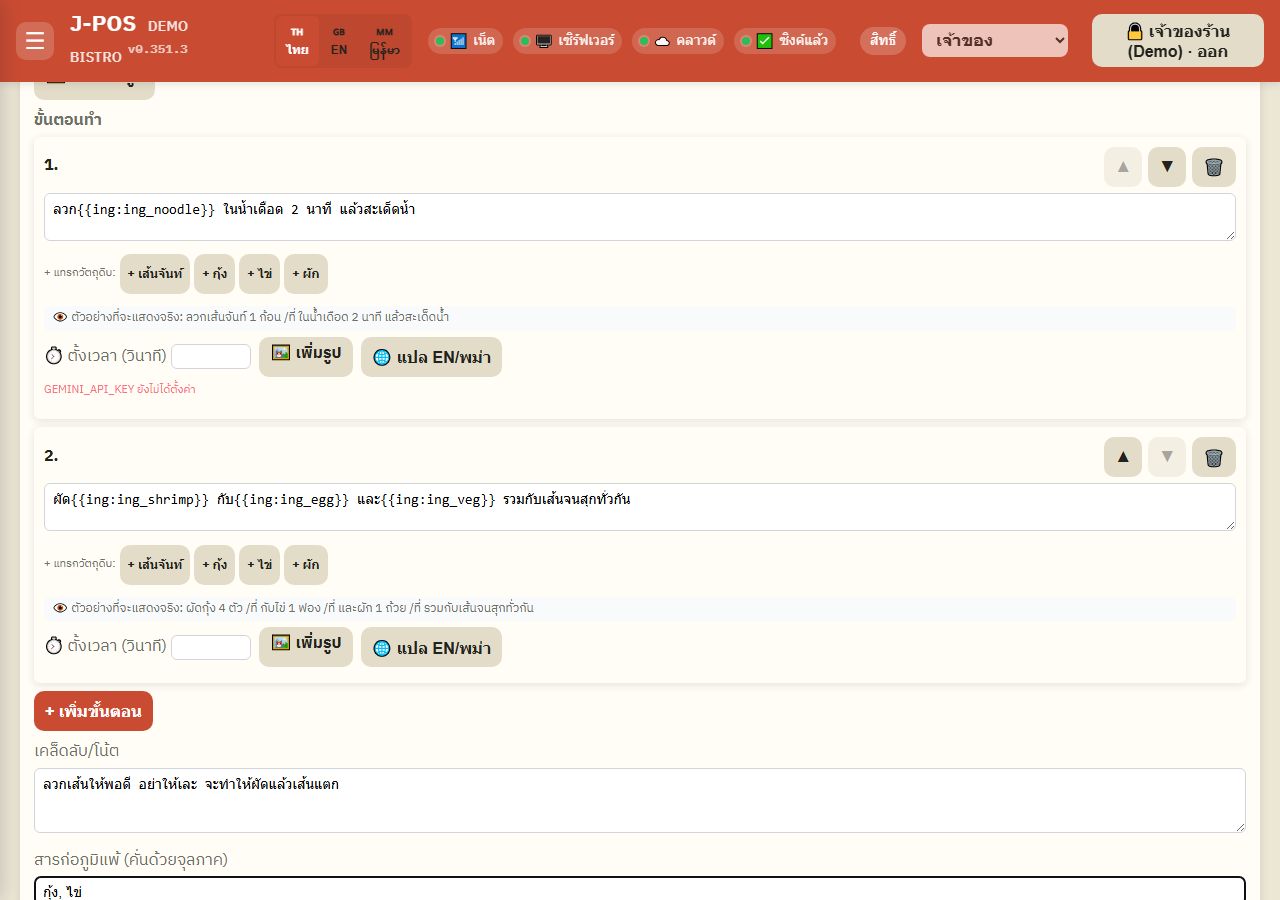
Fill in "Tips/notes" (free text) and "Allergens" (comma-separated — there's no master allergen list, it's typed by hand every time).
Press "💾 Save" — if offline, a real 503 message shows both as an inline banner in the form and as a popup; there is no write queue, so you must press Save again yourself once back online.
Open full size What actually shows after saving
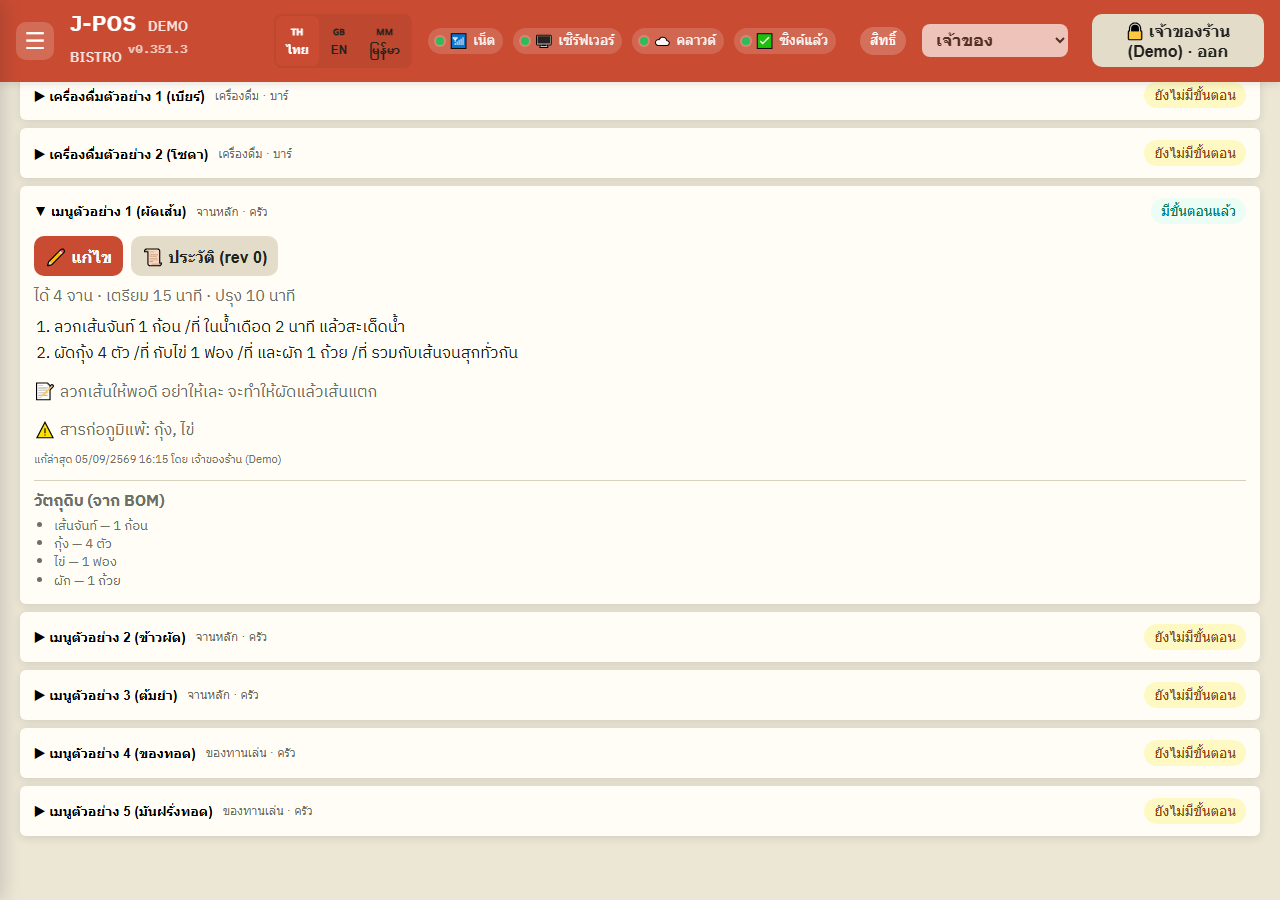
After saving, the normal view immediately shows steps with every ingredient token already resolved to a name+quantity+unit, along with notes/allergens and the last-edited time and editor.
Open full size View version history + restore
Press "📜 History" to see past versions — recipe.view can only look; an account with recipe.edit additionally sees an "⏮️ Restore" button on each row.
Restoring keeps the current (pre-restore) version in history too — nothing is lost, and you can restore again as many times as needed.
Open full size
🖨️ Print / Save as PDF (recipe.view is enough, recipe.edit not required)
Open the print page + pick a mode + filters
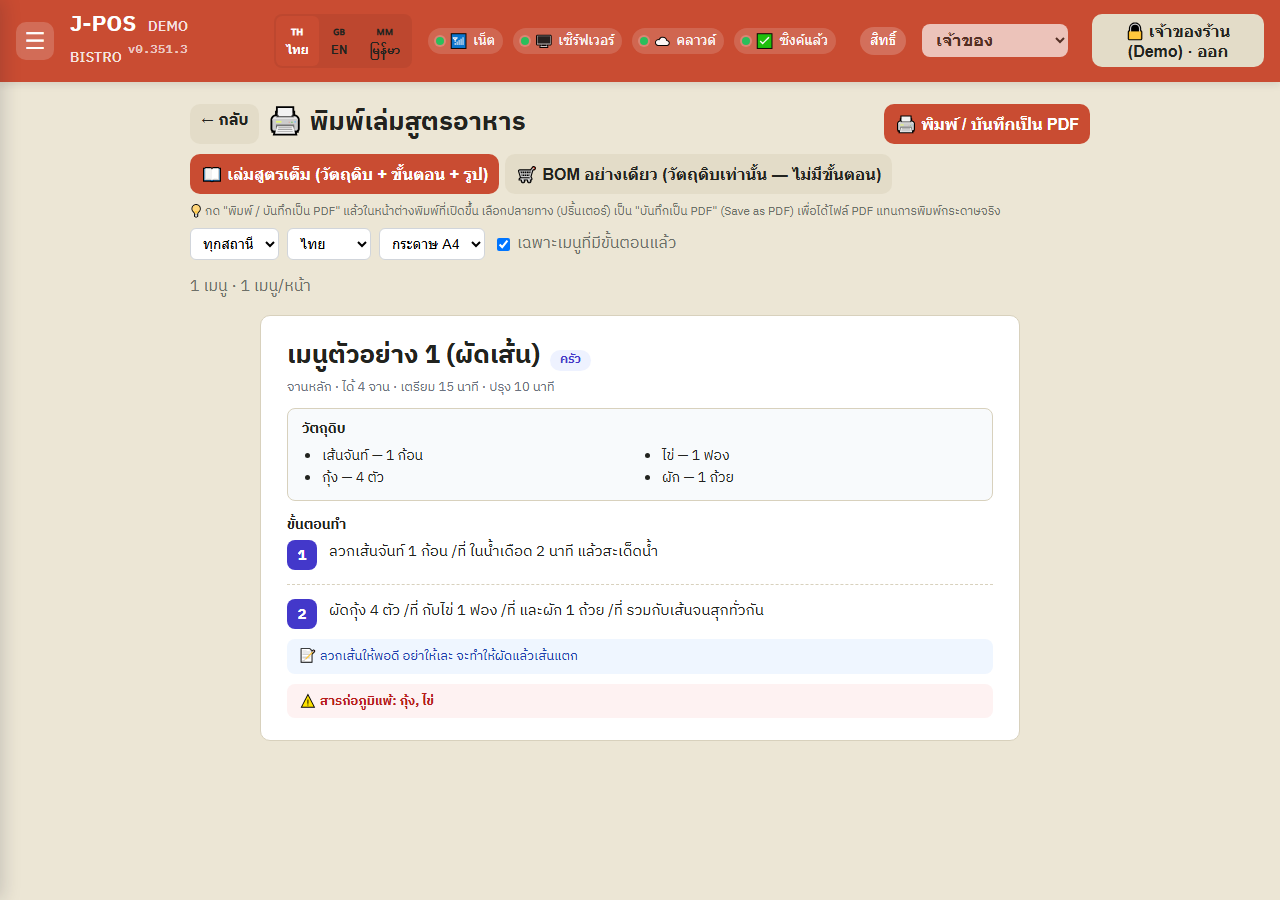
Press "🖨️ Print / Save as PDF" from the Recipe Book page — pick "📖 Full recipe book" or "🛒 BOM only" (genuinely two different documents, not one filtered view of the same thing), filter by station, pick a language (full mode only), and a paper size (A4/A5).
Press "Print / Save as PDF" and in the browser's print dialog pick "Save as PDF" as the destination instead of a real printer — this page has no PDF-export button of its own, it relies entirely on the browser's own print mechanism.
Open full size Print "Full recipe book" mode (1 item per page)
Shows ingredients + cooking steps + finished-dish photo + per-step photos (if any), always one item per page — no cost/price ever appears in this mode, regardless of whether the account has cost.view.
"Only items with steps saved" is checked by default — an item with no steps saved is simply excluded from the count and never printed, not printed as a blank page.
Open full size Print "BOM only" mode (several items per page)
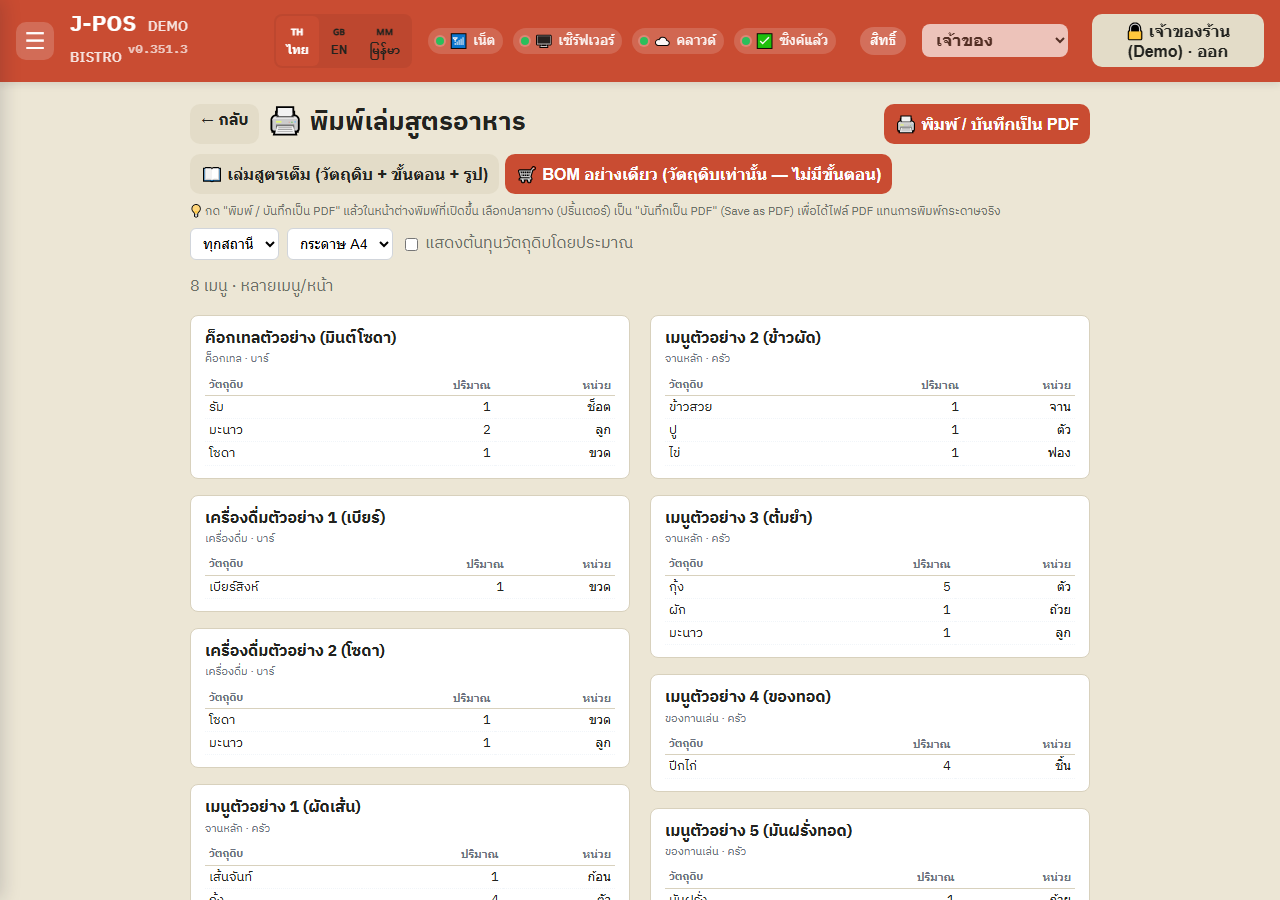
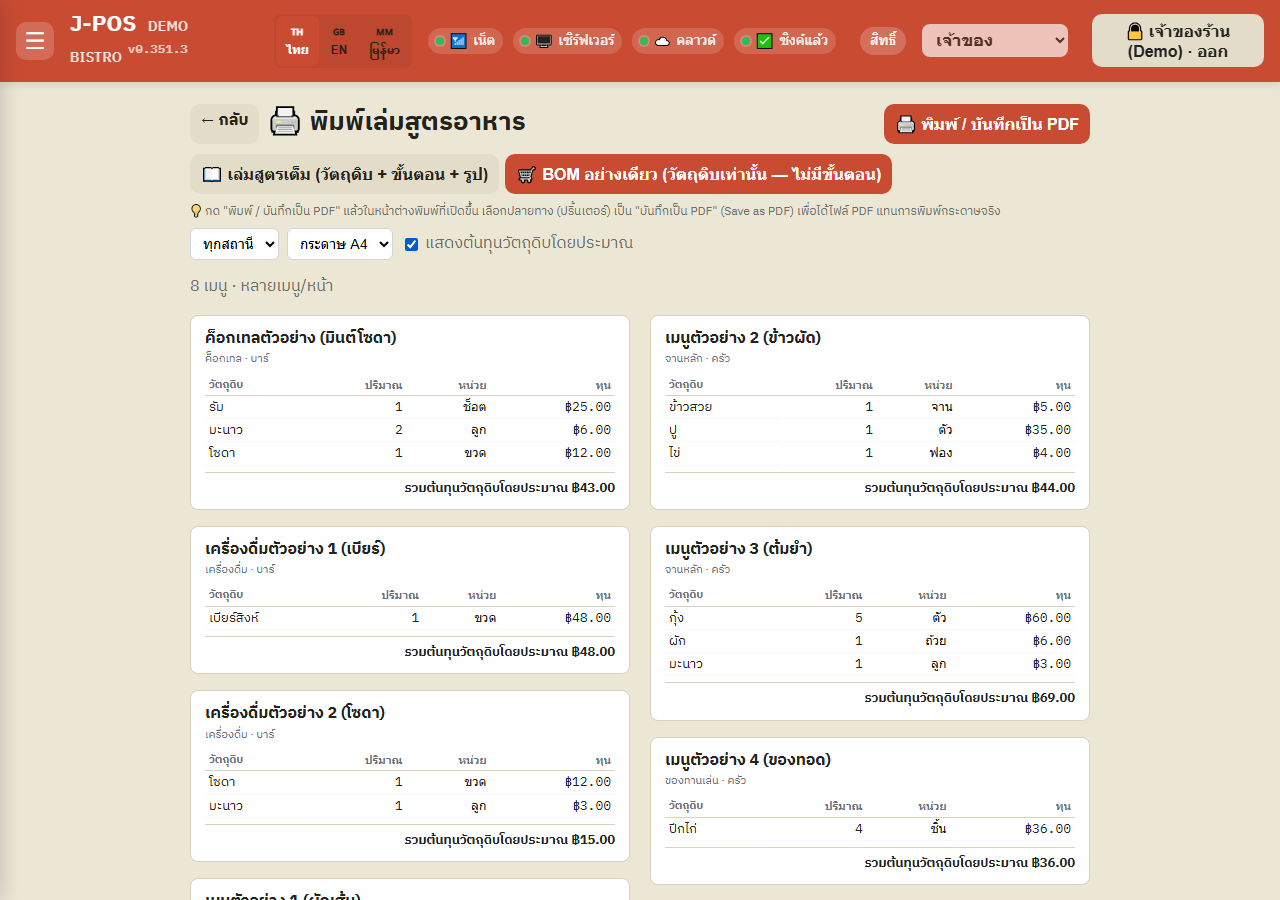
A pure ingredient/quantity/unit table, no cooking steps, no photos — several items can share one page (2 columns on A4, 1 on A5), suited to a stock-check or market run.
This mode filters on "has a BOM", not on "has saved steps" — an item with steps fully written but no recipe (BOM) ever entered won't appear here, the opposite of full mode's filter.
Open full size Show ingredient cost in BOM mode (requires cost.view additionally)
In BOM mode only, an account holding cost.view on top of recipe.view sees a "Show estimated ingredient cost" checkbox — checking it adds a cost column per ingredient plus a total at the bottom of each card.
An account with only recipe.view (e.g. kitchen/bar) never even sees this checkbox — not just the numbers hidden.
Open full size
Common points of confusion
An ingredient token always resolves "per serving", never scaled by yield
Once inserted, the quantity always ends with "/serving" because a BOM row stores the amount for a single plate only — even if the recipe's "Yield" says "4 servings", the number inside a step is still per one serving, not the whole batch. You have to multiply it yourself if cooking several servings at once.
An EN/Burmese translation is frozen at translate time — it does not follow later edits
The Thai `text` field keeps a live token, always up to date the instant the BOM changes, but `textEn`/`textMy` produced by the 🌐 button are frozen literal text captured at translate time — edit the recipe or the Thai wording later without re-translating, and EN/Burmese quietly drift out of sync. The print page's "(not translated yet — showing Thai)" label only fires for a step never translated at all, not for one that's translated but stale.
An ingredient removed from the BOM afterwards doesn't vanish silently
If a step has an ingredient token and someone later removes that ingredient from the item's recipe on the "Menu" page, the step resolves to a clearly visible "[ingredient removed from the recipe]" label instead of a blank space or a leaked raw {{ing:...}} token.
Cost/price never appears in the Recipe Book, except one specific toggle
Neither the normal view nor "full recipe book" print mode ever shows a cost or price, regardless of permission (unlike the "Menu" page, where per-item cost is visible with just menu.edit). The only place cost ever appears here is the "Show estimated ingredient cost" checkbox in BOM-mode print, which additionally requires cost.view on top of recipe.view.
"History" is viewable with just recipe.view, but the first save isn't itself a history entry
The 📜 History button works the instant an account has recipe.view, even before anything has ever been edited (it shows "rev 0"). After the first successful save, opening history still says "No edit history yet (this is the first version)" rather than immediately showing a row — a second edit is what produces the first row to compare against.
Offline: the view page has a fallback, the print page does not, and neither queues a save
The normal view page has a localStorage cache fallback — if the network drops, it shows a warning banner with the timestamp of the last successful load on that device (if it's never loaded successfully on this device at all, it's unusable until it's been online at least once). The print page has no such fallback and always needs a live connection to load. On both pages, pressing Save while offline is never queued for later — you have to press Save again yourself once reconnected.
"Group by kitchen/bar station" isn't an automatic layout feature — you pick one station at a time
Neither the view page nor the print page auto-splits into "Kitchen" / "Bar" sections — the station filter is single-select only (not a multi-checkbox). Getting a kitchen-only and a bar-only booklet means picking one station, printing, then repeating for the other. Within one station, items are always sorted alphabetically by name, never by a custom order.
"Only items with steps" and BOM mode's own filter use different criteria
"Full recipe book" mode filters on "has steps saved in the Recipe Book"; "BOM only" mode filters on "has ingredients in its recipe (BOM)" instead — an item with steps fully written but no BOM ever entered disappears from BOM mode, and an item with a complete BOM but no steps written disappears from full mode (unless "Only items with steps saved" is unchecked first). Easy to mistake for the same filter when it isn't.