BOOK 09/25Bills & payments
Shift history
Open and close a shift with a cash-drawer count, record cash in/out during the shift, and review live sales per shift plus the full history of every past shift.
Open / close a shift + cash drawer
Open a shift
Enter the starting cash amount in the drawer and open the shift — the system issues a drawer code. Ordering/billing screens only work while a shift is open.
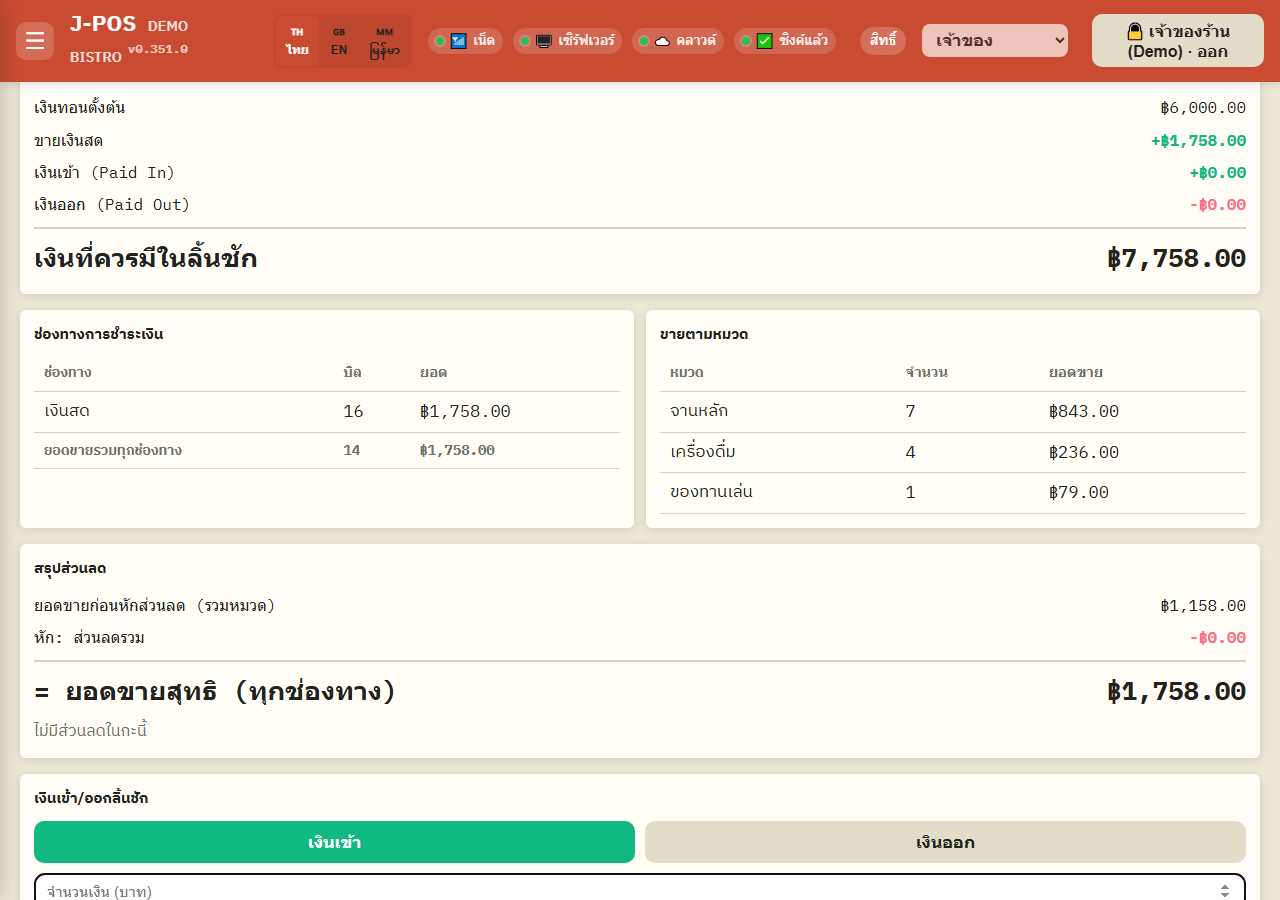
Open full size Record cash in / out during the shift
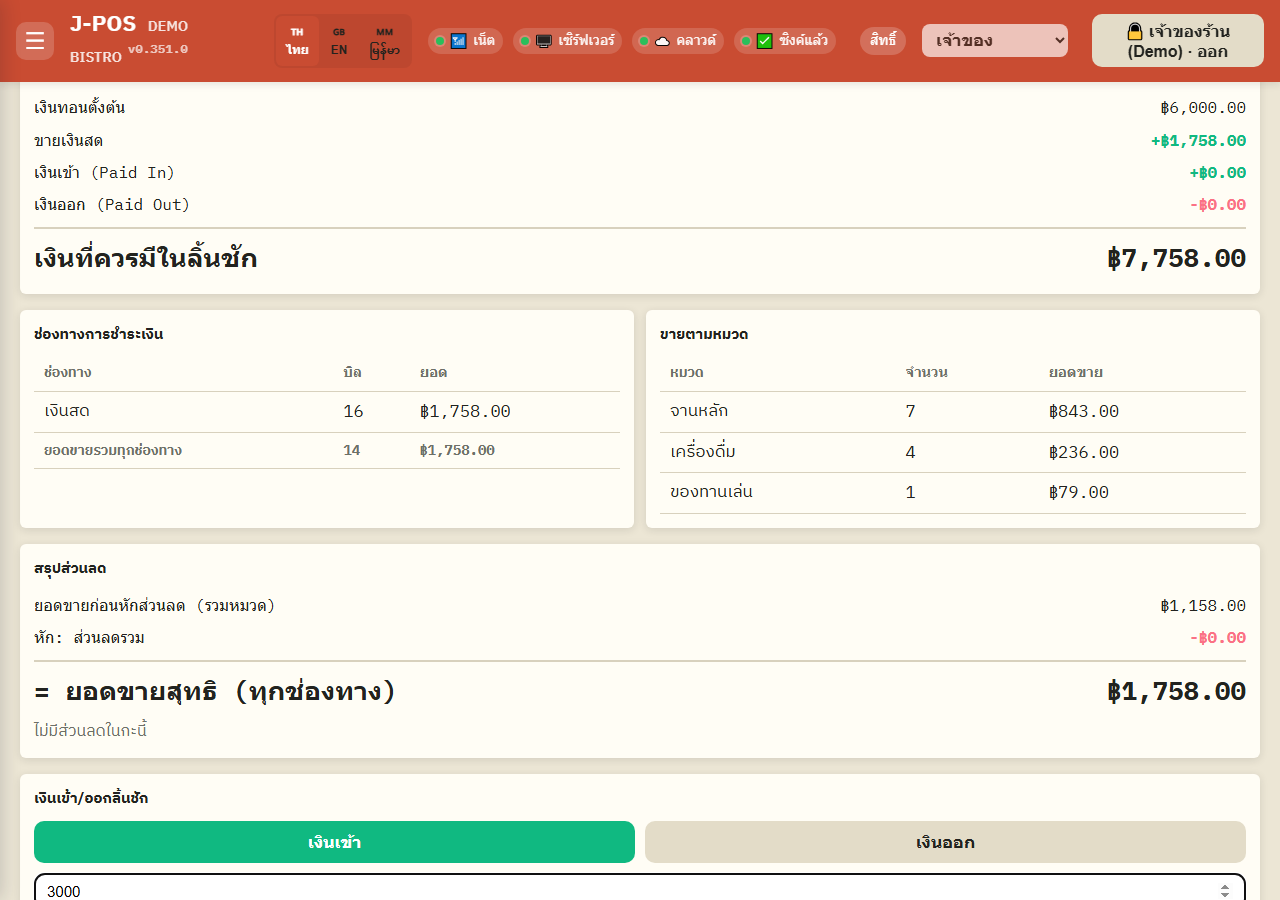
While a shift is open you can record cash coming into the drawer (e.g. topping up change) or cash going out (e.g. paying for a small supply run). Every cash-out requires a reason before saving (quick preset reasons are available) and an authorized PIN.
Once a cash-out is saved, the system automatically prints an evidence slip for it.
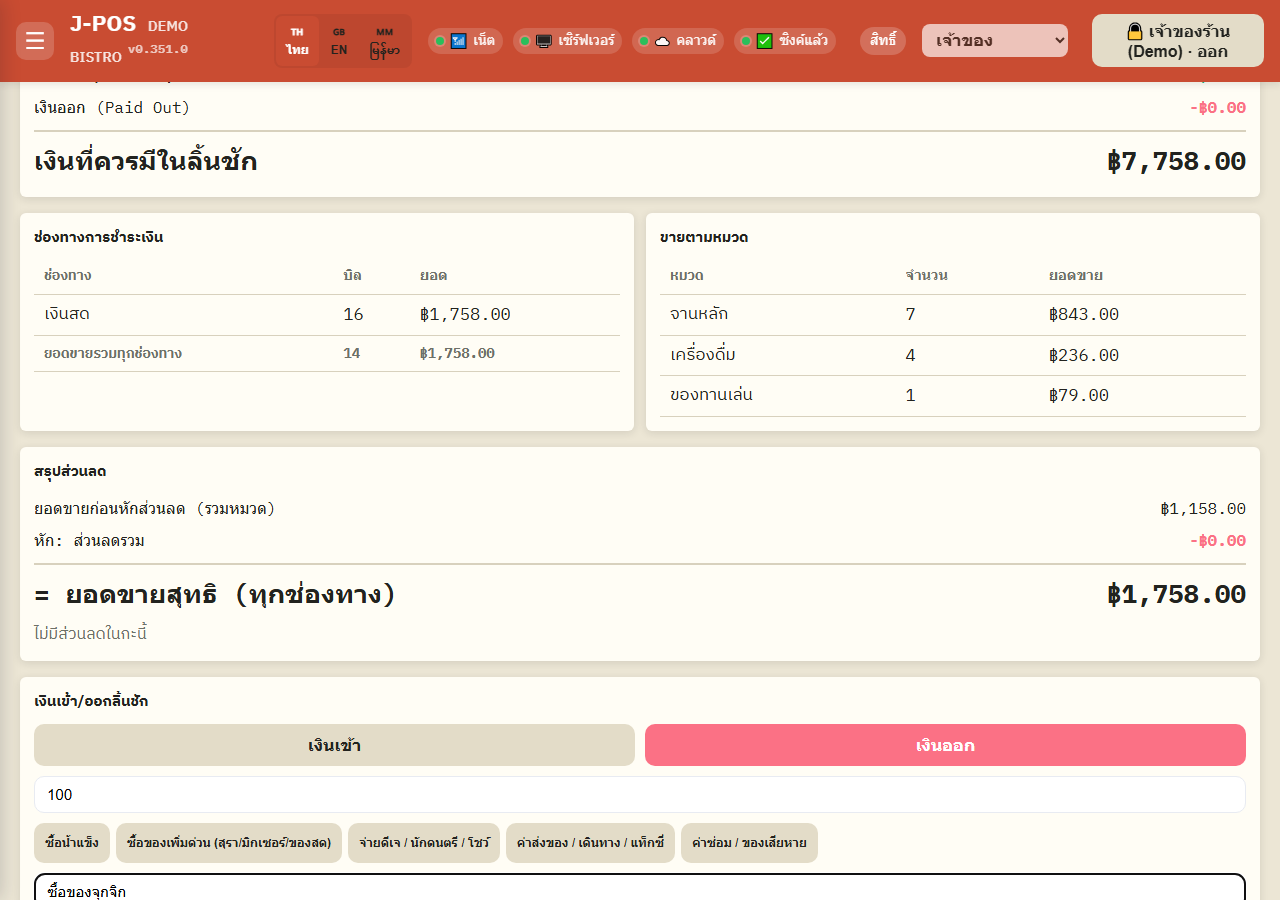
Open full size Open an empty drawer
A dedicated button opens the cash drawer directly, even with no sale or cash movement involved (e.g. to grab change to prepare).
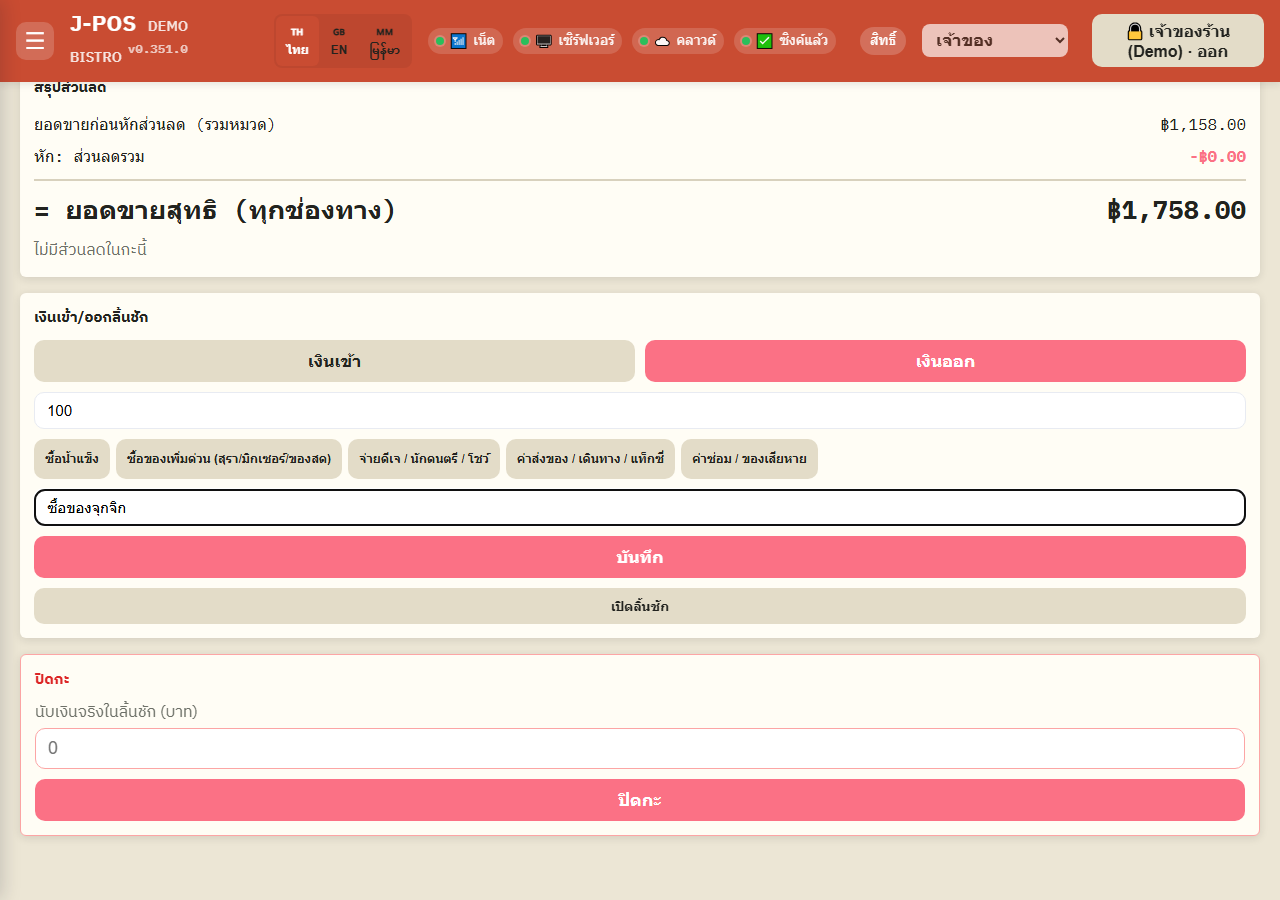
Open full size Close a shift
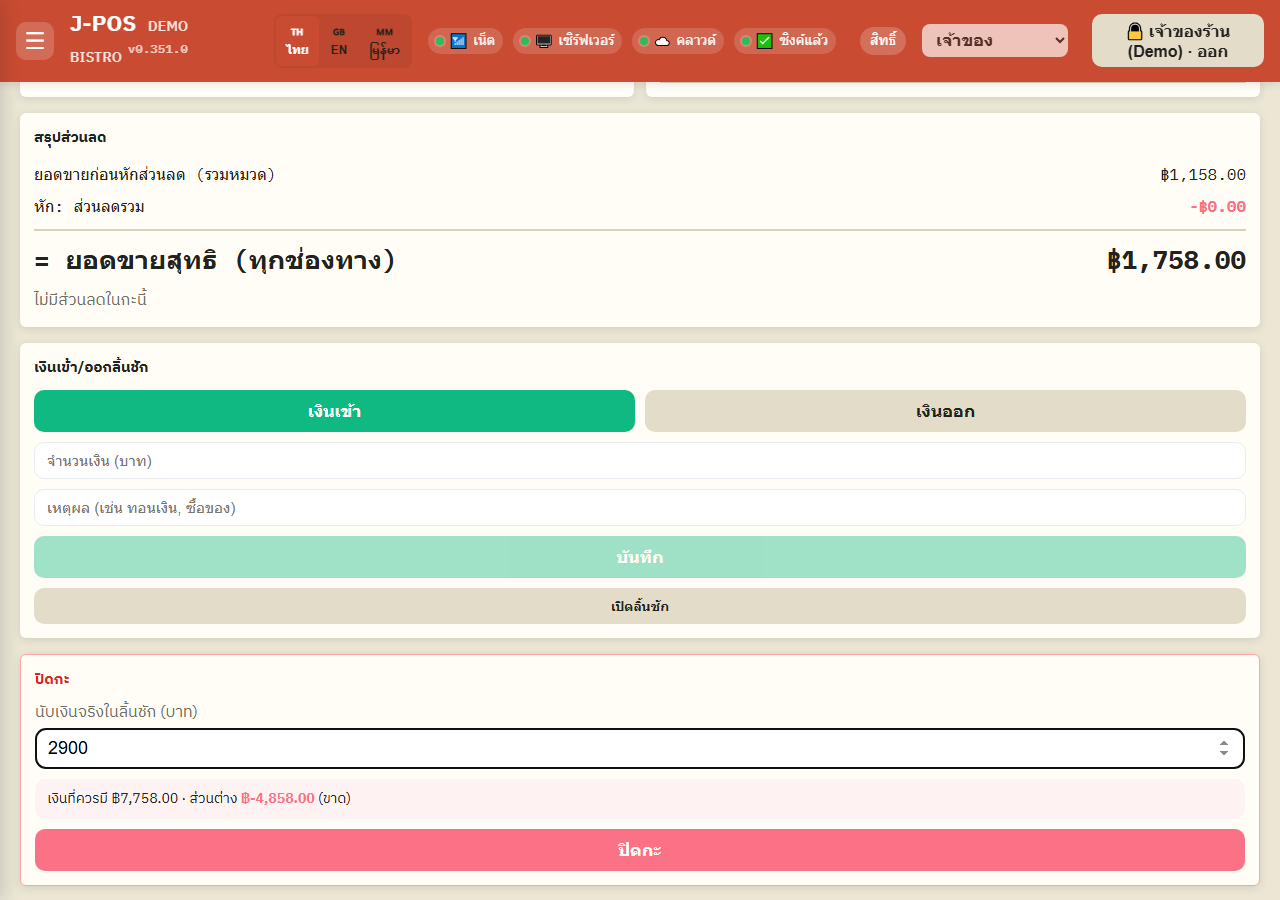
Count the actual cash in the drawer and enter it — the system compares it against the “expected” amount (opening cash + cash sales + cash-in − cash-out) and shows the variance before you confirm.
After confirming, you're taken straight to a printable closing slip.
Open full size
Per-shift sales summary + history
View live sales while the shift is open
While a shift is open, the shift screen shows a live running total for that shift, broken down by payment channel (cash/PromptPay/card) — no need to wait until closing to see it.
Open full size View the full shift history (managers)
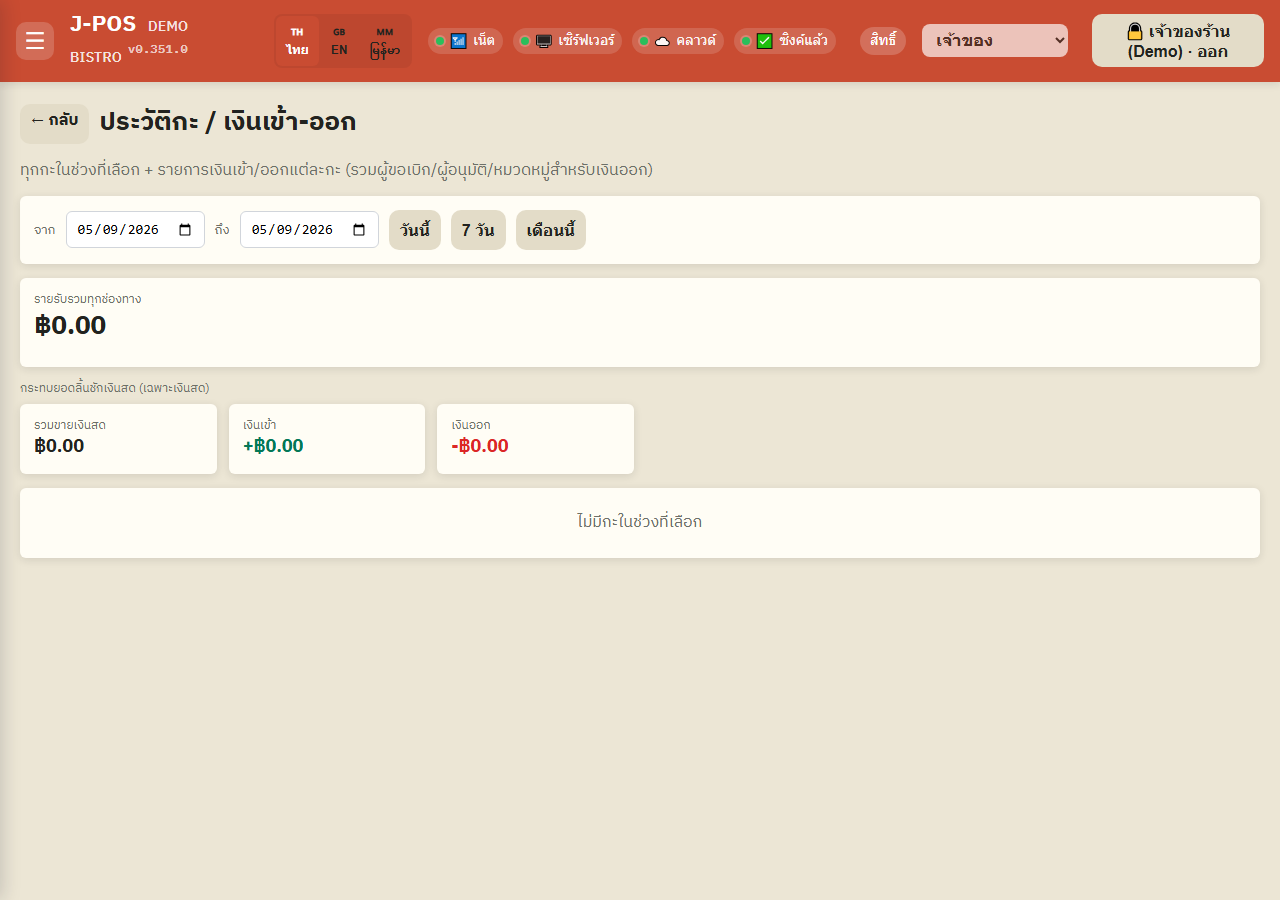
The “View all shift history” link (visible only with financial-reports or system-settings permission) opens a history page — pick a date range to see every past shift, with staff name, status, open/close time, and total sales across every payment channel, not just cash.
Each shift can be expanded to see every cash movement that happened during it, including who requested and who approved it.
Open full size
Common points of confusion
A cash-out always needs both a reason and a PIN
The cash-out button can't be confirmed until a reason is entered and an authorized PIN is provided — this prevents cash from disappearing from the drawer without a trail.
Live sales totals include every channel, but the closing-time cash comparison is cash-only
The running total shown during a shift and in the history is total sales across every channel (cash/PromptPay/card). But the “expected amount” calculated at closing time — the one compared against the physically counted cash — only uses cash sales plus cash in/out, since PromptPay and card payments never touch the drawer.
The shift screen is cashier/manager-only
The open/close-shift screen requires the payment-confirm permission (or system-settings permission) to even open. Viewing the full shift history needs the separate financial-reports permission on top of that.