BOOK 23/25Staff & system
Shop settings
The “Shop Settings” page bundles system-wide configuration across several tabs: shop info/tax/receipt, front-of-house operations, advanced settings/security, deeper CRM/member configuration, secrets for external integrations, and owner-only tools. The QR payment mode and cross-device sync each have their own dedicated guide (see the PromptPay and Data Sync guides).
Shop info, tax, and receipts
Set the shop name and operating hours
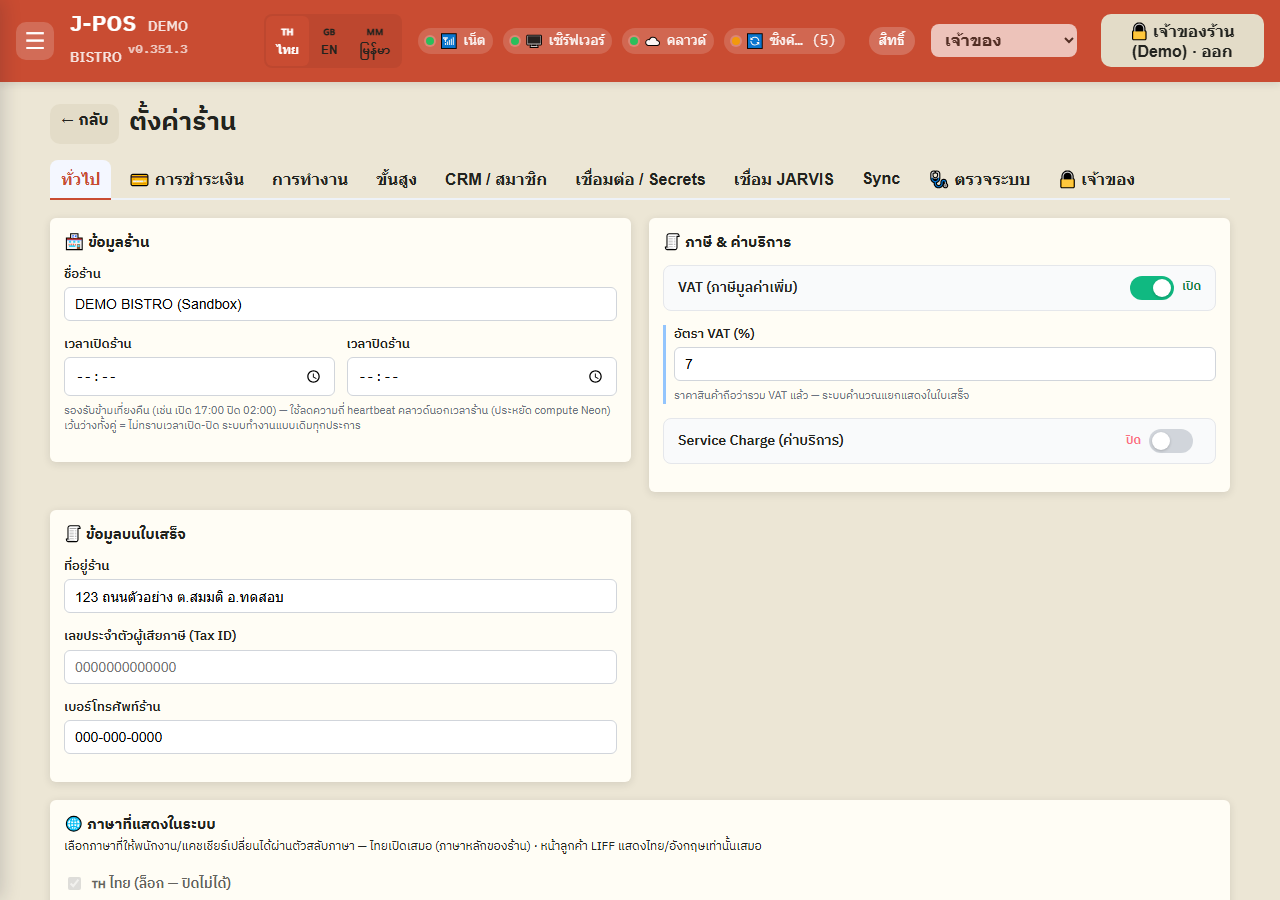
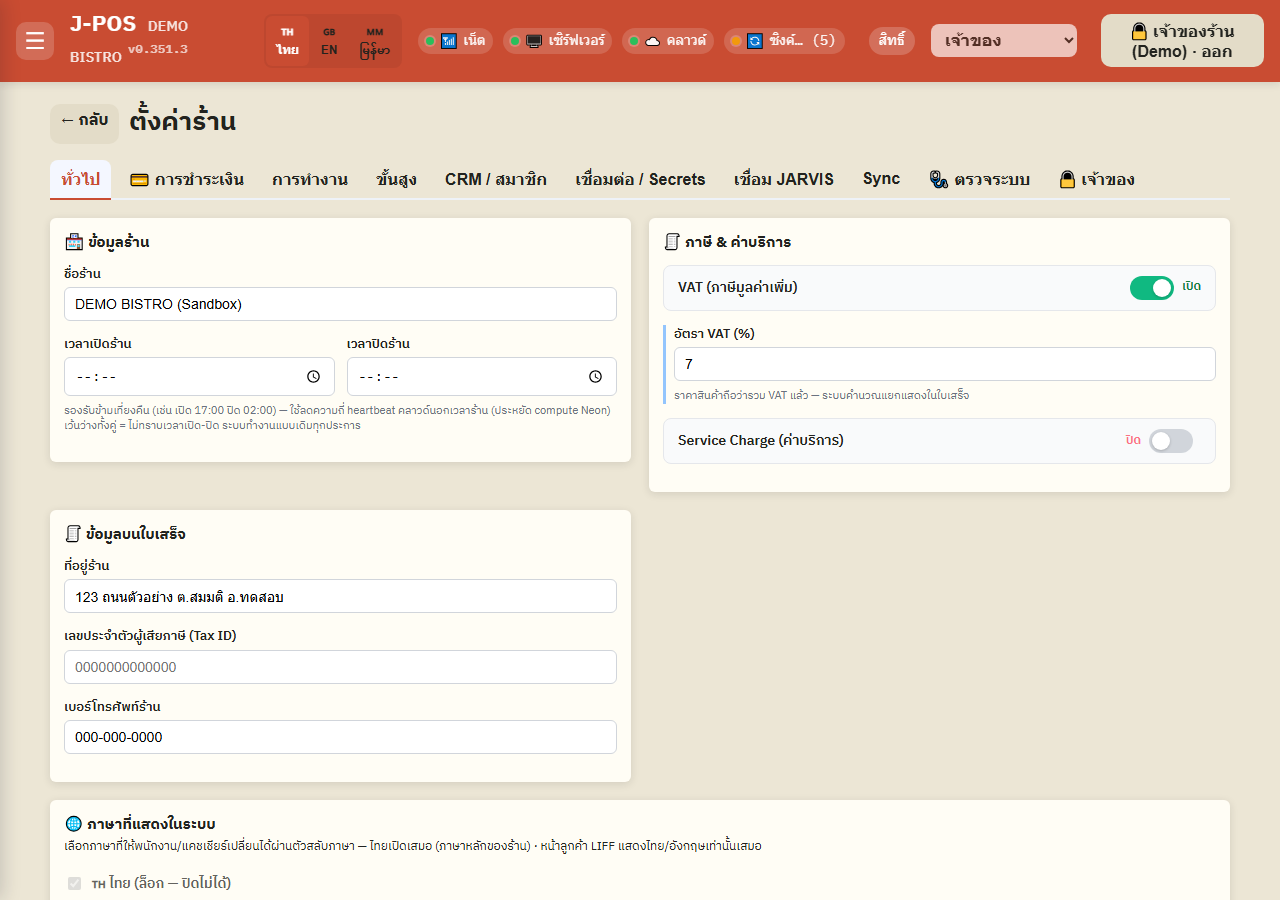
Go to “Settings” → the “General” tab and fill in the shop name, opening time, and closing time — this supports crossing midnight (e.g. open 17:00, close 02:00). Leaving both blank means the hours are unknown; the system behaves exactly as before.
These hours only reduce how often the system heartbeats the cloud database outside business hours, purely to save cloud usage — they don't force any feature on or off outside the configured window.
Open full size VAT, service charge, receipt info, and system language
Toggle VAT and Service Charge independently. Every menu price in the system is always treated as VAT-inclusive — the system splits out and shows the VAT amount on the receipt for you; there's no need to set a pre-tax price separately. Service Charge is calculated on the pre-VAT amount and added automatically to every bill once it's turned on.
The shop address, Tax ID, and phone number entered here appear on the header of every printed receipt.
The “System display language” card controls which languages staff may switch between (Thai/English/Burmese) — Thai is always locked on and can't be disabled. Turning off a language auto-resets any staff member who had it selected back to Thai. This setting has no effect on the customer-facing LIFF app, which always shows Thai/English only regardless of this setting.
Open full size
Front-of-house operations
Stale-item alert timers and automatic print retry
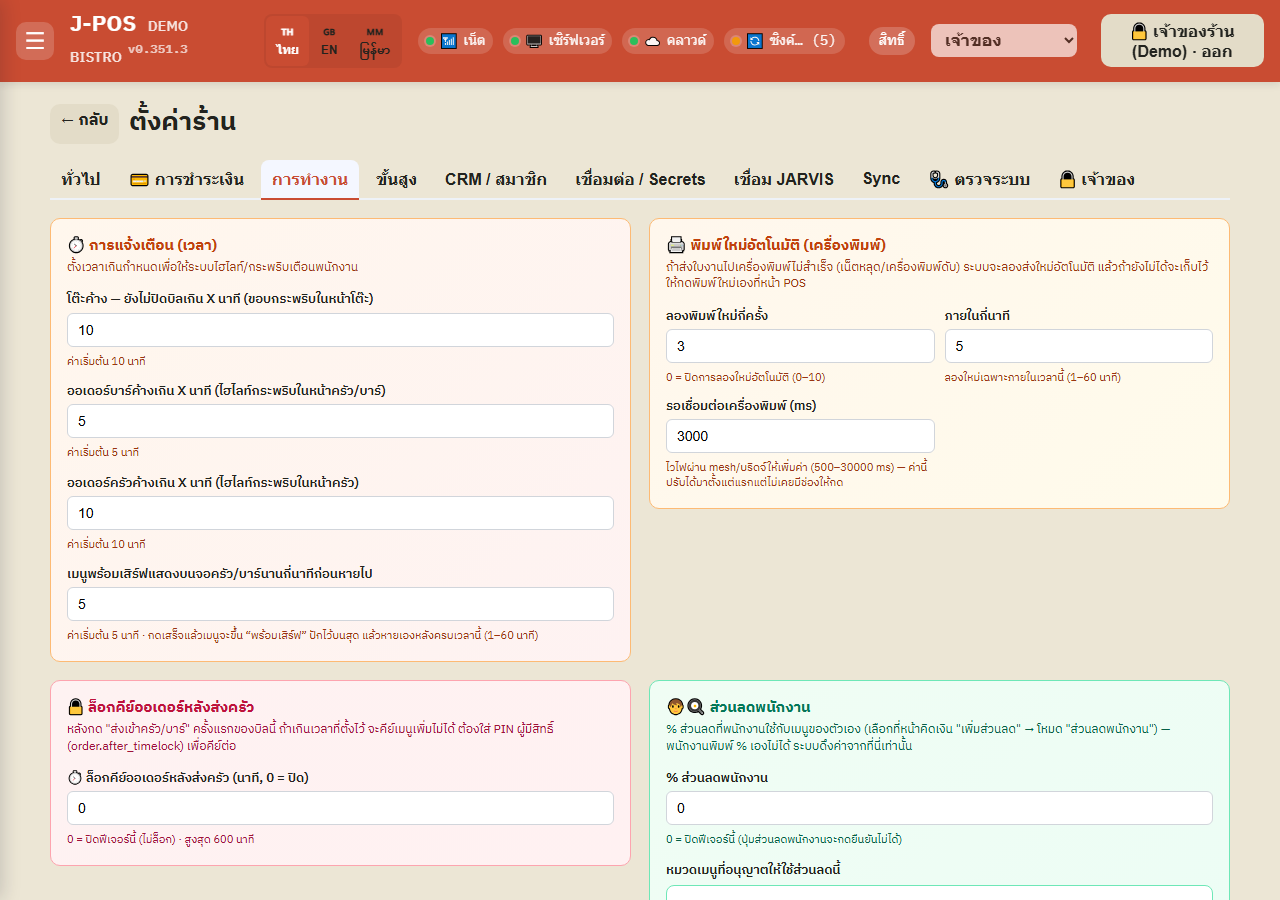
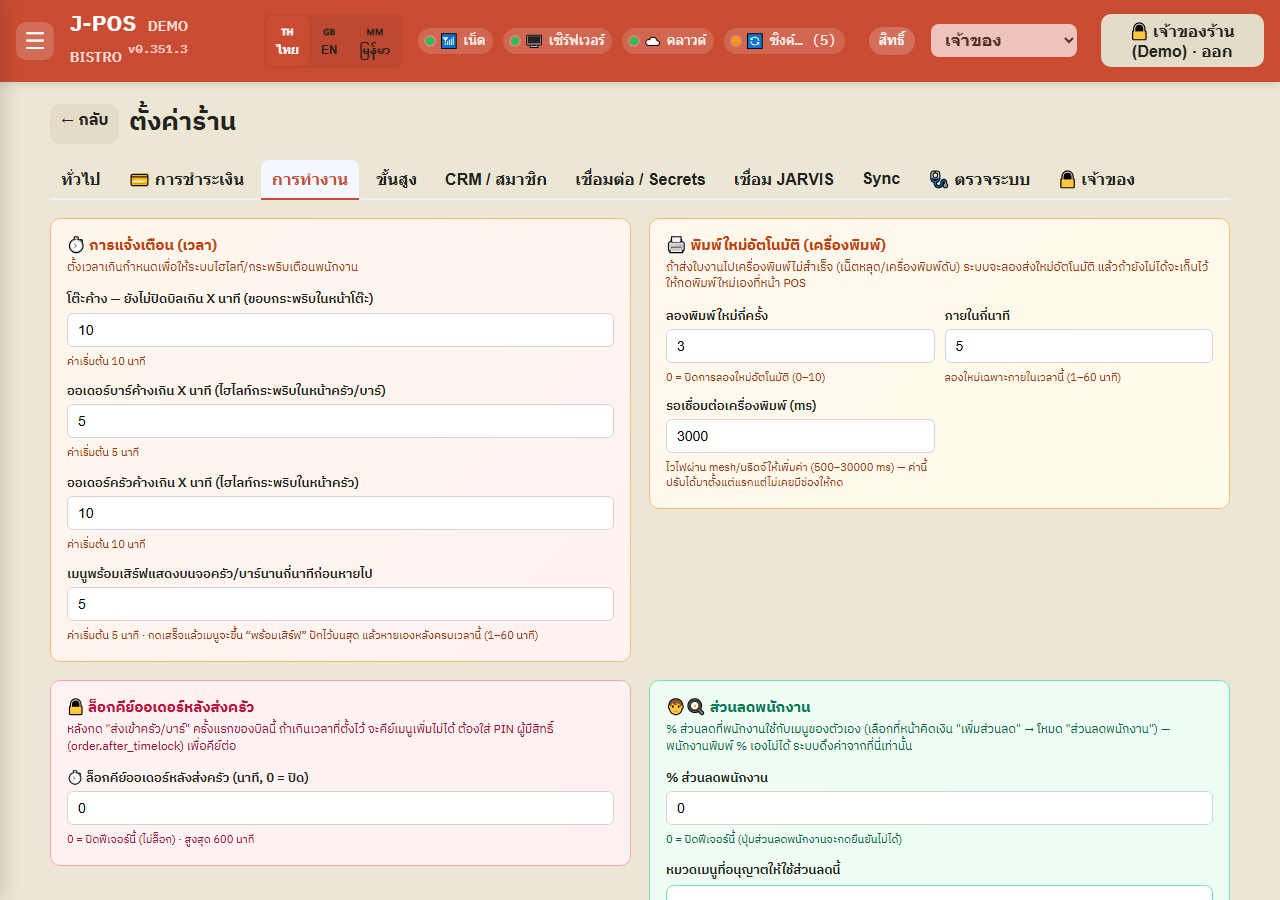
The “Operations” tab lets you set how long before the system highlights/flashes a warning for something stale, across 4 separate timers: a table that hasn't closed its bill, a bar order not yet made, a kitchen order not yet made, and a “ready to serve” item pinned on the kitchen/bar screen for too long before it auto-dismisses.
If a print job fails to reach the printer (dropped connection / printer off), the system automatically retries it for the configured number of attempts within the configured time window, before leaving it for staff to manually reprint from the POS screen — setting the retry count to 0 disables automatic retry entirely.
Open full size Order lock after sending to kitchen, and employee discount
Order lock: after the first “Send to kitchen/bar” press on a bill, once the configured time has elapsed no more items can be keyed into that bill — someone holding order.after_timelock must confirm with a PIN before keying can continue. Set to 0 to disable this feature entirely (no lock).
Employee discount: set a single central discount percentage plus which menu categories it applies to. Staff can only pick the “employee discount” mode on the billing screen — they can never type their own percentage. If the percentage is 0, or no menu category has been selected at all, the employee-discount button simply cannot be confirmed.
Open full size Table/floor display and enabled payment channels
Floor display: choose whether the “unavailable items” tab on the floor-plan screen groups by Category or by Group — this only affects display grouping, not which items are actually marked unavailable.
Enabled payment channels (a separate concept from slip-verification mode — see the PromptPay guide): choose among Cash / QR-PromptPay / Card (EDC) — an unchecked channel simply doesn't appear as an option on the billing screen at all; if none are checked, the system enables all of them automatically instead. The “Show payment QR” button on the table popup/billing screen can be toggled off independently, with no effect on the receipt's QR or the points-collection QR.
Automatic incoming-payment matching: turn the auto-match-to-open-bill system on/off, and set how long a window (from bill open) it's allowed to match within — this is a separate mechanism from the “PromptPay Money In (Alerts)” page used for manual matching when auto-matching fails (full detail in the PromptPay guide).
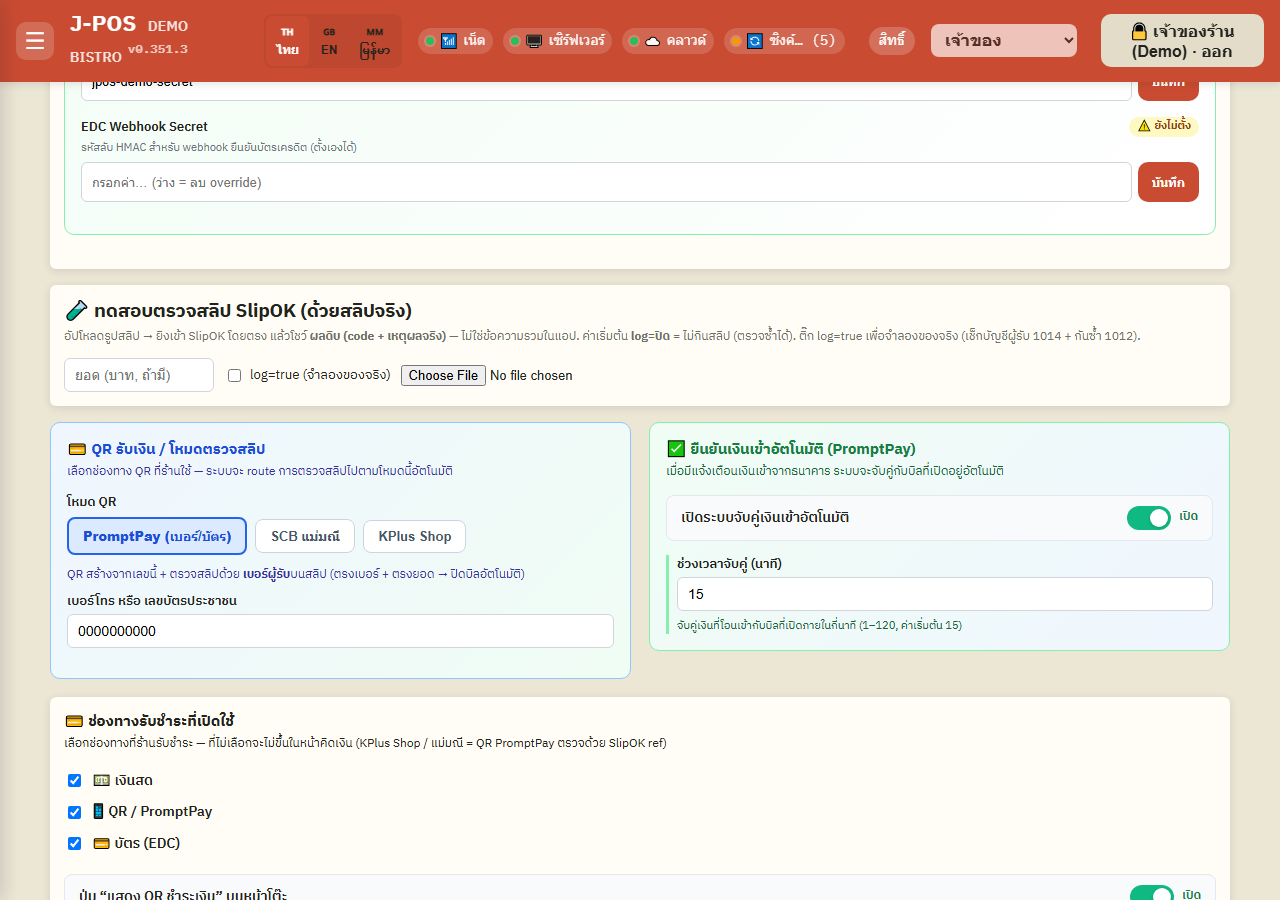
Open full size
Advanced and security
Liquor brand list and dual-approval refunds
The “Advanced” tab lets you add/edit/remove the list of liquor brands offered as choices on staff's bottle-keep deposit form — an “Other” option to type a free-text brand is always available regardless of how many brands are configured.
Turning on “Refunds require 2-person approval” (dual control) means every refund needs two different people holding bill.refund to each enter their own PIN — the same staff member can't confirm twice in place of a second person.
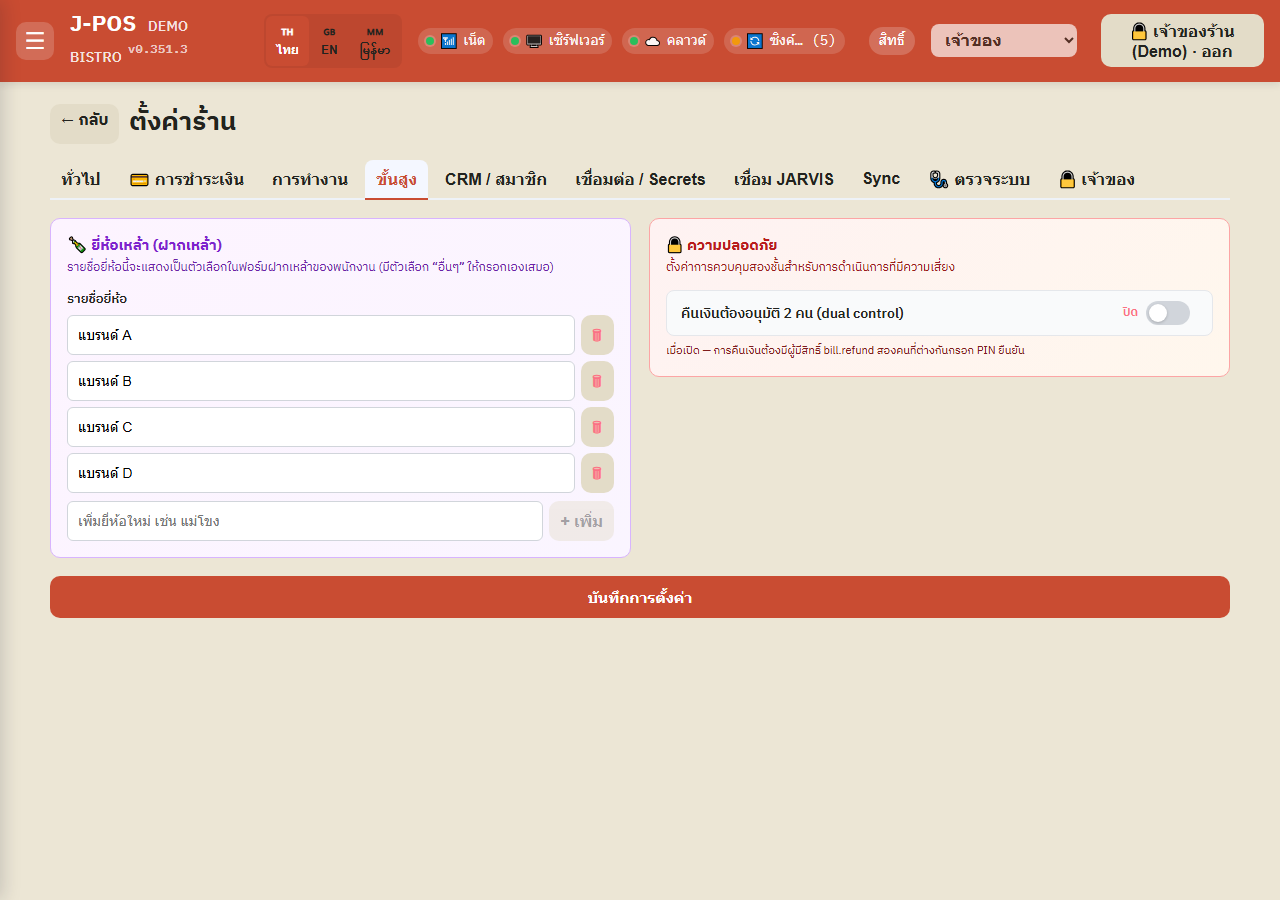
Open full size
CRM / Members — deeper configuration
Points earn rate, member birthdays, and coupon free-item selection
The “CRM / Members” tab sets the spend-to-points conversion rate (how many baht spent = how many points), shared across every points-earning channel.
Set how many days before/after a real birthday to show the birthday marker on the table for staff to notice — 0 means the marker shows only on the actual birthday.
For a free-item coupon targeting more than one eligible item, choose whether the customer/staff picks which item is free at redemption time (the default), or the system auto-picks the cheapest eligible item already on the bill — this setting has no effect on a coupon targeting only a single item (that item is always given free automatically regardless of mode).
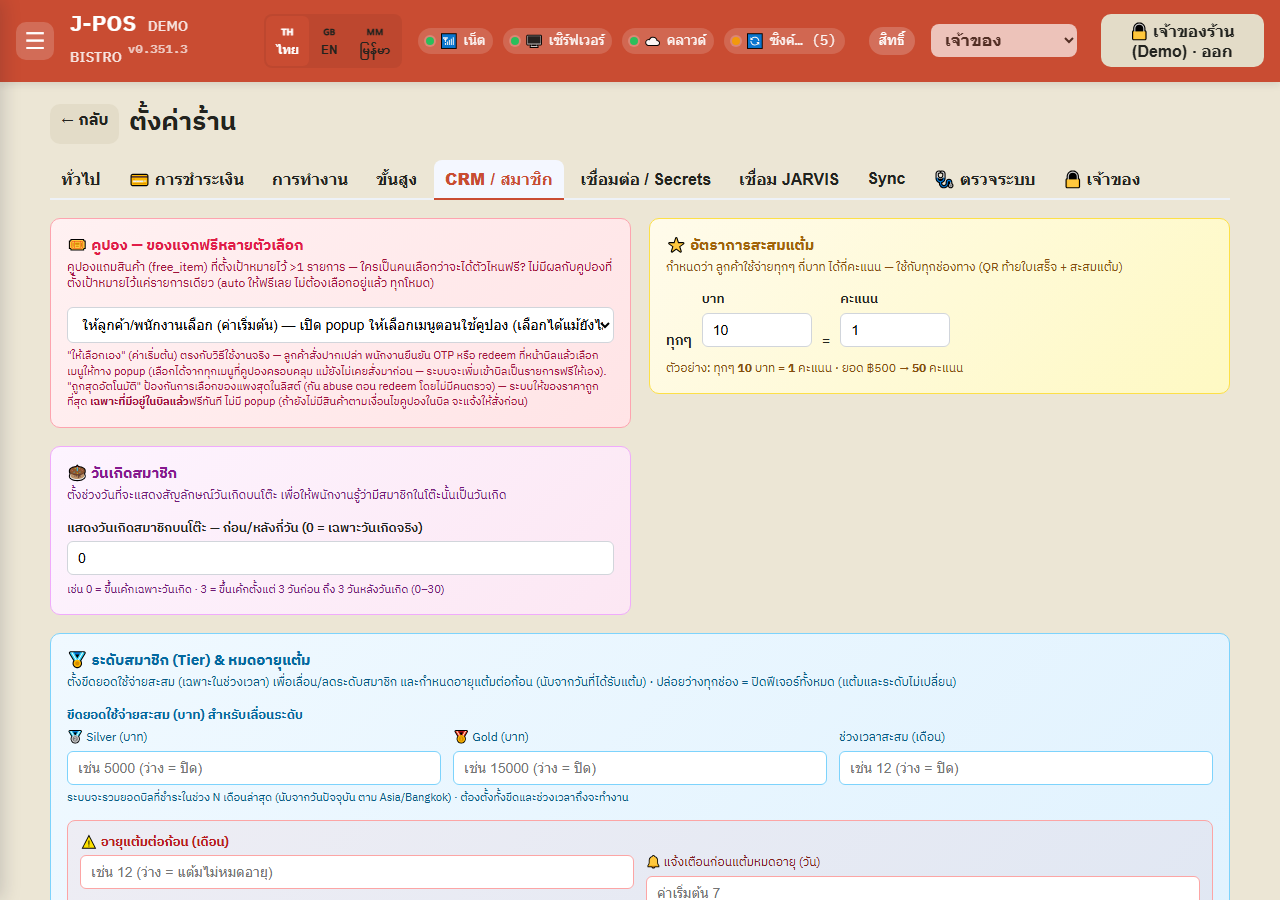
Open full size Membership tiers and points expiry
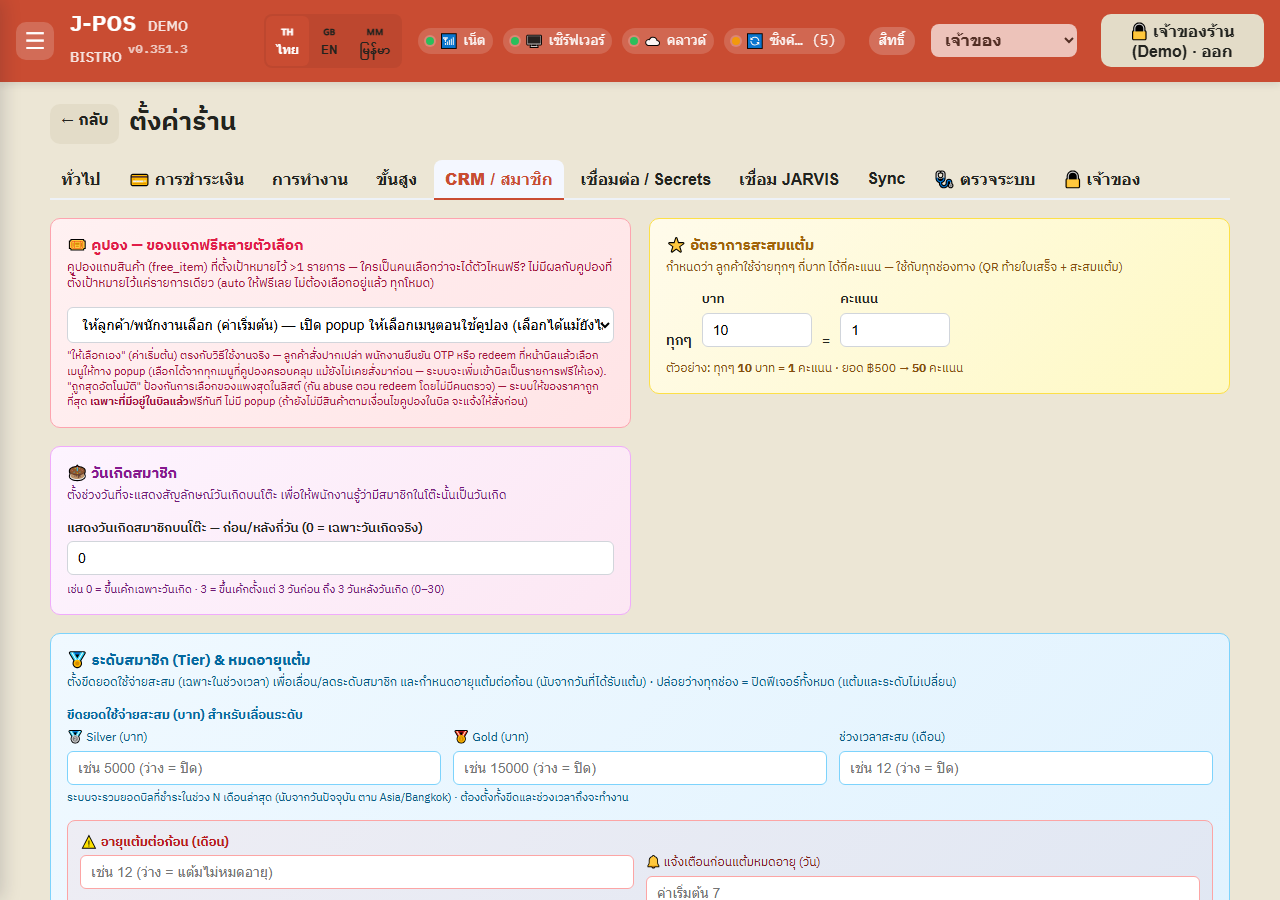
Set the cumulative spend thresholds (baht) for Silver/Gold, plus the rolling time window (months) that spend is measured over — both the threshold AND the window must be set for this to take effect at all. Leaving either one blank means tier is never auto-computed; it only ever changes when staff manually edits it from the Member Center page (see the Members/loyalty guide for the manual-edit steps).
Set how many months each individual lot of points lasts, counted from the day it was earned, plus how many days of advance warning to show before expiry — leaving the expiry-months field blank means members' points never expire at all.
Open full size Automatic LINE notifications
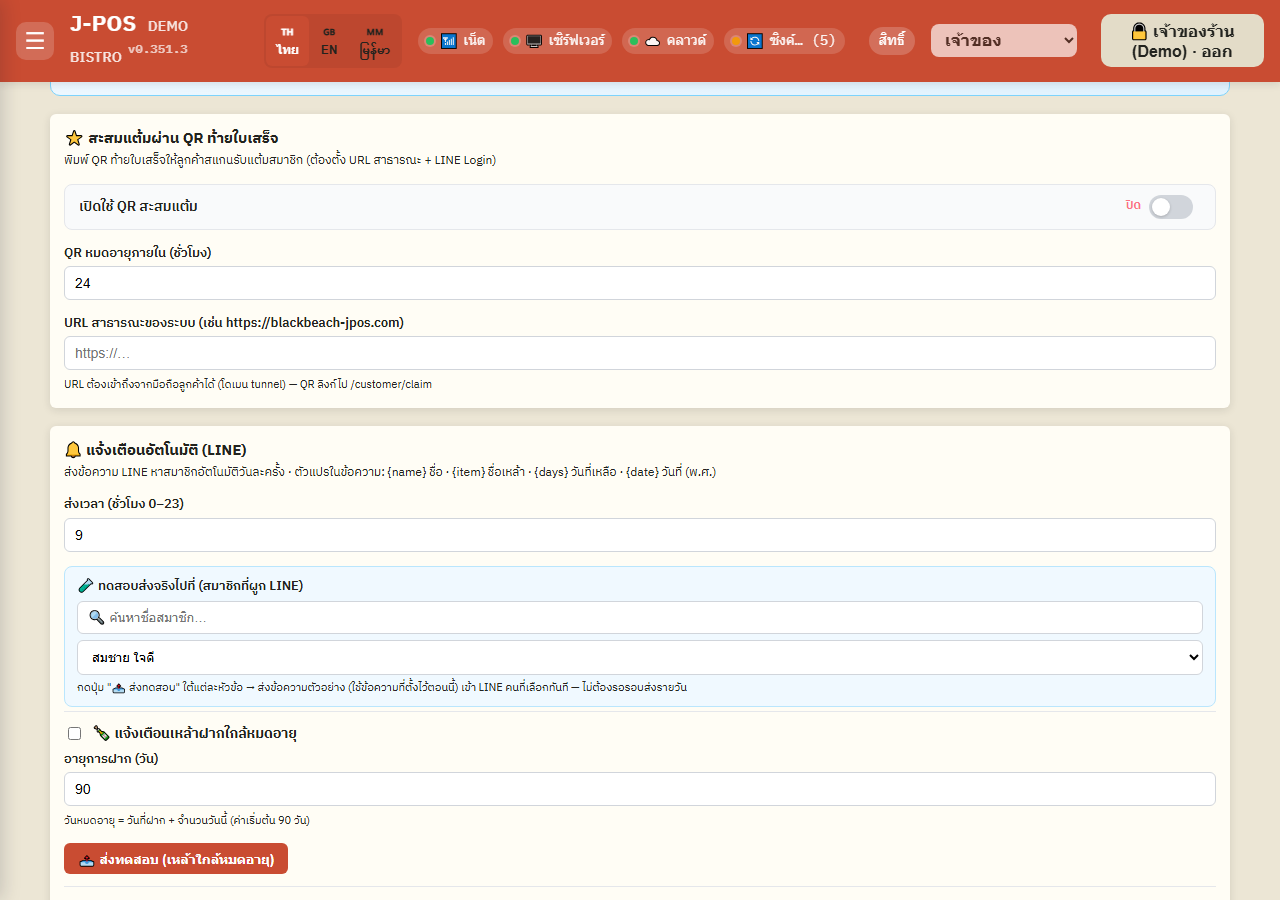
Set the hour of day (0-23) the system sends its daily notifications, then turn each topic on/off independently: bottle-keep nearing expiry (with its own configurable advance-warning days), an actual birthday, and the 1st of a birth month — each topic's message template is editable, with the variables {name} {item} {days} {date} available for use.
Send a real test message immediately without waiting for the daily cycle — pick a member who already has LINE linked from the search box above, then press “Send test” under the topic you want (at least one member must have logged into the LIFF app with LINE before any name appears to pick from).
Open full size Receipt points QR and the daily reservation summary to the staff LINE group
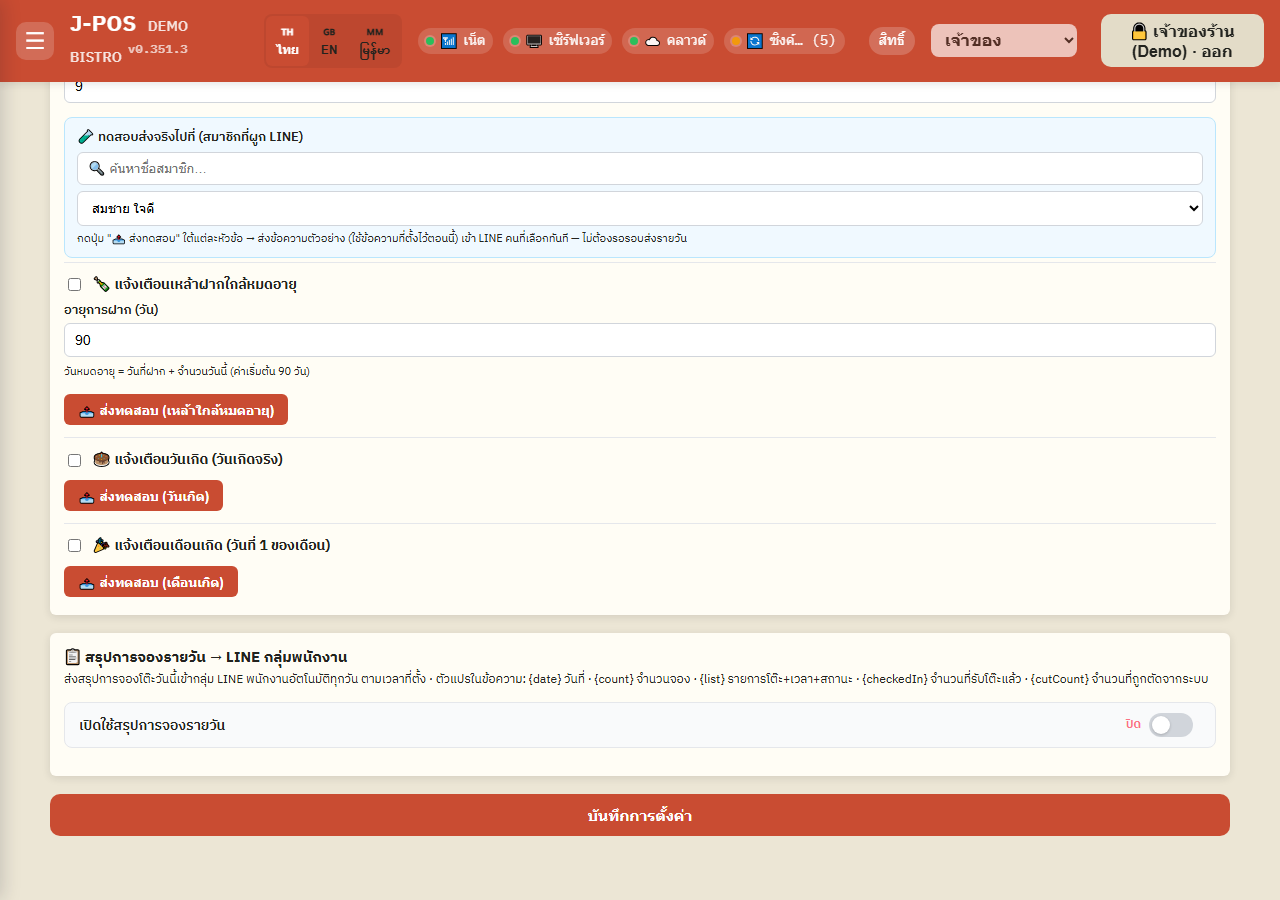
Turn on the receipt's points-collection QR and set its expiry (hours) — you must also set the “Public system URL” (a domain reachable from a customer's phone outside the shop) in that same card first, or the points QR simply won't work.
Today's table reservations get summarized and sent to the staff LINE group automatically every day at a configured time — you must first set the “LINE Channel Secret” under the “Connect / Secrets” tab, then finish the webhook setup in the LINE Developers Console, then send any message once in the staff group and press “Load captured groups” on this page to pick the group ID. The message template (with variables {date} {count} {checkedIn} {cutCount} {list}) is editable, and a test send works immediately here too.
Open full size
External integrations and system-admin tools
Manage secrets for LINE, JARVIS, AI, and Discord alerts
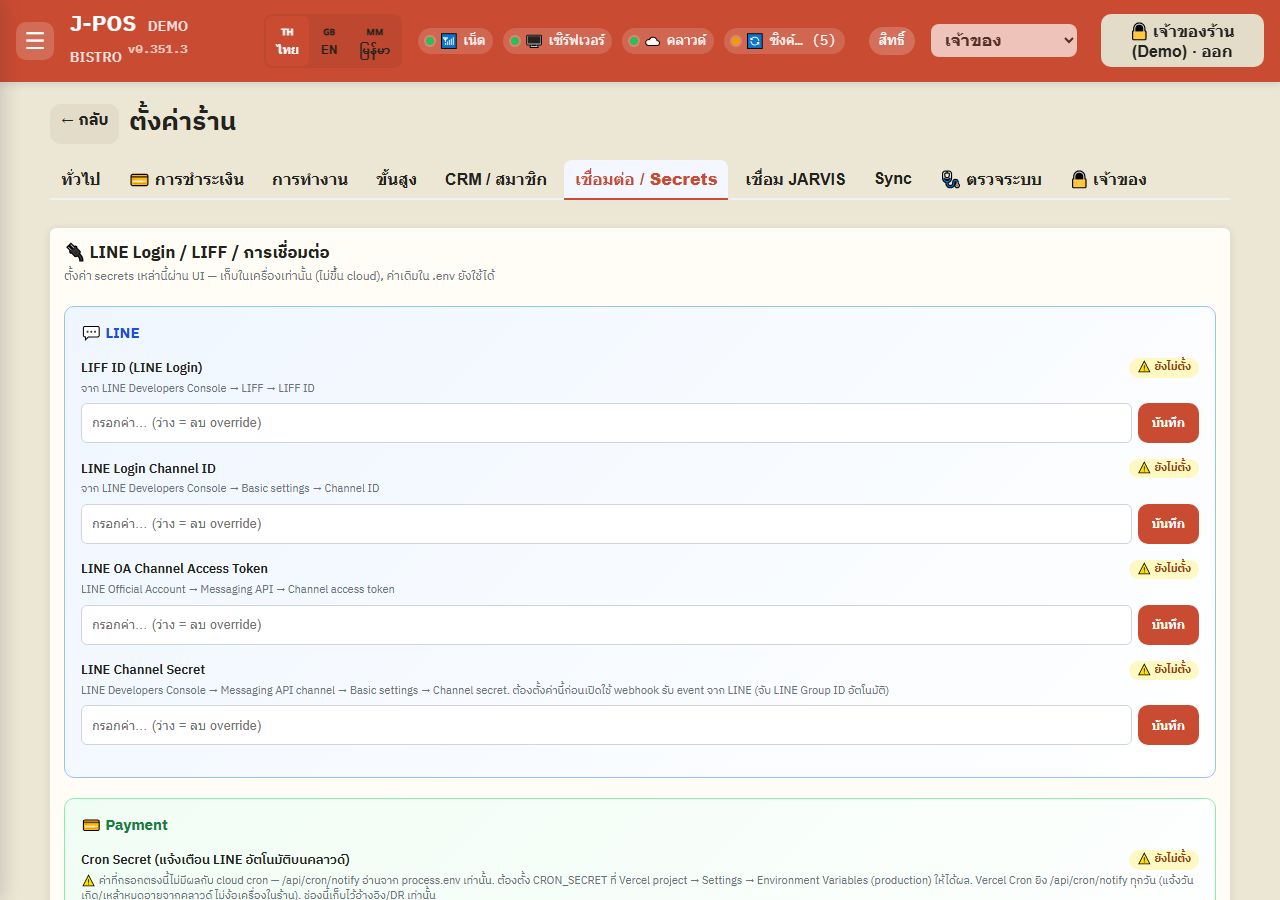
The “Connect / Secrets” tab gathers every non-payment key in one place (payment-side keys live under the “Payment” tab — see the PromptPay guide): LIFF ID + LINE Login Channel ID + LINE OA Token + LINE Channel Secret for LINE Login/webhook, the Gemini API Key for OCR/translation, the JARVIS Staff Import and JARVIS Accounting Ingest pairs (URL+Token each, for pulling staff and pushing closed-shift sales into JARVIS accounting), the Discord Webhook URL for end-of-day sales summaries and cases that failed to reach JARVIS and need a human to review, and the Cron Secret.
Keys marked sensitive never redisplay their real value on screen once saved. This whole tab requires the system.admin permission to view or edit — settings.manage alone is not enough (see the edge cases).
Open full size Track the JARVIS integration outbox and force-run scheduled jobs
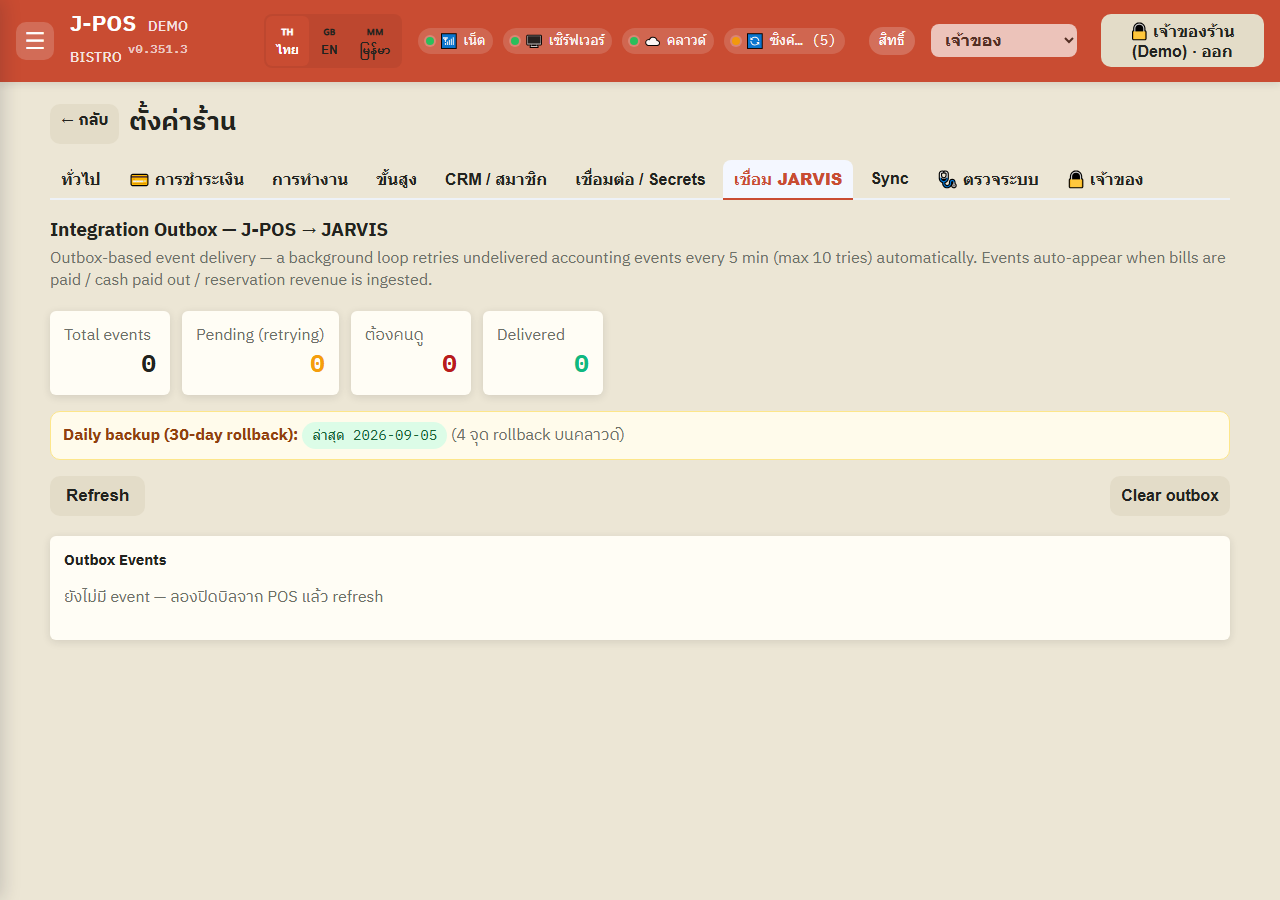
The “Connect JARVIS” tab shows the queue of accounting events (bill closed / cash paid out / reservation revenue) waiting to reach JARVIS, with counts for total / retrying / needs-review / delivered — the system retries automatically every 5 minutes (up to 10 attempts per event); once an event exhausts its retries it's marked “needs review” for a human to check, and a separate daily-backup status card sits on the same page (a different subsystem from the outbox above).
The “Diagnostics” tab lets you force-run scheduled jobs on demand instead of waiting for their real time (end-of-day summary, daily notifications, daily reservation summary) — safe to press repeatedly since each job has its own single-flight/day-claim guard against double-sending.
Open full size Owner-only tools
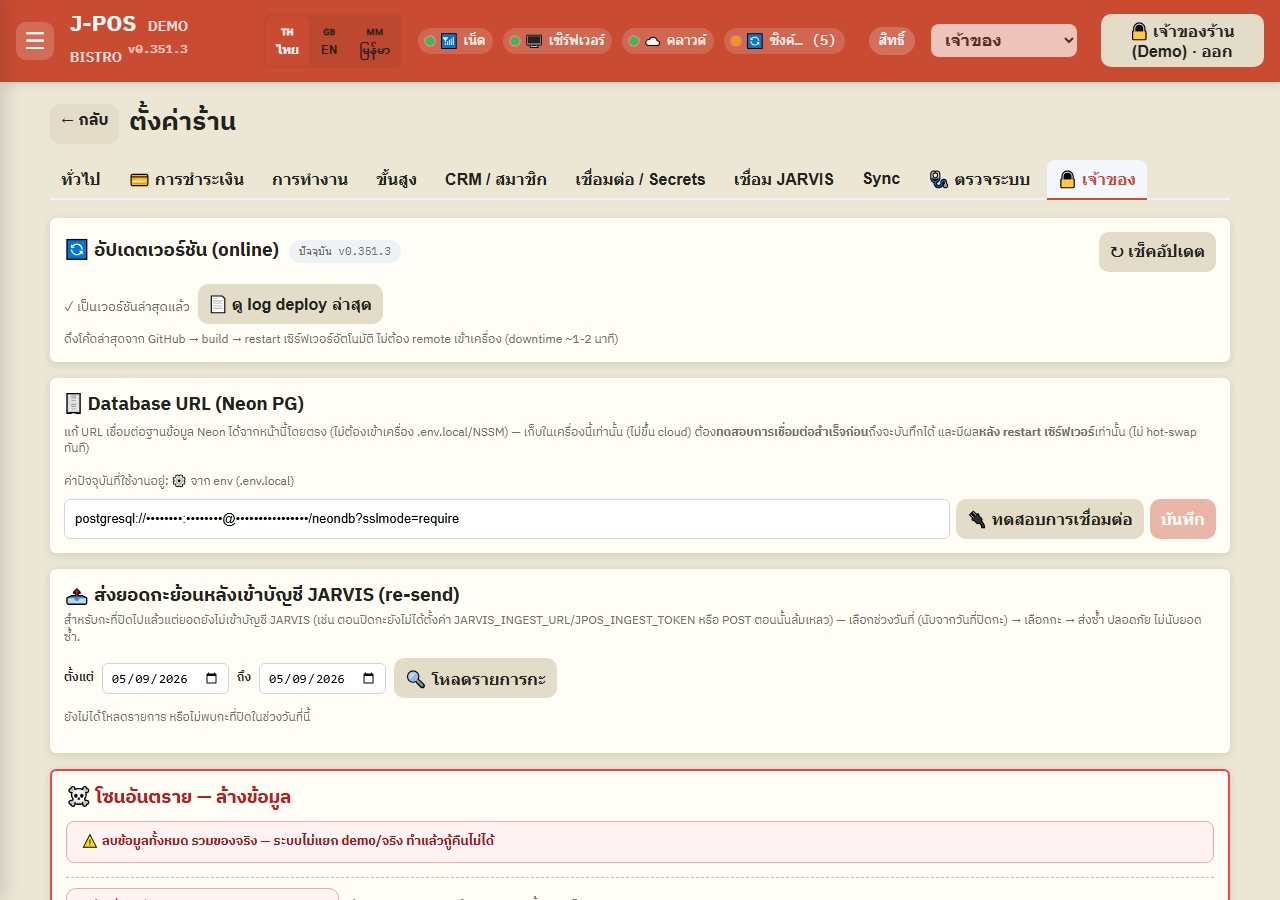
The “🔒 Owner” tab holds several high-impact tools: update the running version from the web (pulls new code + builds + restarts automatically, no need to touch the machine), edit the Neon Database URL directly from the web (you must pass a connection test before it can be saved, and the change only takes effect after a server restart, not a hot swap), and re-send historical shift totals into JARVIS accounting (for shifts that closed before JARVIS was properly connected, or whose original push failed).
The danger zone has 2 buttons: “Go live” wipes every order/bill/payment/print-queue record (used once test data is done and the shop is going live for real), and “Wipe all members (CRM)” removes every member + coupon + reservation + bottle-keep record — both always require an additional PIN confirmation before they actually run.
Open full size
Common points of confusion
settings.manage alone only shows the “Diagnostics” tab — every other tab requires system.admin
This page checks permission in two layers. The first requires settings.manage just to open the page at all (otherwise it shows “no permission” immediately). The second: if you hold settings.manage but not system.admin, the page falls back to showing ONLY the diagnostics panel — no tab bar, no settings form at all, including the “Owner” tab (version update / Database URL / data wipe), which is likewise blocked. An owner has to deliberately grant system.admin to another role to expose the full settings page — granting settings.manage alone (which manager/assistant-manager roles already hold by default in this system) is not enough to reach anything here besides diagnostics.
Menu prices are always treated as VAT-inclusive — never a pre-tax price
There is no “price excludes tax” mode — every configured menu price is automatically treated as already including VAT once VAT is turned on; the system only splits out and displays the VAT portion on the receipt, it never recalculates a new base price. Service Charge, meanwhile, is always computed on the pre-VAT amount, not the post-tax total.
The employee-discount button silently disables itself if the config is incomplete — no warning shown while editing
The “employee discount” button on the billing screen simply cannot be confirmed if either condition is missing: a 0% rate, or zero eligible menu categories selected — both a non-zero percentage AND at least one selected category are required at the same time before it actually works.
The printer-connect-timeout field turns 0 into the default, not the minimum
Most numeric fields on this page clamp a 0 or negative entry up to their configured minimum. The “printer connect timeout (ms)” field is different — it uses a different value-conversion rule from the other fields on this page: typing 0 (or anything that can't be parsed as a number) is treated as “never configured” and immediately falls back to the system default, rather than being pushed up to the allowed minimum like every other numeric field on this same page.
The Cron Secret entered here has no effect on the cloud cron
The Cron Secret value saved through this page is kept for reference/manual use only (e.g. the “Force-run EOD summary” button on the diagnostics tab) — the jobs that actually run automatically every day on the cloud (birthday/bottle-expiry notifications from the cloud with no dependency on the in-shop machine) read this value only from the cloud server's own environment variable. It has to be set there separately to actually affect the cloud cron.
A web-triggered version update causes temporary downtime and logs every device out automatically
Pressing “Update version” on the owner tab pulls new code, builds, and restarts the real server — the system is unusable for roughly 1-2 minutes while this happens. Once it completes, every device/browser tab with the system open (not just the one that triggered the update) is automatically logged out and refreshed. Best done while the shop is closed or has no active customers.
Changing the Database URL only affects this one machine, and requires a restart before it takes effect
A Database URL saved through this page is stored locally on that machine only (it is never pushed to the cloud for other machines to see), and a connection test must pass before it can be saved at all — the value actually in use keeps running unchanged until the server is restarted; it never hot-swaps at save time. On a machine running on Vercel (e.g. a standby instance), this card renders read-only instead, since that deployment's value comes straight from a Vercel environment variable and can't be edited from this page.
The danger-zone buttons delete real data too — the system doesn't distinguish test data from live data
Both “Go live” and “Wipe all members (CRM)” delete every record in their category with no distinction between test data and data currently in real use — this cannot be undone, and both always require an additional PIN confirmation before running. Use these only once, to clear test data before the shop's first real day of operation.
Re-sending historical shift totals is safe to repeat — an already-sent shift is never double-counted
The “re-send shift totals to JARVIS” tool can be pressed for the same shift as many times as needed, safely — JARVIS checks a unique reference per shift+channel, so a shift/channel already recorded successfully comes back marked “duplicate” and is never counted twice. Only channels that never successfully posted before actually get recorded on a re-send.